I’ve written a short novel’s worth of words using Monologue, a smart dictation app for Mac and iOS that I’ve been using almost every day since I got it in February. Logging over 86 thousand words for a total of 19 hours saved, I’m currently ranked 540 in Monologue’s lifetime leaderboard. That means I’m in the top 3.8% of users – I’m using the hell out of this app.
What is Monologue?
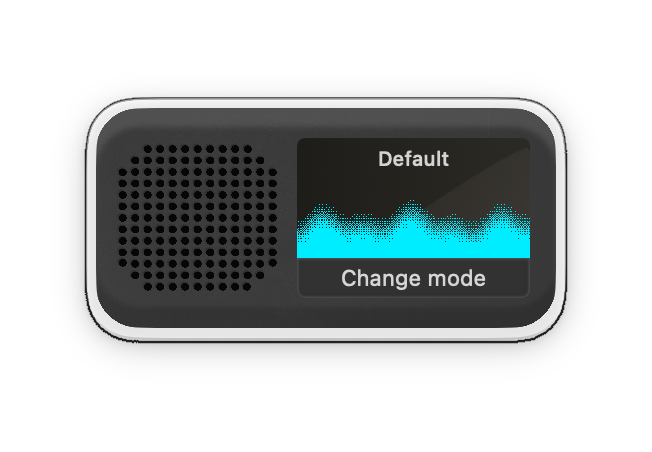
Monologue for Mac lives in a small “monophone” window with a lovely teal waveform and grey speaker (which can also be changed to white, blue, green, red, or brown). The app primarily hides off-screen to the side of your Mac desktop, peeking in from the right – when you press the keyboard command, Monologue pops out from the side and starts dictating, with the waveform reacting as you speak.
Currently, my primary usage is on the Mac – the keyboard shortcut for pressing the right Option button is super convenient, and I love adding Option + Space for extended hands-free dictation.
Transcription
Transcriptions are automatically cleaned up for basic issues like restarting or flubbing a word – things like lists are automatically detected and pasted as bullets, for example. I’ve found Monologue’s dictation models fantastic and, importantly, very quick – the only thing it tends to get wrong is App Intents which it thinks is “App Intense,” which is fair enough.
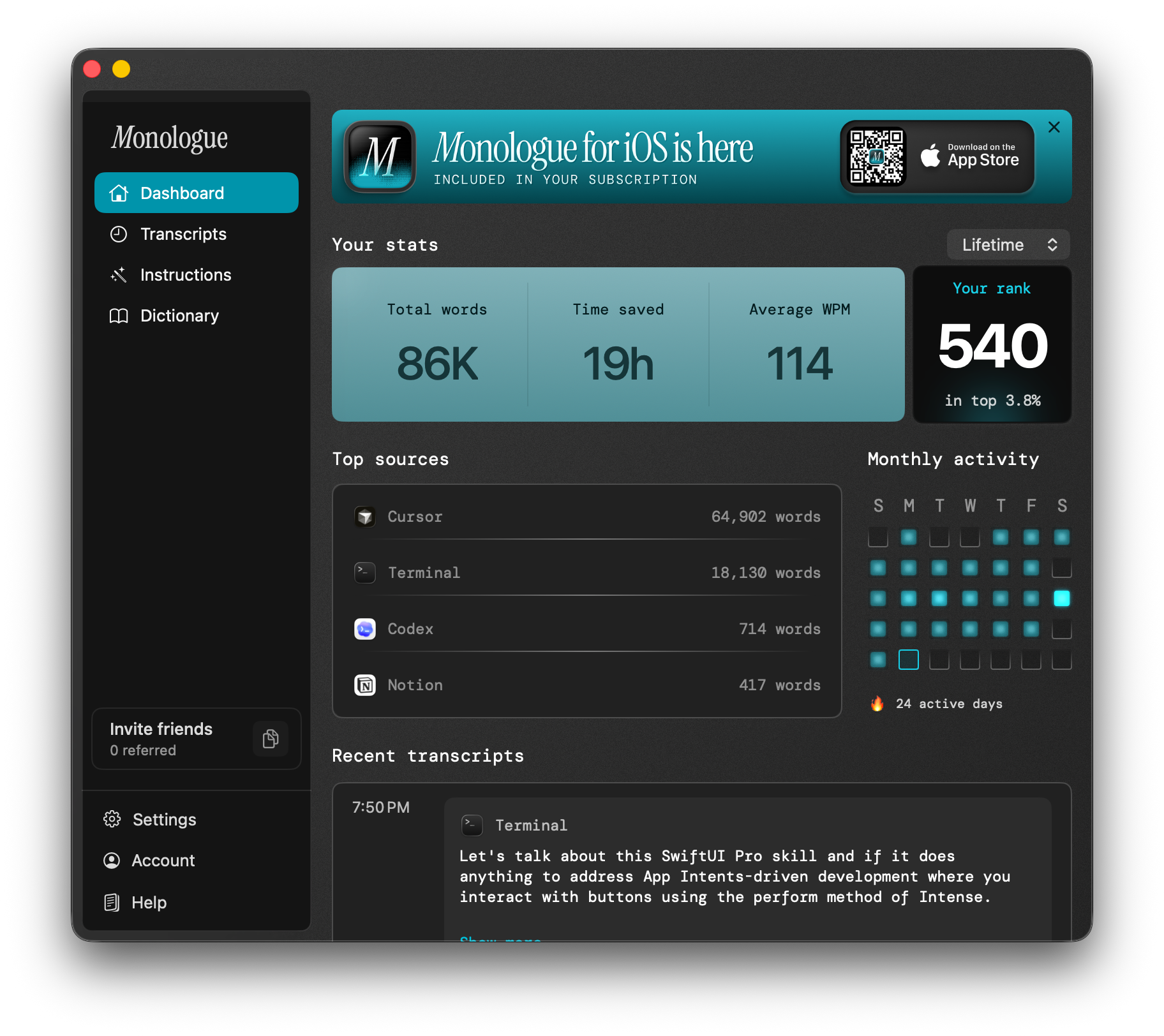
The app logs transcripts locally, pulling in recent options in the main screen to copy quickly, plus a full view of everything you’ve dictated on that machine. Transcriptions are done remotely, but there’s also a local model option for anyone with security requirements.
Instructions and Modes
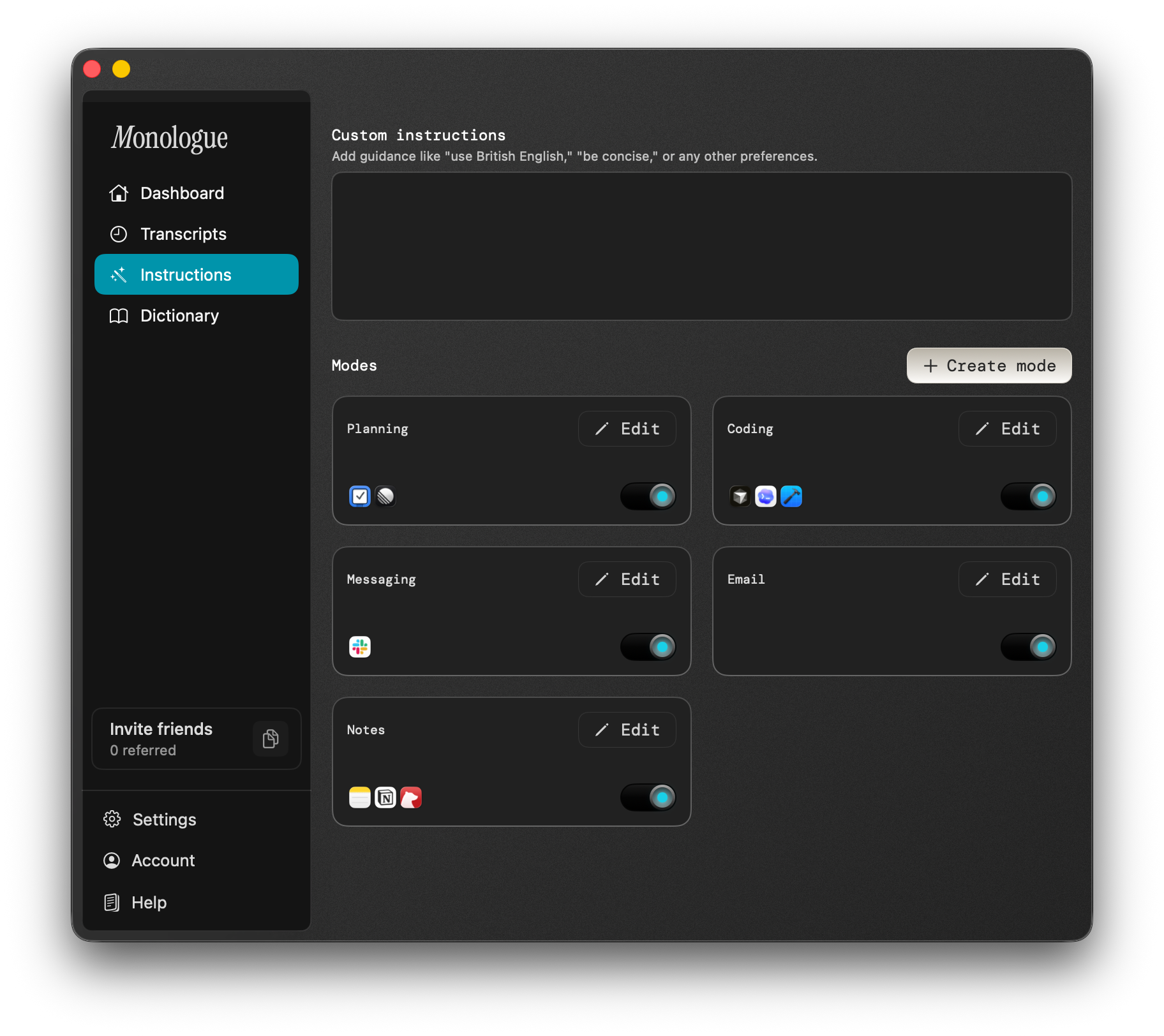
The app also supports Modes, which display on the mini screen when the app is active – when I’m in Cursor, “Coding” mode shows and it’ll optimize dictations for the task at-hand with the following instructions:
- Use variable/function/class names, capitalization and symbols (camelCase, snake_case, PascalCase).
- Keep all technical terms, library names, and framework references exactly as spoken.
- Never abbreviate or summarize technical explanations.
Other modes include Messaging, Email, and Notes, plus you can create a mode – I’ve been testing a Planning mode for Things and Linear, although haven’t gotten much success with my own instructions so far.
Monologue for iPhone and Apple Watch
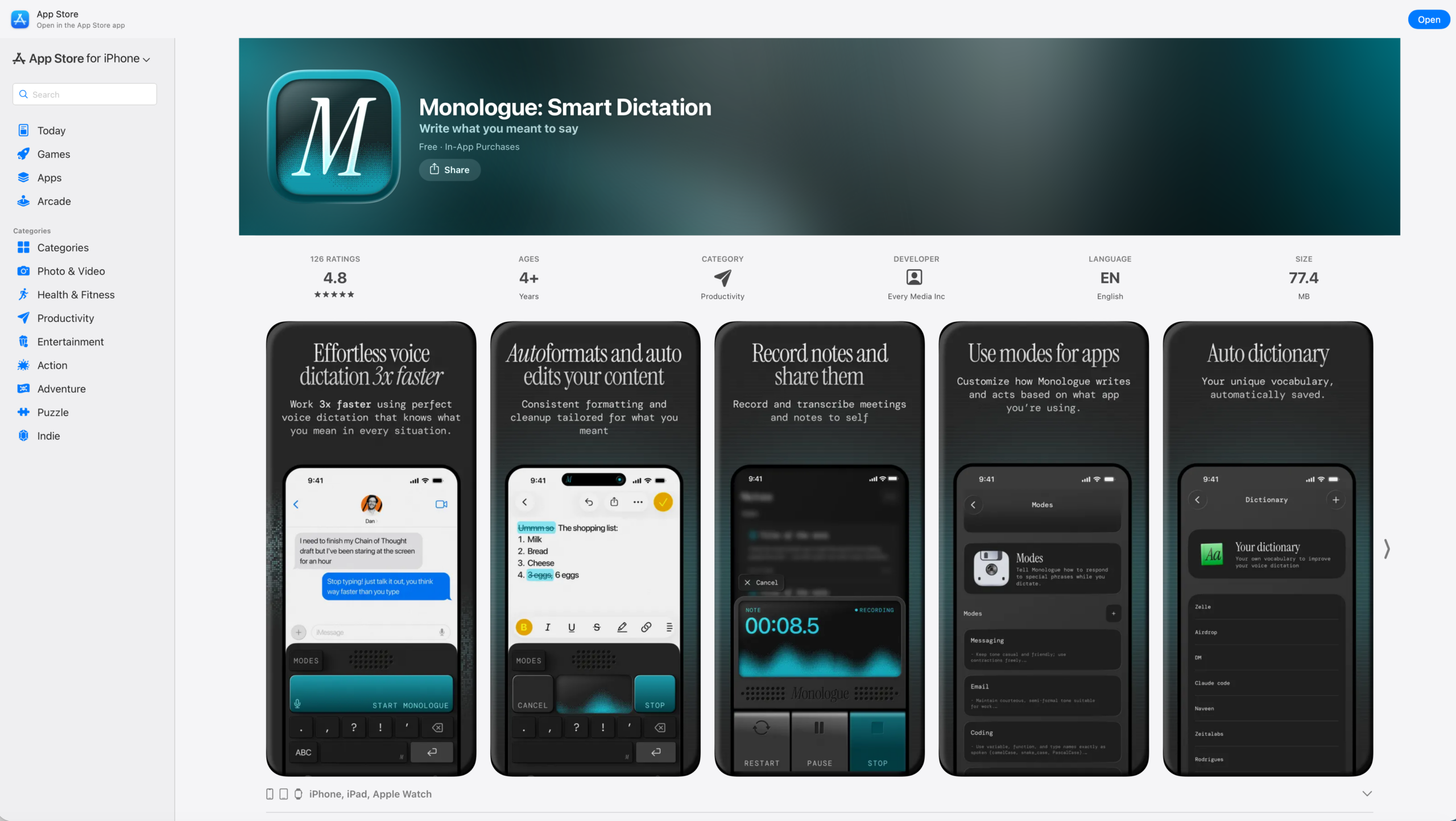
Two weeks after I started using Monologue almost full-time, the team also released an iOS version. The app uses a Live Activity to track dictation, with a clever alternate keyboard interface as well as dedicated Notes mode for saving thoughts for later. I’ve set Start Recorder in Monologue to make it easy to save notes when I’m on-the-go, a great addition to my iPhone setup – the hardware button now turns the device into a personal recorder.
Monologue for iPhone also supports Apple Watch, which is just the cherry on top – you’ll never be without high-quality dictation again, and can capture any idea as it comes up.
How I’m using Monologue
I’m mostly using Monologue to dictate to my AI agents, which I’m finding very helpful as I can free-associate with an idea as I, ahem, monologue at the computer, and then rely on the AI to understand what I’m saying and turn it into helpful tasks from my jumbled thoughts. In particular, I will use Monologue to dictate into Cursor, then switch to Plan Mode, and have it turn my blob of text into a real action plan – which it then immediately executes.
That loop of dictation, planning, and execution is addicting – I’ll often dictate, ask it to plan, then start a new agent chat and dictate again while the first one is being worked out. Then, I’ll build that, check the next plan, and start a new chat again – you can see how I got to 85K words during my month-long extended free trial for Cursor (thanks Rudrank!).
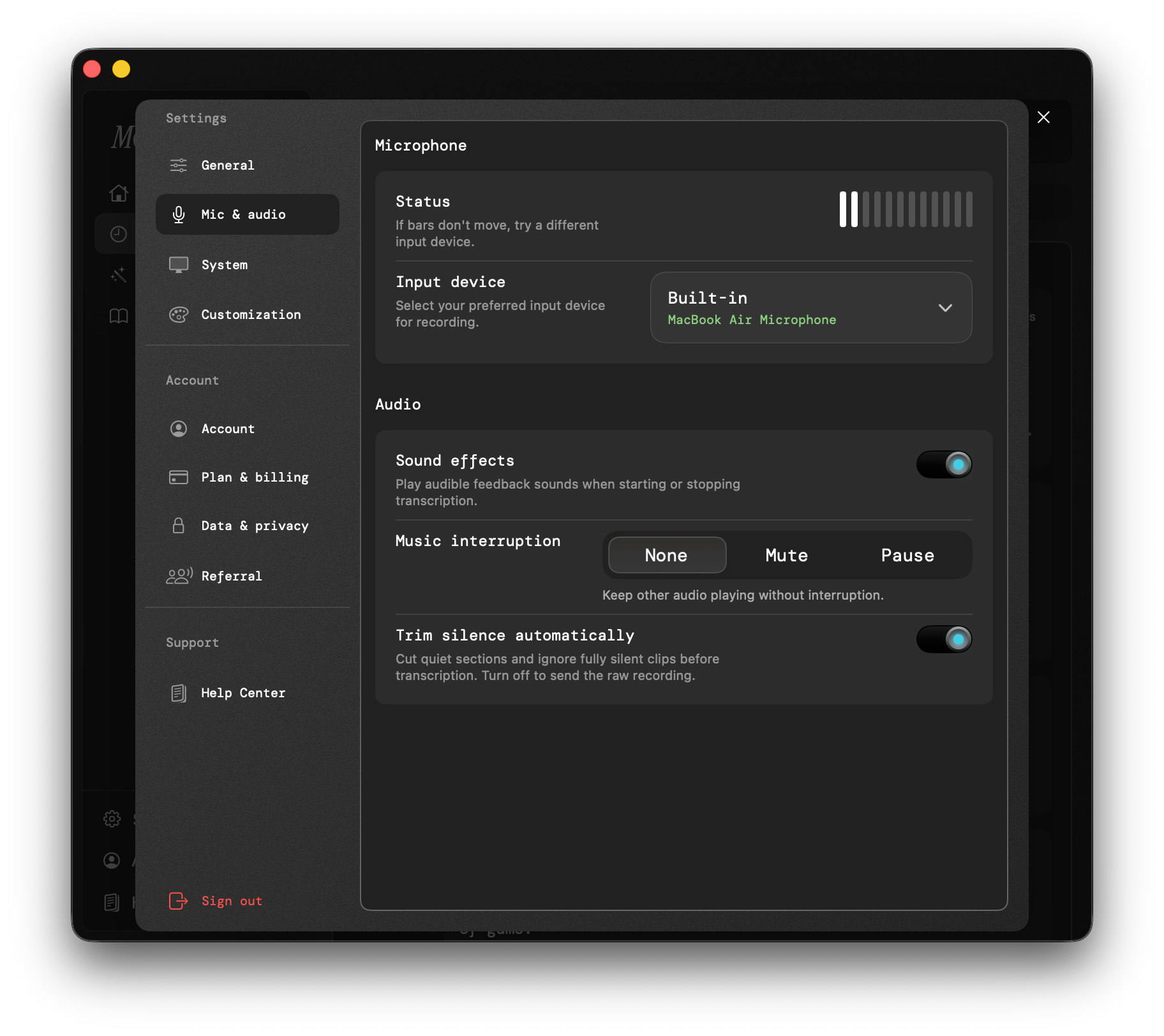
My biggest tip for optimizing Monologue would be this: pick a dedicated audio input device per computer. I find it’s too annoying to use headphones because of Automatic Switching taking over when I’m using another device like listening to music on my phone, so I’ve switched Monologue to always use the system audio (or my external mic in my studio). That way, I’m always able to dictate directly to the machine without interrupting playback.
—
Get Monologue for Mac and on the App Store for iPhone – with early bird pricing of $10/month or $100/year (normally $15/month and $144/year). Monologue is also part of the Every subscription bundle, which includes more AI apps from Every for $30/month.
—
P.S. Full disclosure: I reached out to Monologue after their iOS app launched and we have a developing business relationship in regard to their App Intents implementation. However, I decided to write about it editorially regardless because it truly has been my most-used tool since I got it, which rarely happens with new apps – hence why I wanted to tell people about it anyway.