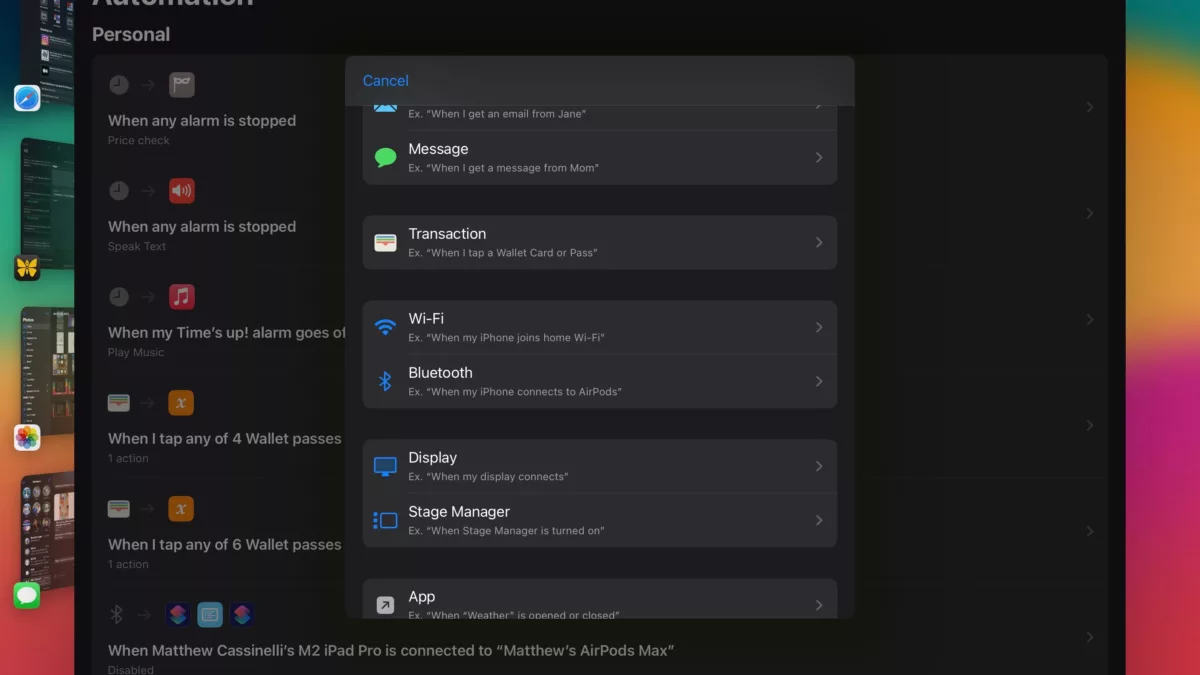
In the iOS and iPadOS 17 betas, Apple has introduced three new Automation triggers you can use in the Shortcuts app – Transaction, Display, and Stage Manager.
Here’s how Apple’s tip text describes each:
- Transaction (Ex. When I tap a Wallet Card or Pass)
- Display (Ex. When My Display Connects)
- Stage Manager (Ex. When Stage Manager Is Turned On)
Transaction automations
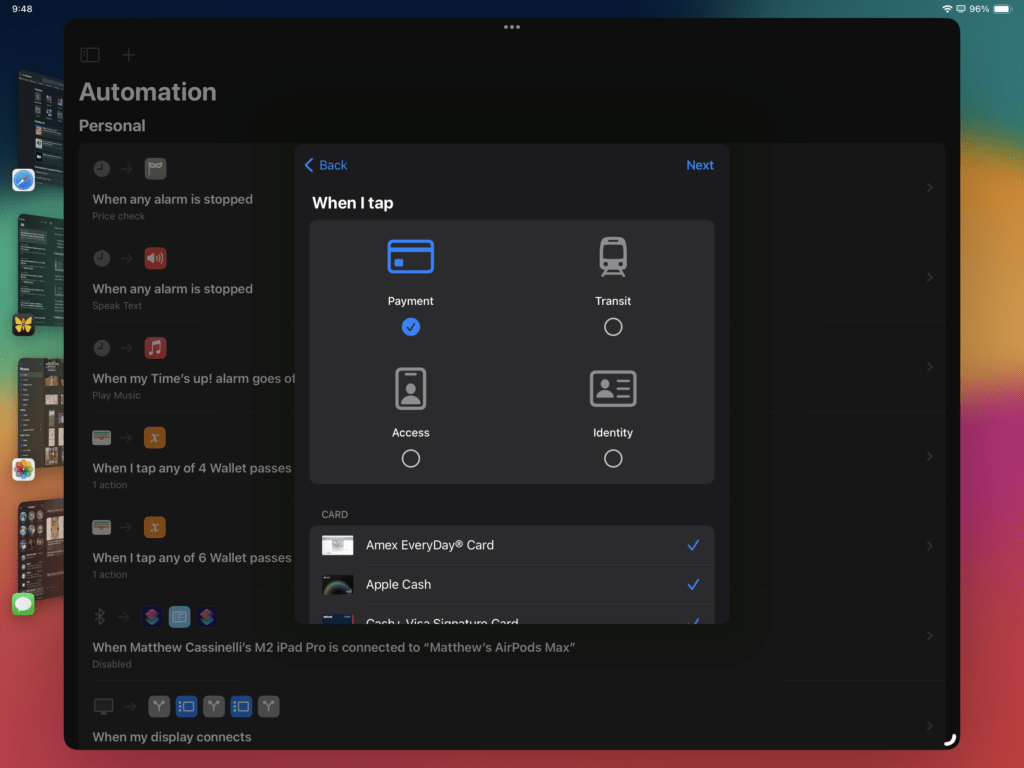
Transactions work with Payment, Transit, Access, or Identity passes, plus you can select which card, which category of payment, or even specific Merchants.
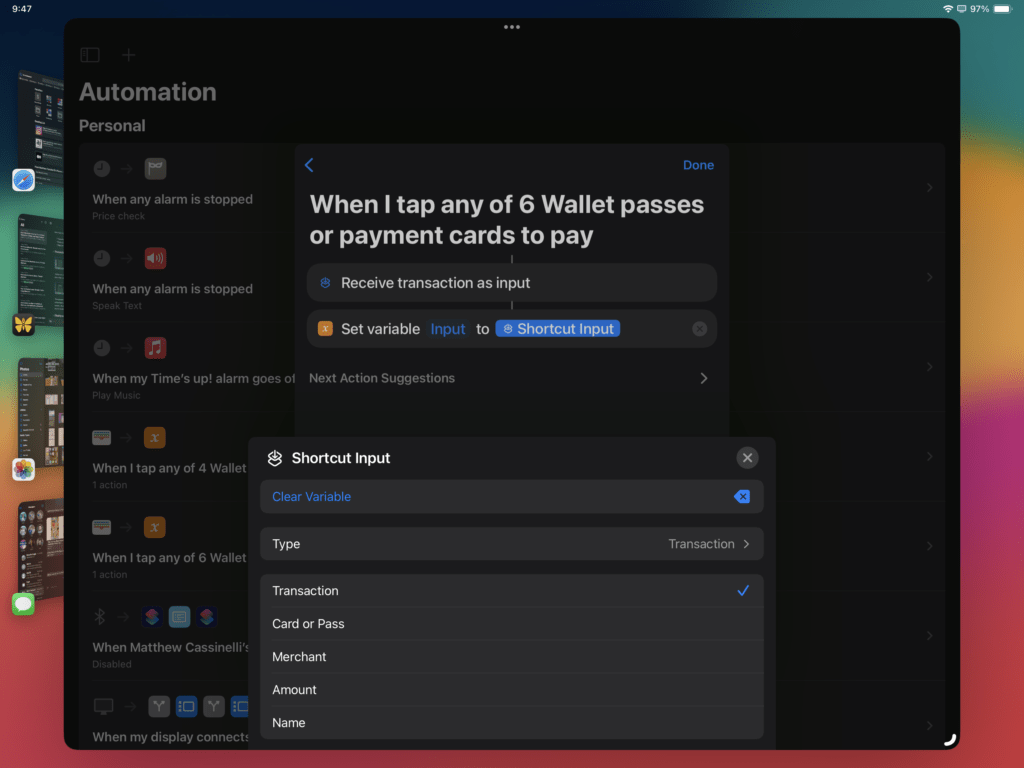
The automation starts with an optional “Receive Transaction As Input”, allowing you to extract details about the transaction, including the card or pass, merchant, and amount – this is an incredibly powerful trigger when combined with things like expense tracking, budgeting, or travel apps.
Display automations
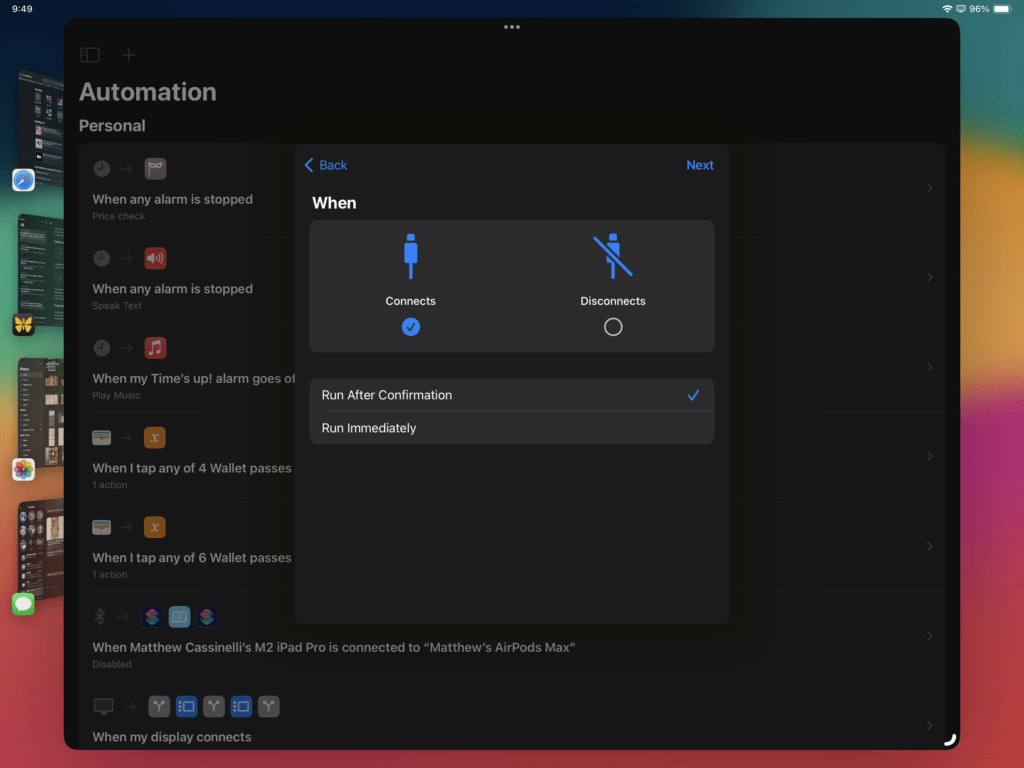
The Display automation works with the iPad Pro’s external display support, allowing actions to be kicked off when you plug in or disconnect a monitor cable.
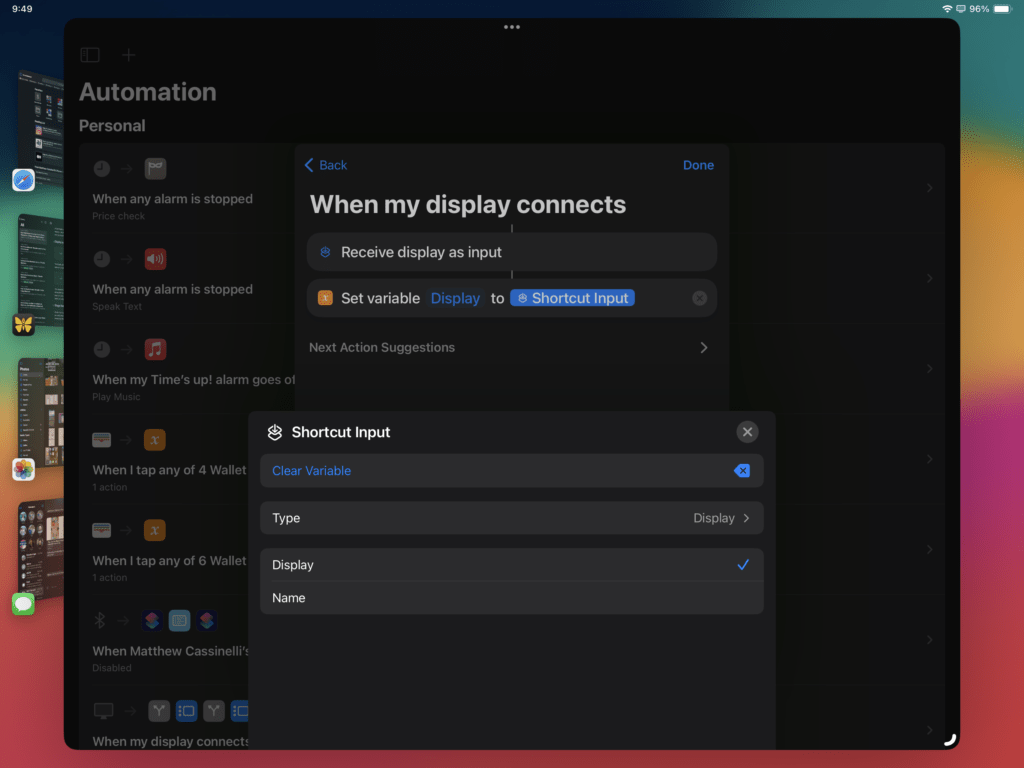
The automation starts with an optional “Receive Display As Input” that allows you to extract the manufacturing Name of the device and adjust your flow accordingly — I have both Dell and LG monitors in separate rooms in my house, so I could use an If action to change my shortcut behavior depending on which room I’m in.
Stage Manager automations
Finally, the Stage Manager automation works with the system feature being toggled on or off, either from Settings, the Control Center widget, or the Shortcuts actions themselves that can Toggle Stage Manager in any shortcut.
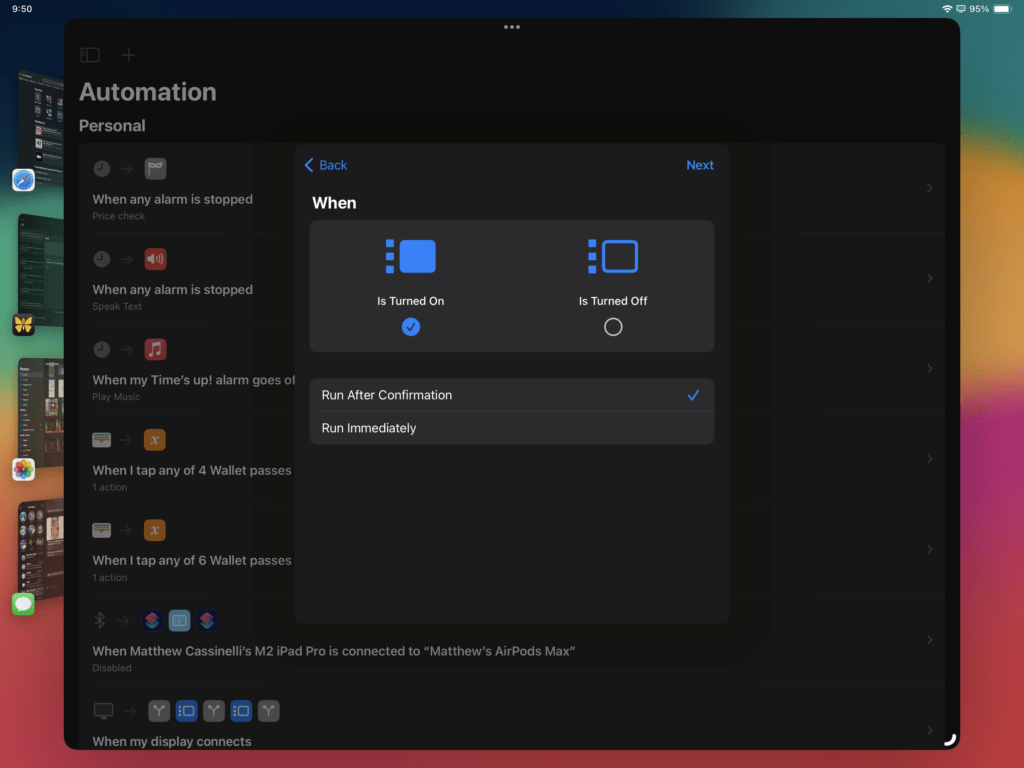
I haven’t personally implemented this automation for my own setup yet, but I’m consider simply using Open App multiple times to “set the stage” each time I activate it with my most common apps – but I’ll have to test more during the beta season.
Automate away
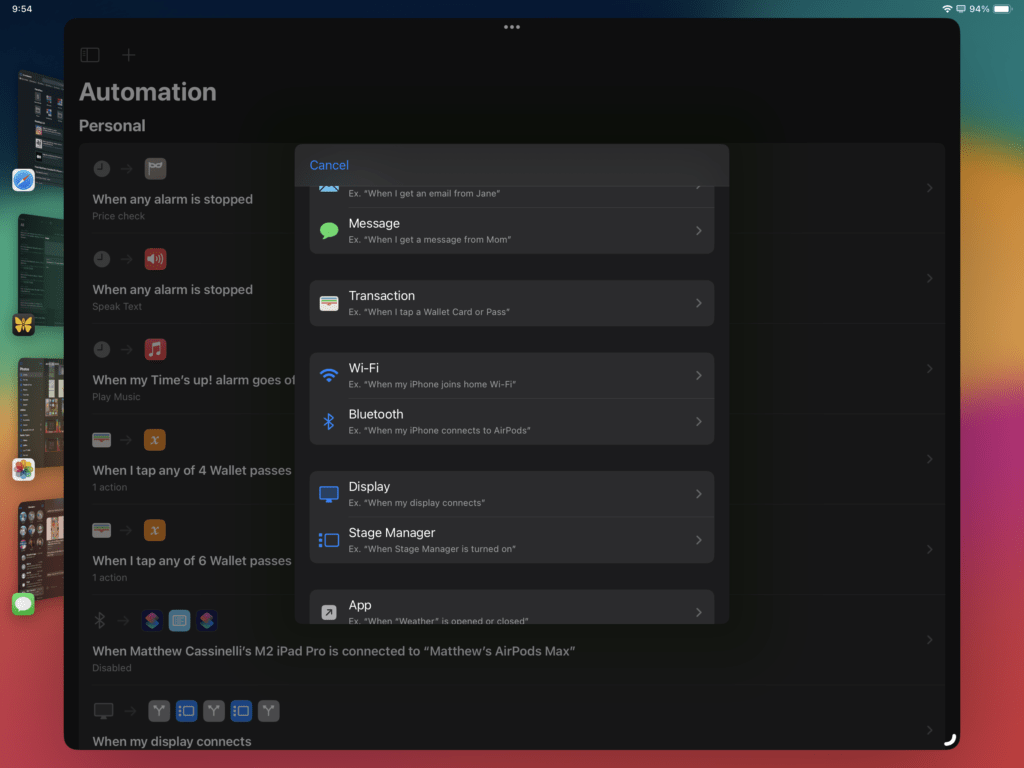
Overall, these three new automations are highly welcome. The Transaction automation will surely get the most use and can apply to almost every iPhone user, and the iPad automations for Displays and Stage Manager are great additions for iPad productivity – there’s much value to be captured with all three of these.
Plus, each automation can Run Immediately (instead of requiring you to Run After Confirmation), meaning they’re true background automations – very nice.
I also think the presence of Display and Stage Manager are either a hint or justification for Automations in Shortcuts for Mac – I hope Mac users get the opportunity to automate their devices with these triggers in the future.