Categories
Actions Custom Shortcuts

Copy a List of Your Mac Apps Before Upgrading Devices With This Shortcut

Setting up a new Mac can be a pain. Apple offers Migration Assistant, but I often find myself setting up a new device from scratch as a way to ensure nothing I might’ve messed up while playing around with automation tools on the old system comes over to the new one. That means taking note of all my tweaks, all my third-party Settings Panes, and, most importantly, all of my apps – something I’ve done manually before, but have now automated.

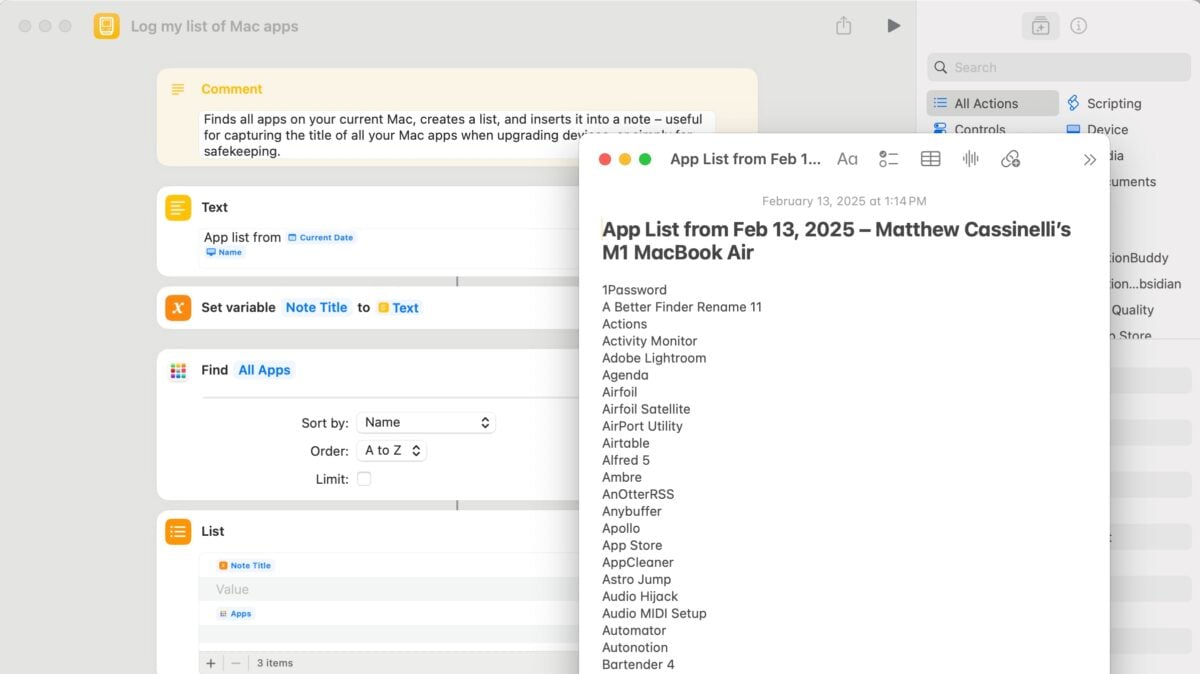
Back in iOS 16, Apple added an action to Shortcuts for Mac to Find Apps, which I first saw belonging alongside actions like Find Windows, Move Window, and Resize Window as a way to retrieve the available applications, choose one, and change their position. However, I recently realized Find Apps can simply be used to copy a list of all your Mac apps and store it for safekeeping – which I’ve built a shortcut for called “Log my list of Mac apps.”
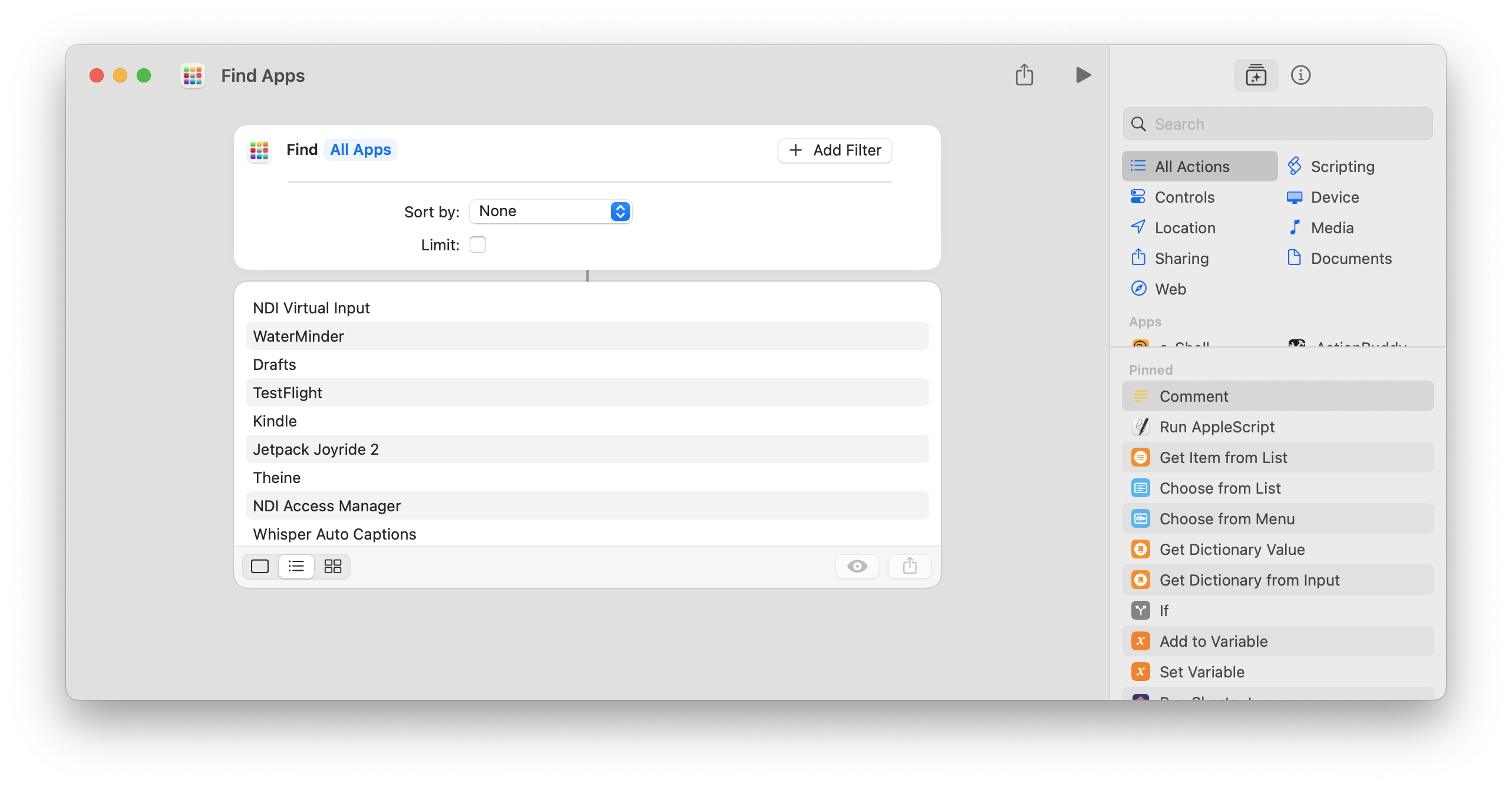
When run standalone, Find Apps gets all the apps from your applications folders – both your universal Applications folder, plus your individual user folder (this is important if you use Add to Dock with any websites). This list is unsorted by default, but by adding Sort By > Name and Order > A to Z, you can retrieve all your applications in alphabetical order.
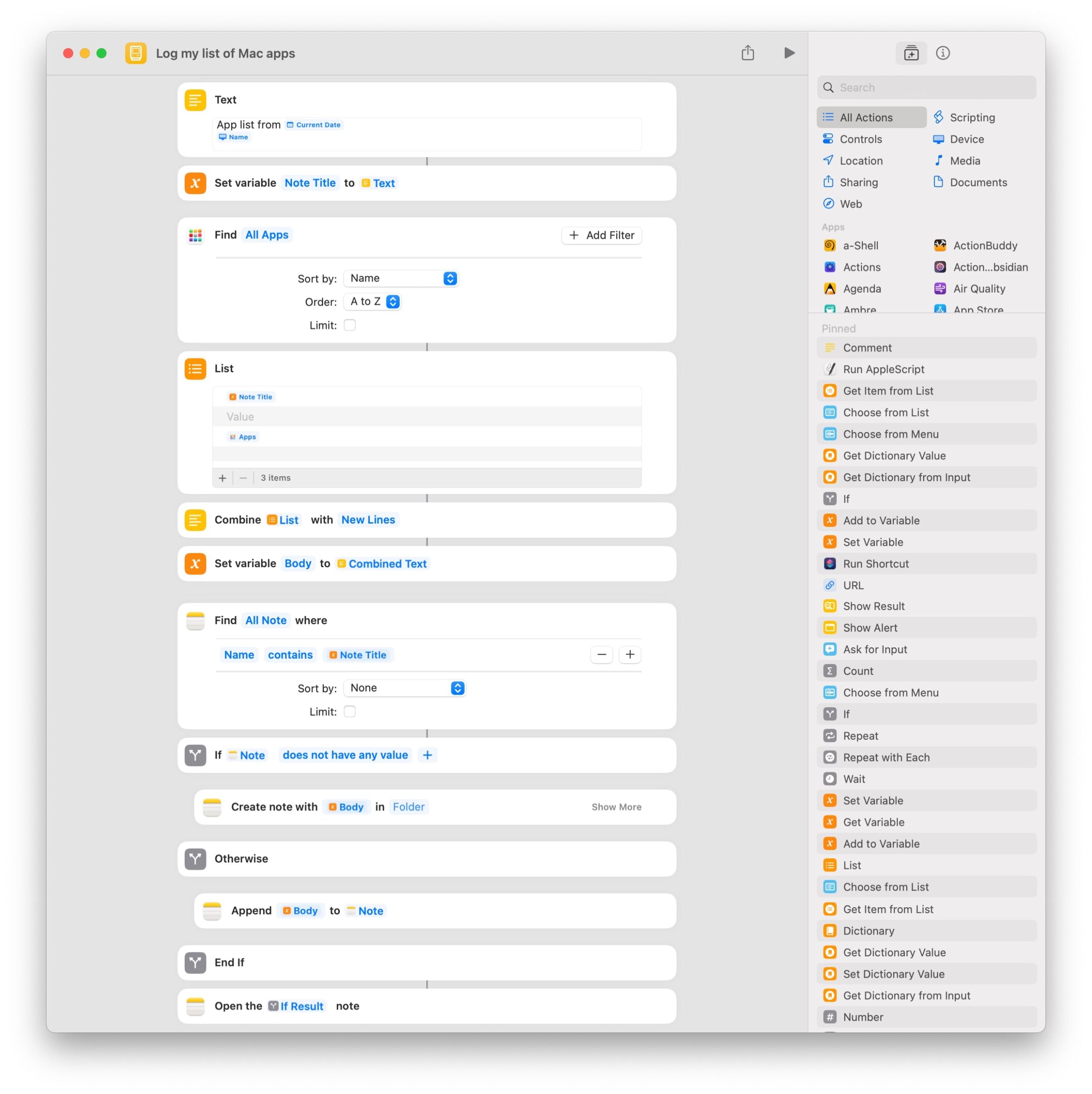
From there, I designed a shortcut to combine the list by new lines, create a note titled with today’s date and the device name, and add the list to the body of the note. It also includes logic to check for an existing note (if you’re running it on multiple Macs), as well as utilizes the List action to add an empty line between the title and body of the note – my aesthetic preference.
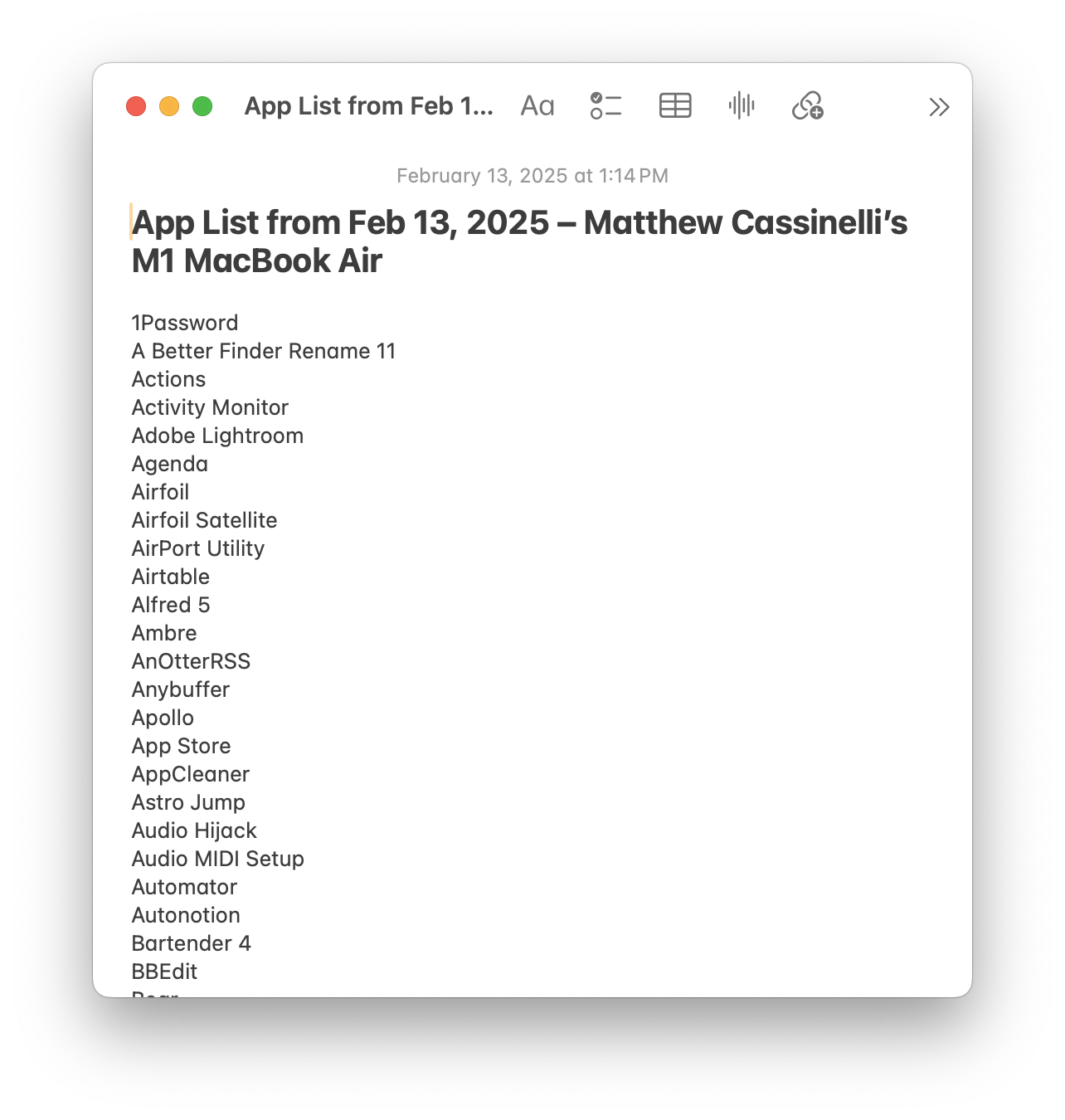
Finally, the note opens to your full list of Mac apps – stored in Notes for safekeeping and reference on your new device. Simple, but saves you the time of referencing your Applications folder over & over again when setting up a new device.

Get the shortcut Log my list of Mac apps in my Shortcuts Library.
Categories
Actions Custom Shortcuts

Apple Music Replay: Save Your Listening History From Kids Music With These Shortcuts

Apple has just released their Apple Music Replay feature for 2024, curating stats and visualizations around your listening habits from the last year on the web and in the app for the first time.

It’s always interesting to see your top tracks and artists, but some folks like Halide designer Sebastiaan de With have already run into a common problem – their children’s music is mixed in with their own:

The children’s music is gaining ground on my Apple Music replay. The burden of being a parent

[image or embed]

— Sebastiaan de With (@sdw.bsky.social) December 3, 2024 at 10:00 AM


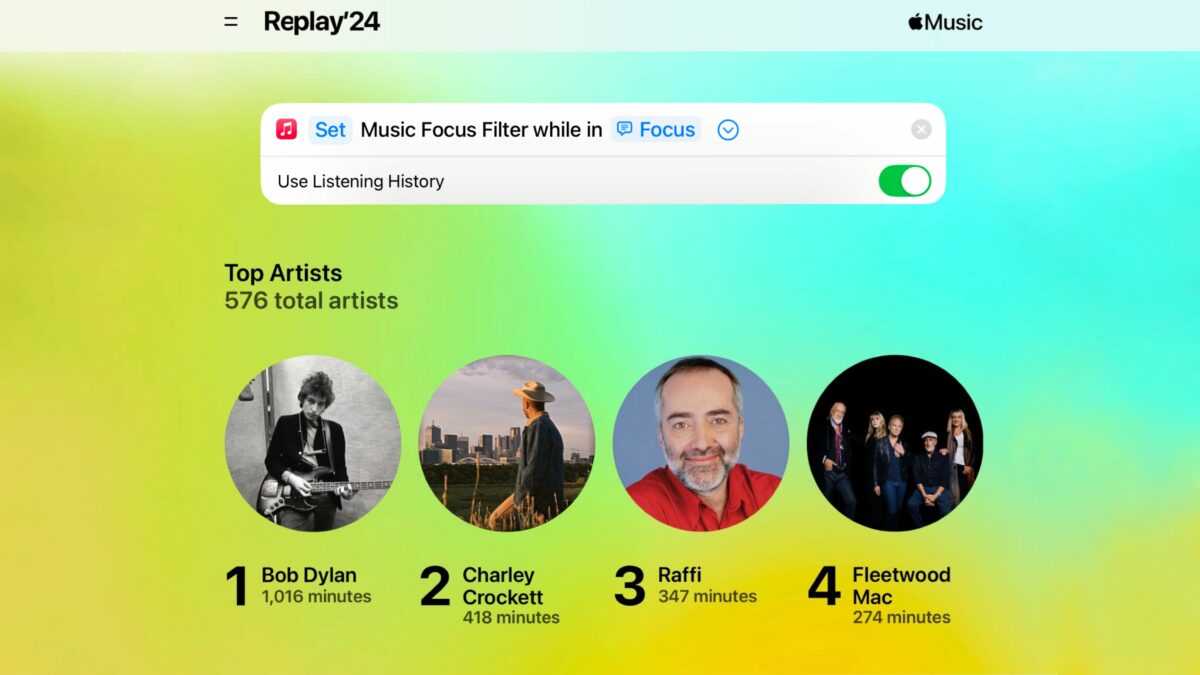
Thankfully, Apple recently built a feature for the Music that lets you choose whether to Use Listening History, available in the form of a Focus Filter applied to a specific Focus mode.

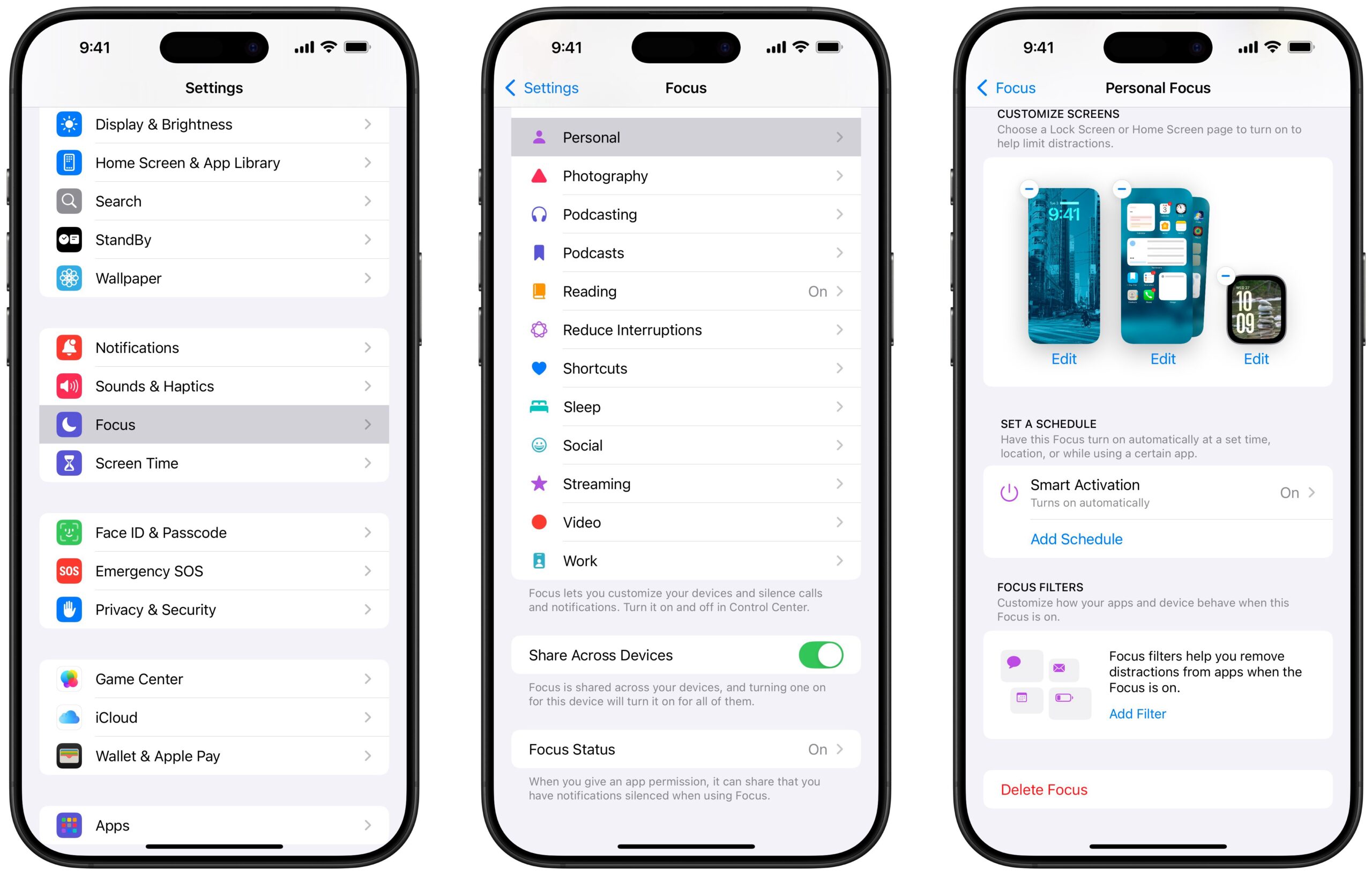
In Settings, in the Focus section, you can apply a Focus Filter to a specific Focus by choosing which mode from the list and scrolling down to Focus Filters, which Apple says lets you “Customize how your apps and device behave when this Focus is on.”

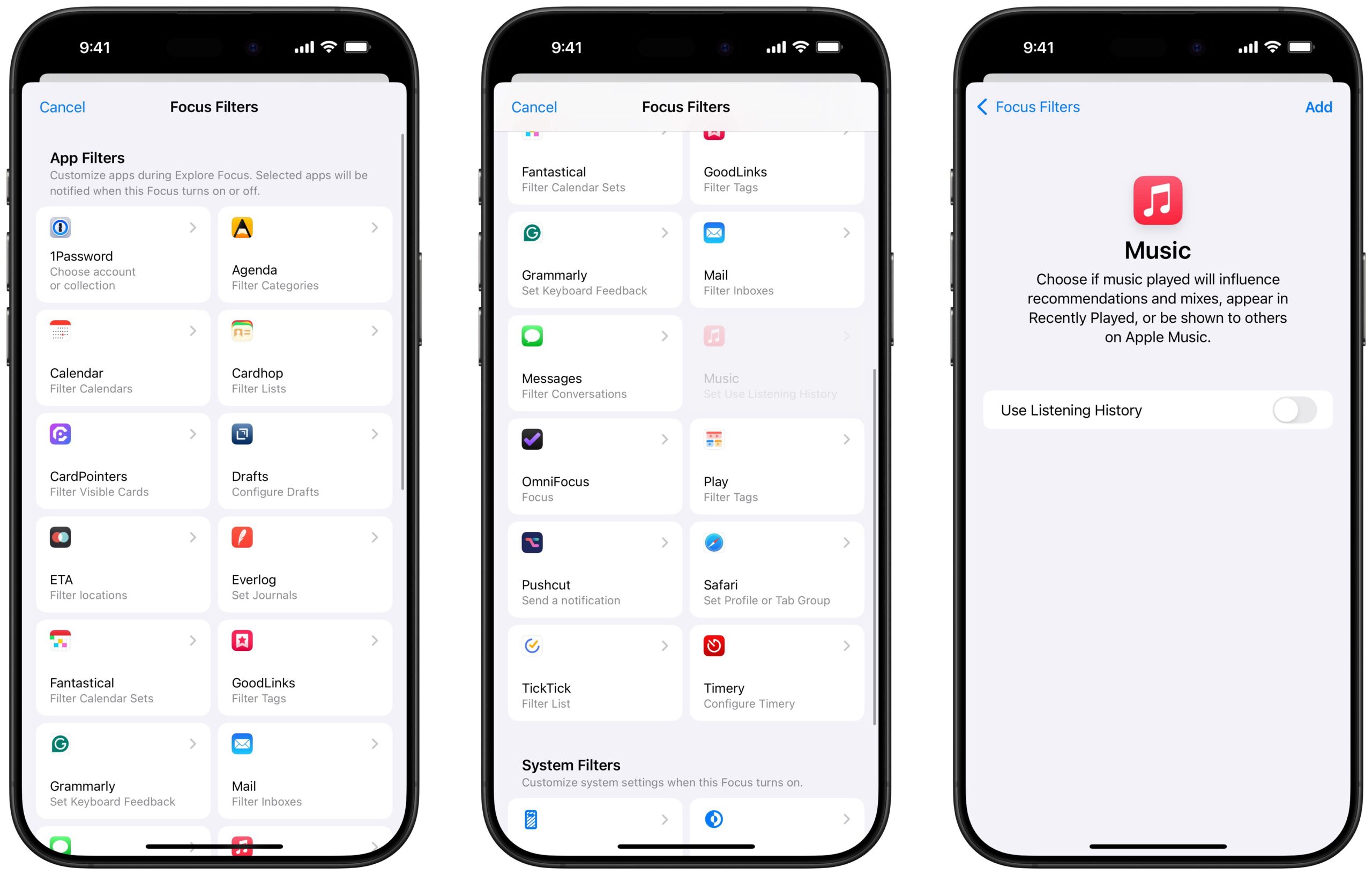
When you select “Add Filter,” you’ll see a popover of App Filters and System Filters that let you pick which filters to use to customize during this Focus. Apple’s description explains “Selected apps will be notified when this Focus turns on or off,” immediately activating the filter outside the app and updating things like the widget experience or background tasks.

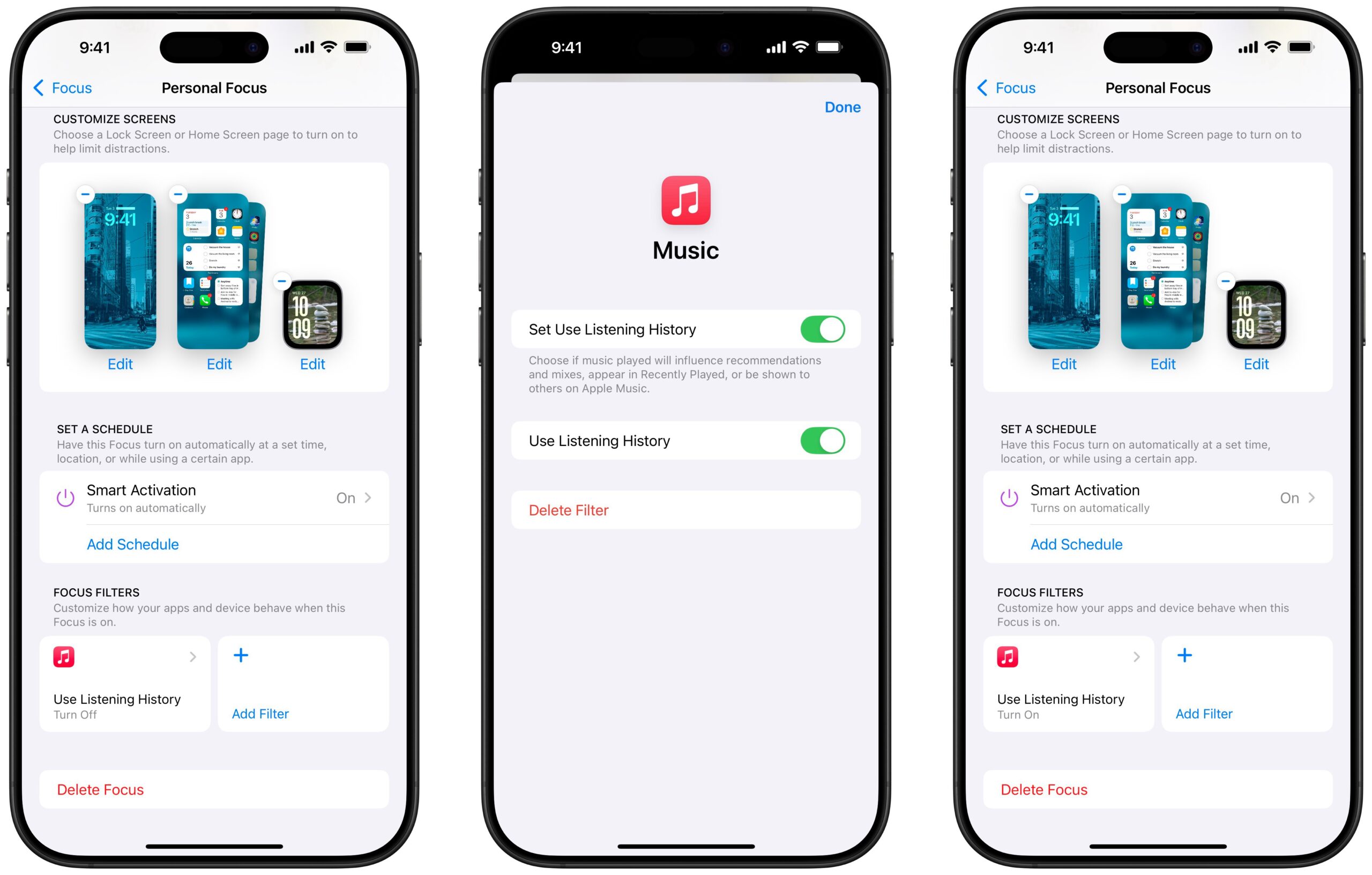
For the Music app, there’s a Focus Filter for “Use Listening History” where you can “Choose if music played will influence recommendations and mixes, appear in Recently Played, or be shown to others on Apple Music.”

Adding the Focus Filter will apply it to the current Focus, whether it’s set off to ignore your habits or enabled to track your listening history whenever the Focus is enabled. For someone like a parent, they could create a “Home” mode separate from their own “Personal” mode and disable listening history while at home but enable it while listening on their own.

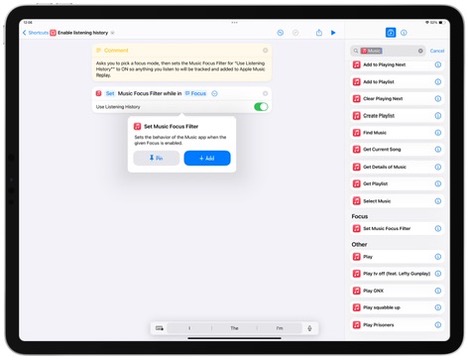
In iOS 18, Apple also added a Set Music Focus Filter action to the Shortcuts app that enables automated control over one’s listening history. With a Shortcuts action, users can add or clear the Focus Filter from any focus mode as needed, plus enable it or disable it on the fly without fully designating a Focus mode just for this feature.

In my set of Apple Music Replay shortcuts, I built two shortcuts that take advantage of it: Enable Listening History and Disable Listening History, which you can run to pick a Focus mode and toggle the setting as needed.

Adding this functionality in Shortcuts essentially makes the “Use Listening History” feature available separately from a Focus Filter, letting you toggle it on for any period of time and turn it off manually again when you’re done.

Plus, if you want to go even further, Automations in Shortcuts can give you control over whether to Use Listening History in almost any context, from triggers like location-based automations to whether you pressed the Action button while holding your iPhone horizontally while driving.

I also built shortcuts to Toggle Listening History for any Focus mode that works really well as a Control in Control Center, as well as a shortcut to Clear the Focus Filter from any Focus mode should you be done with the feature entirely.

Plus, since I enjoy listening to my Apple Music Replay playlists, I built a set of shortcuts for each year to shuffle the songs and let me quickly jump back into all my favorite songs ever since I first got an Apple Music subscription – as well as a new shortcut to show Apple Music Replay on the web.

Check out the folder of Apple Music Replay shortcuts in my Shortcuts Library and check out Sebastiaan’s post on Bluesky.

Categories
Actions Custom Shortcuts Shortcuts

All the New Cross-Platform Actions in Shortcuts for iOS, iPadOS, and macOS ?

With the release of iOS 15 and the associated betas across Apple’s platforms, the Shortcuts app has received 2 automation types and 22 new actions that work across iPhone, iPad, and macOS.

With the release of iOS 15 and the associated betas across Apple’s platforms, the Shortcuts app has received 2 automation types and 22 new actions that work across iPhone, iPad, and macOS as well as 21 Mac-only actions.

This piece (4,700 words, about 20 minutes average reading time) includes my write up of the cross-platform actions, reordered into custom groups I’ve created – I’ll be covering the Mac-only actions next week.

I’ll also be adding screenshots and example shortcuts in a future version, so members can read up now and I’ll post the full guide once the public betas release.

Become a member to get access to the full post, plus:

  • Members-only shortcuts
  • Extra ways to browse the catalog when you’re signed in
  • Prerelease notes & workflows I’m putting together
  • Exclusive livestreams teaching you more about Shortcuts