Setting up a new Mac can be a pain. Apple offers Migration Assistant, but I often find myself setting up a new device from scratch as a way to ensure nothing I might’ve messed up while playing around with automation tools on the old system comes over to the new one. That means taking note of all my tweaks, all my third-party Settings Panes, and, most importantly, all of my apps – something I’ve done manually before, but have now automated.
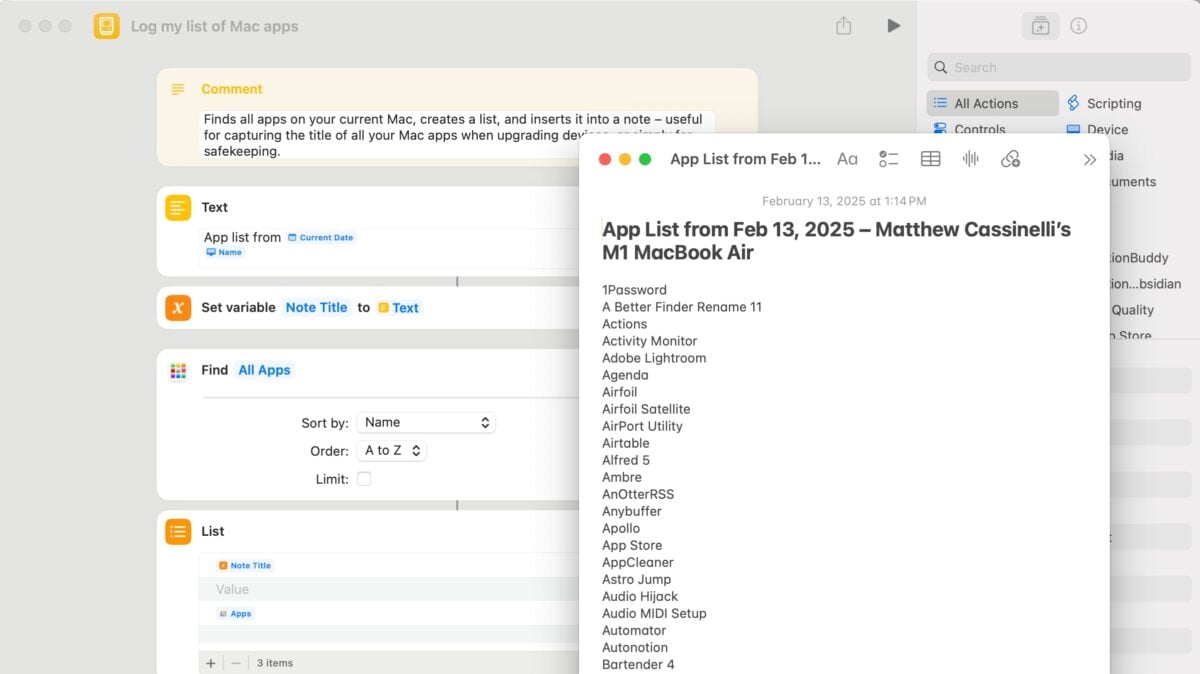
Back in iOS 16, Apple added an action to Shortcuts for Mac to Find Apps, which I first saw belonging alongside actions like Find Windows, Move Window, and Resize Window as a way to retrieve the available applications, choose one, and change their position. However, I recently realized Find Apps can simply be used to copy a list of all your Mac apps and store it for safekeeping – which I’ve built a shortcut for called “Log my list of Mac apps.”
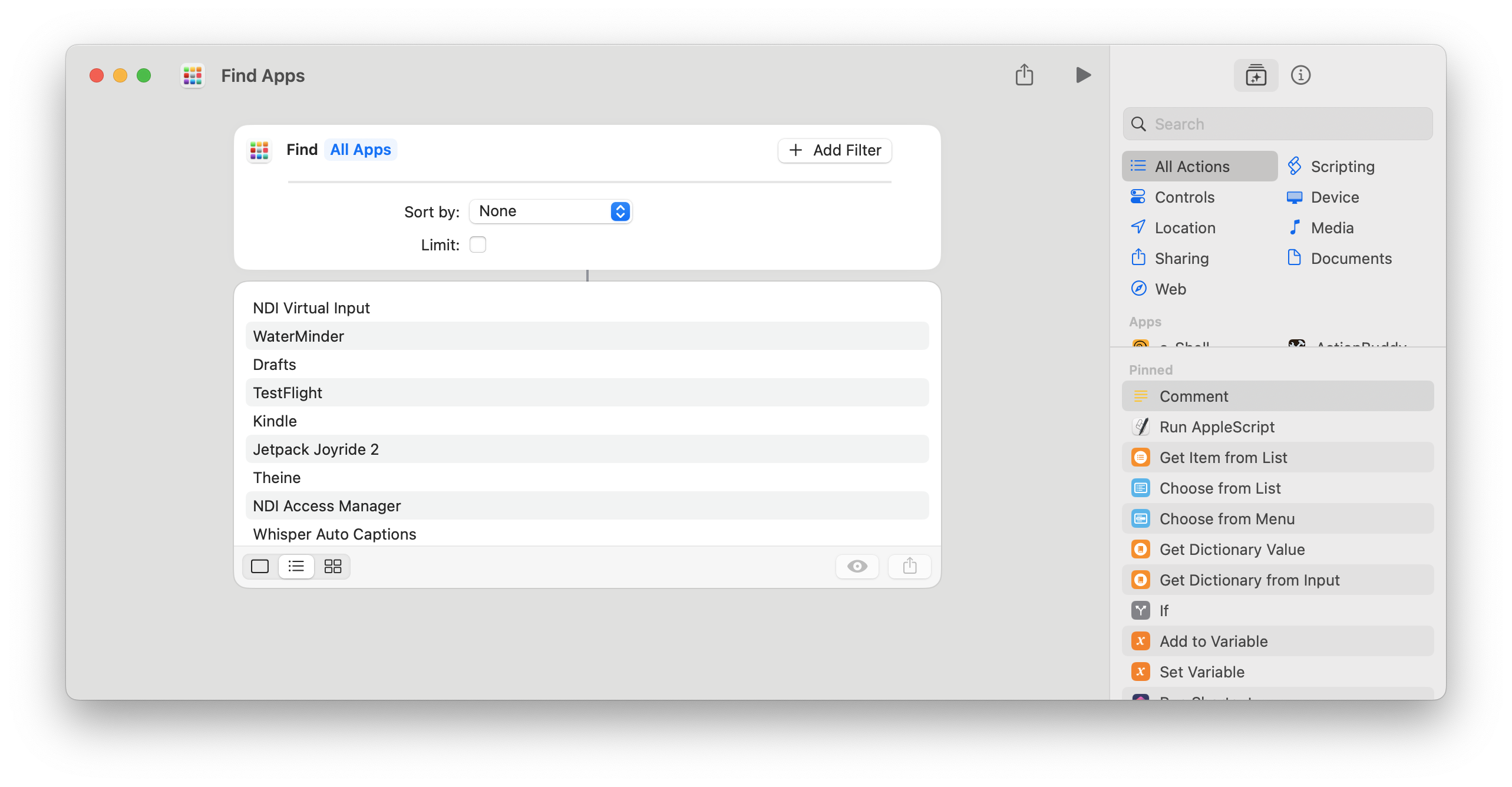
When run standalone, Find Apps gets all the apps from your applications folders – both your universal Applications folder, plus your individual user folder (this is important if you use Add to Dock with any websites). This list is unsorted by default, but by adding Sort By > Name and Order > A to Z, you can retrieve all your applications in alphabetical order.
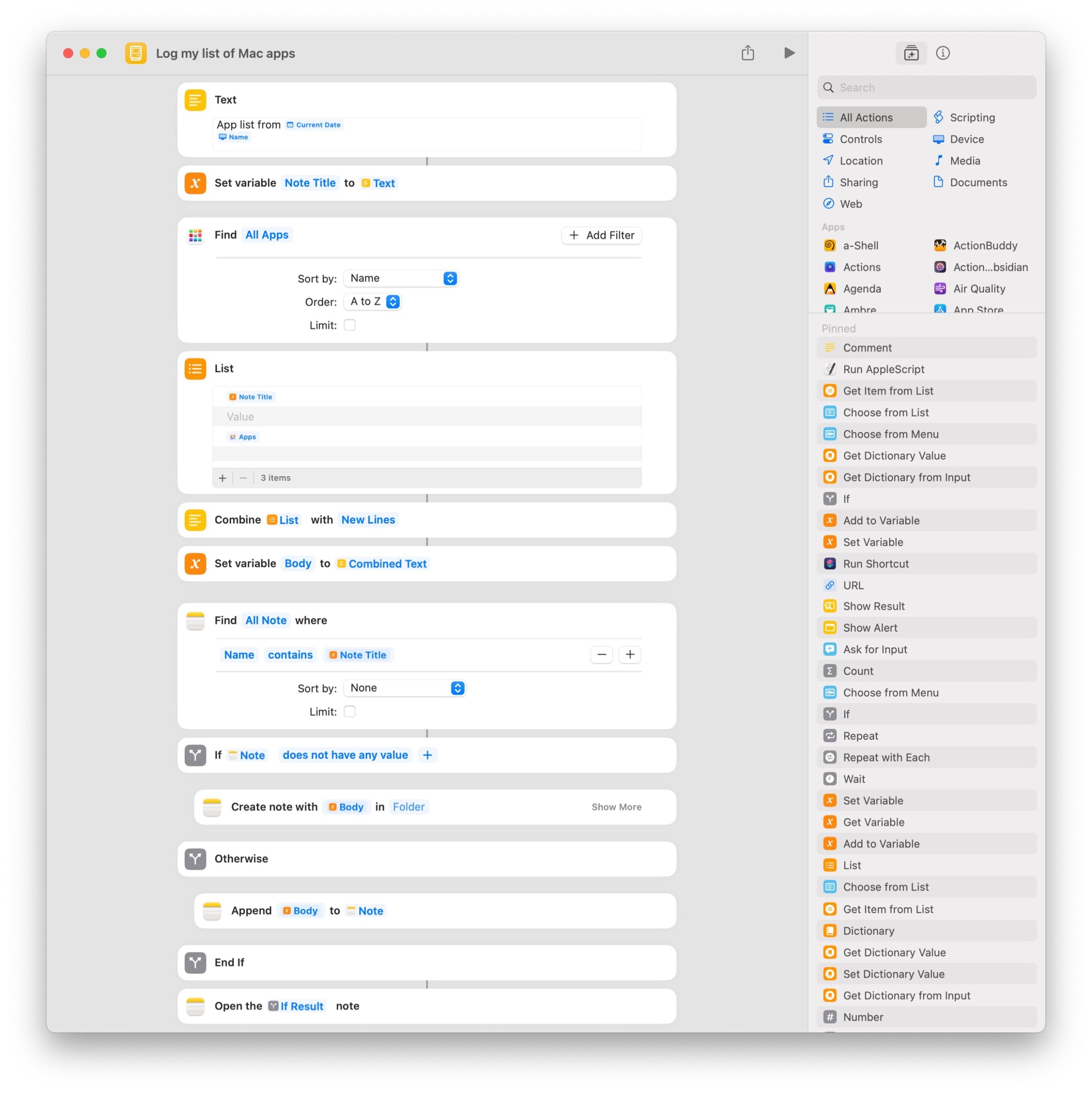
From there, I designed a shortcut to combine the list by new lines, create a note titled with today’s date and the device name, and add the list to the body of the note. It also includes logic to check for an existing note (if you’re running it on multiple Macs), as well as utilizes the List action to add an empty line between the title and body of the note – my aesthetic preference.
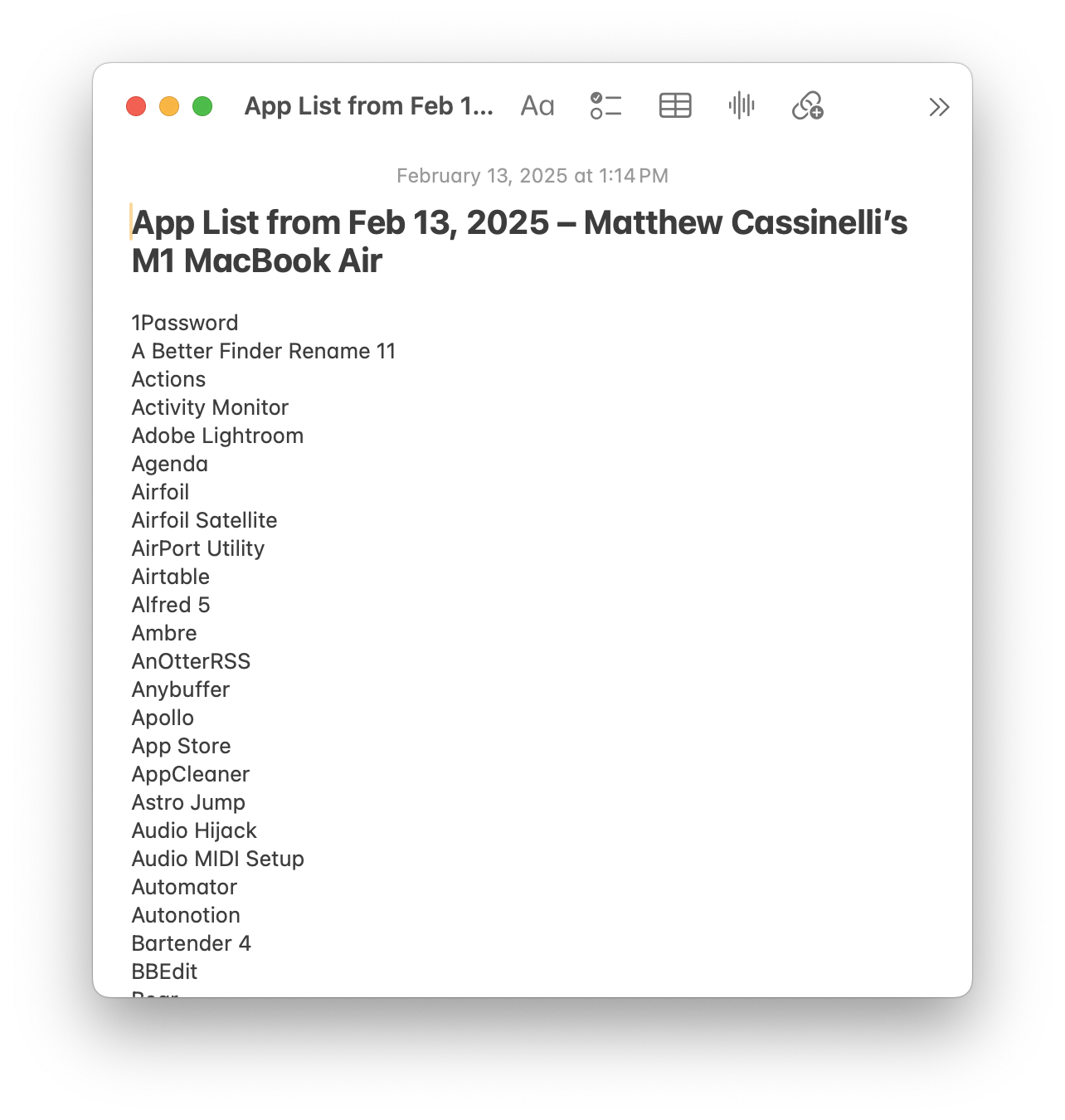
Finally, the note opens to your full list of Mac apps – stored in Notes for safekeeping and reference on your new device. Simple, but saves you the time of referencing your Applications folder over & over again when setting up a new device.
Get the shortcut Log my list of Mac apps in my Shortcuts Library.