If you’re dabbling with tools like Claude Code, you might not have the mental models as typical developers who use the Terminal – I know I don’t, coming from the Shortcuts world.
One simple tip to help you get started is creating a home directory for all your projects, so instead of running claude on your entire user folder, you can run “choose directory” on that folder with cd ~/Developer and then activate your AI bot from there.
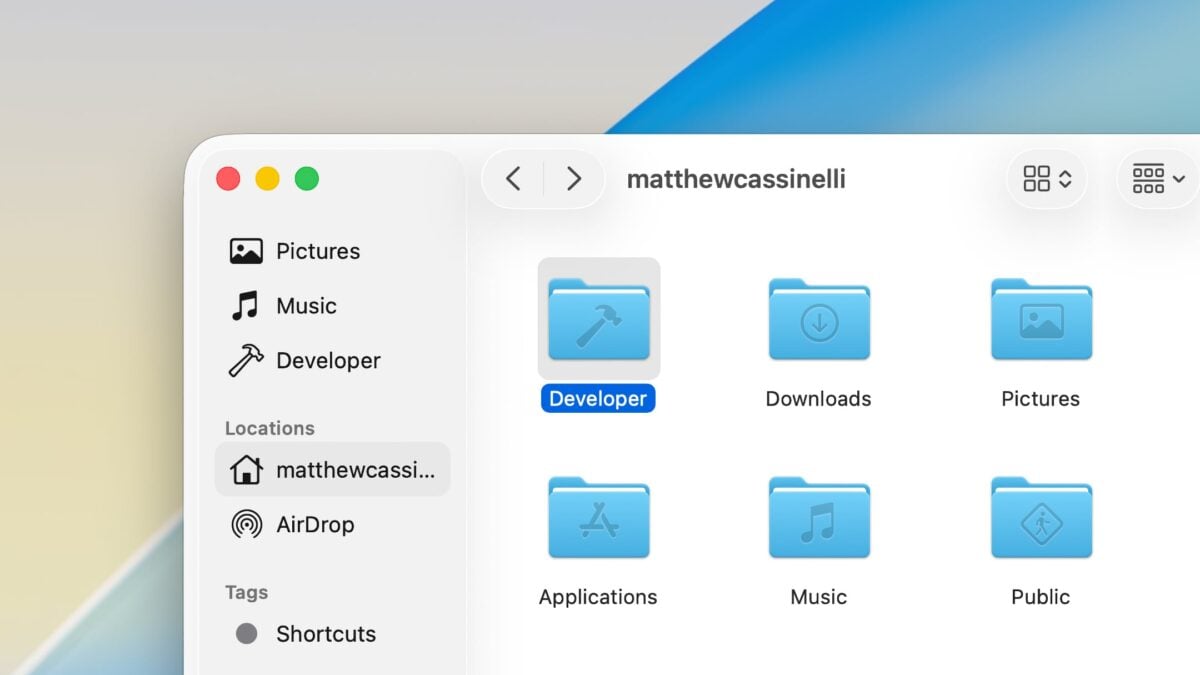
Why Developer? Because, when added to your user folder, Apple automatically adds the hammer glyph, giving the folder icon a nice “Apple Developer” vibe both in the Finder view and sidebar.
From there, you can create new projects in their own respective folders and tap into each when necessary, while not immediately granting an AI access to the contents of your entire computer.
To make the Developer directory with the Terminal1, run mkdir -p ~/Developer.
- The P in
-pstands for “create parent directories if they don’t exist” in case you don’t have a typical user folder structure. ↩