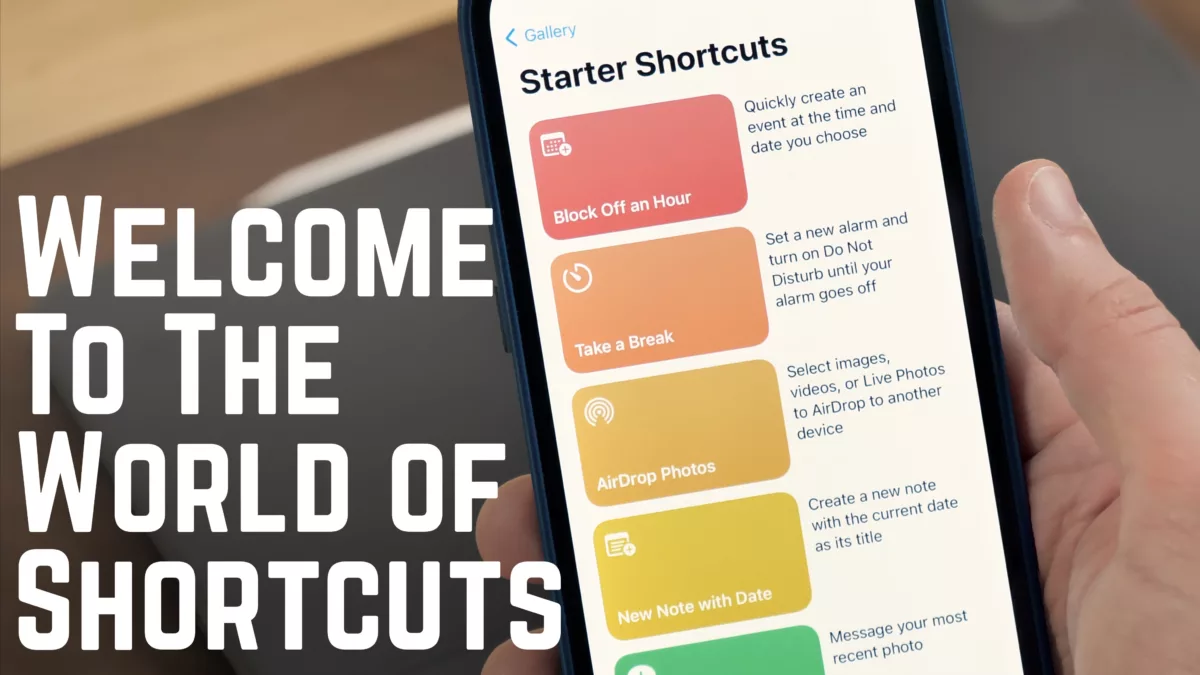
This morning I published my new channel trailer for YouTube – “How To Get Started With Apple’s Shortcuts App”:
Make sure to visit the description for links to everything I mention, plus check out my updated Shortcuts Catalog.
This morning I published my new channel trailer for YouTube – “How To Get Started With Apple’s Shortcuts App”:
Make sure to visit the description for links to everything I mention, plus check out my updated Shortcuts Catalog.

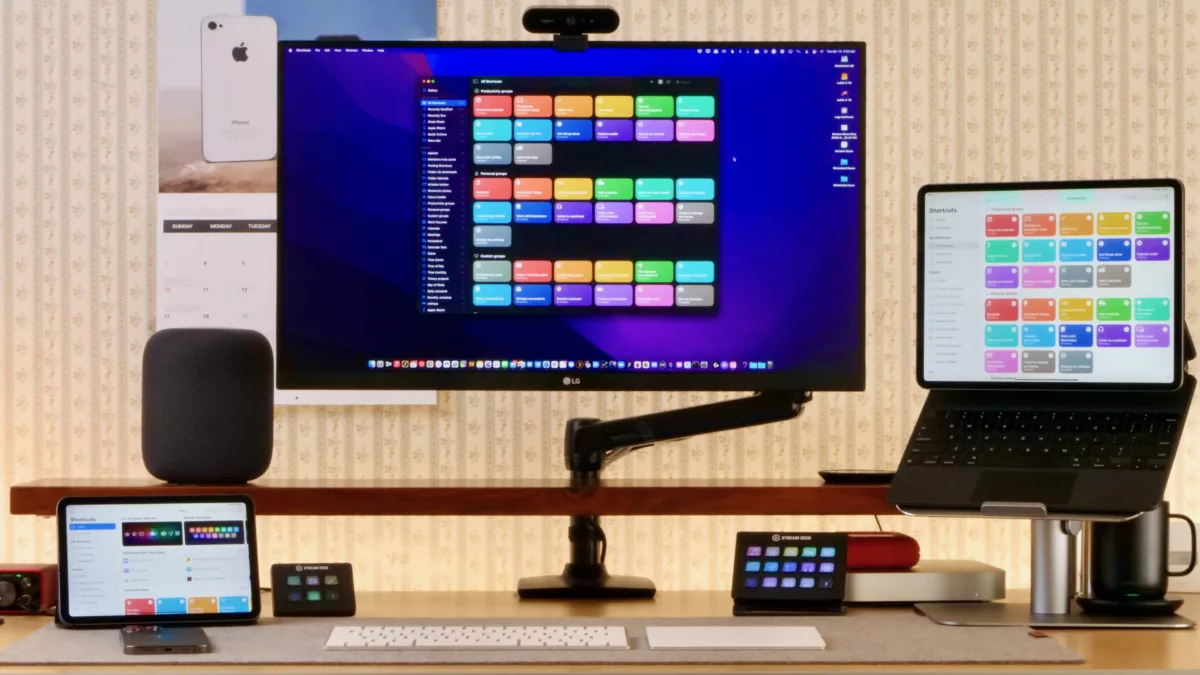
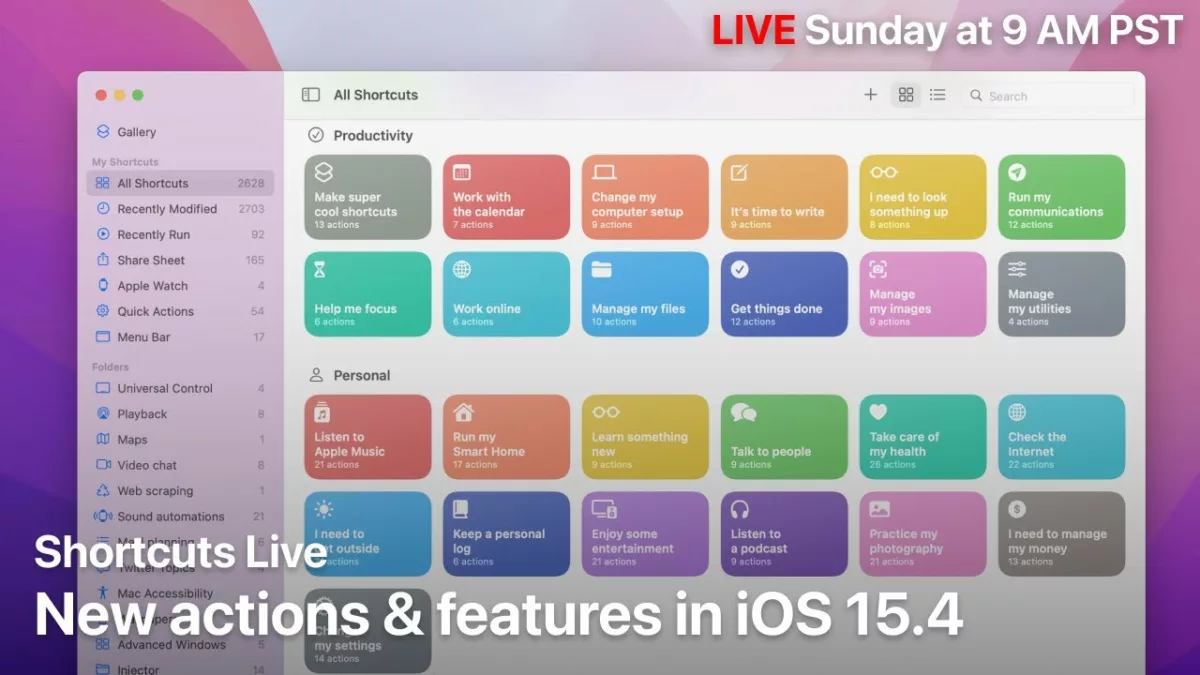
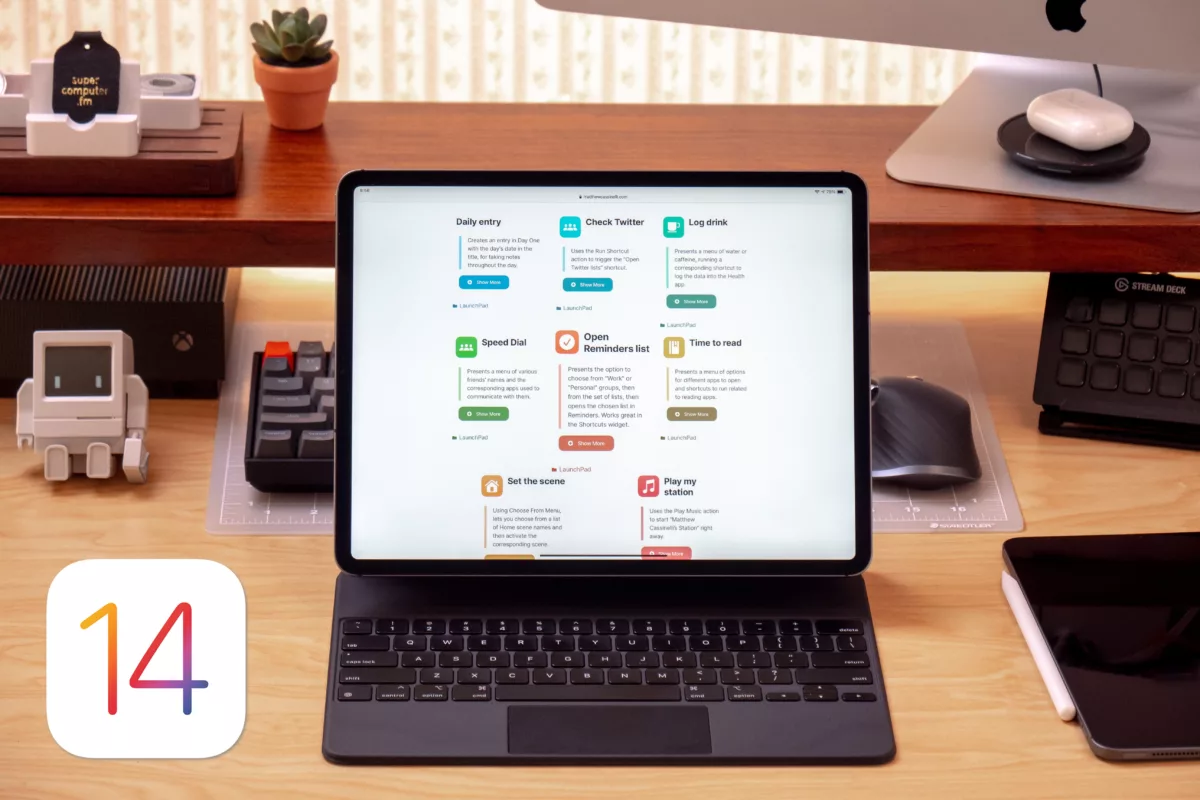
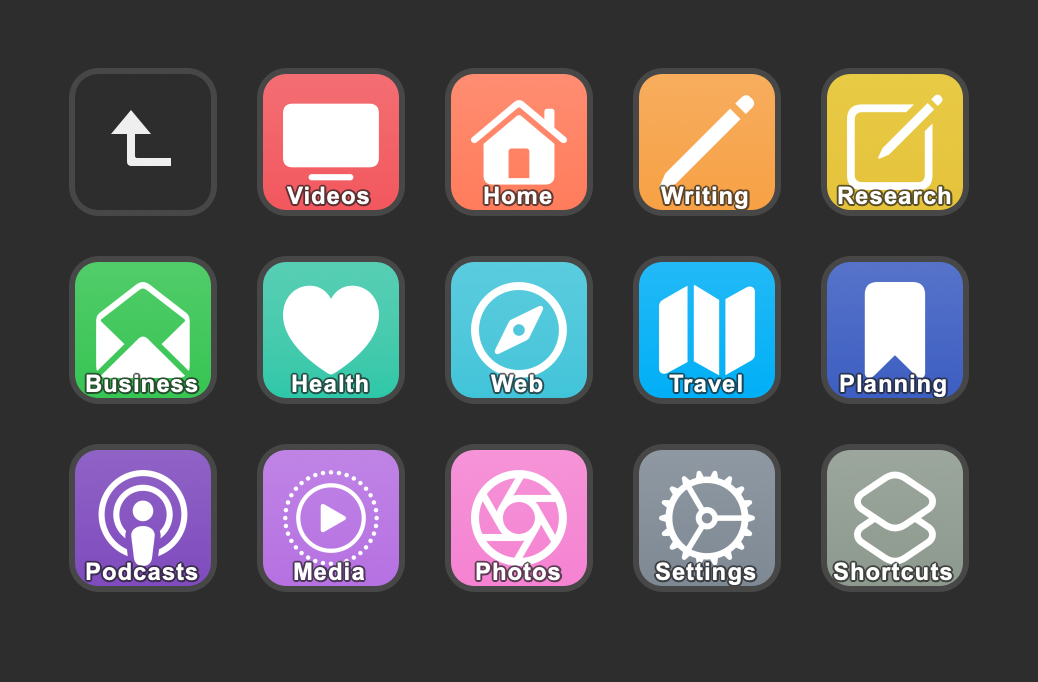
It’s my pleasure to announce that I’ve completely revamped my Shortcuts Library portion of my Shortcuts Catalog, remaking what was previously hundreds of shortcuts into a condensed set of:
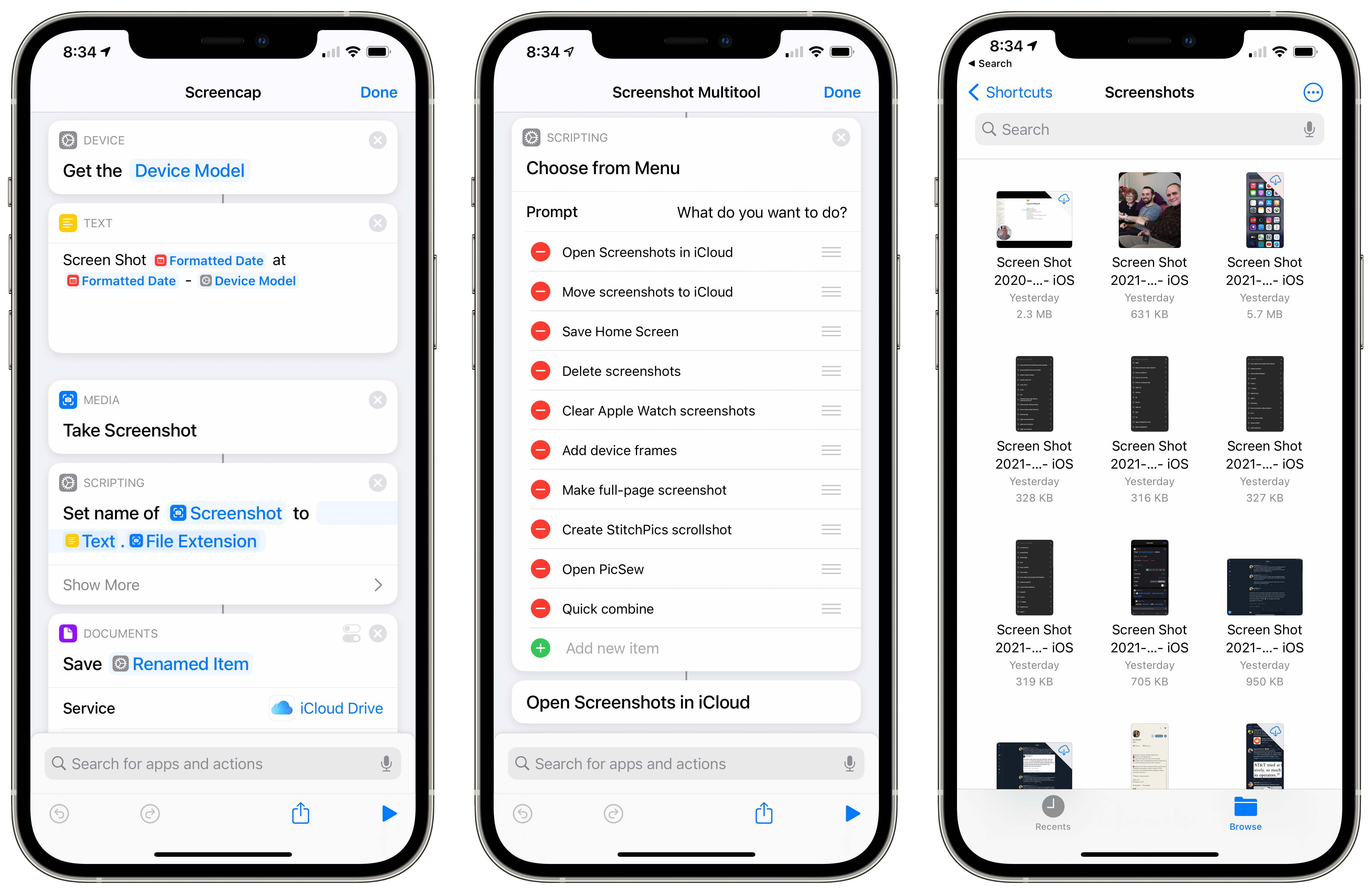
I spent many hours combining each of my 100 or so Shortcuts folders and putting each shortcut inside a single shortcut for that folder, filled with menus of different actions to take – this is the same content as before, repackaged to be much more accessible.
Now you can browse through the collection on a single page – just pick a shortcut that sounds interesting to you based on my descriptions, add it, and run it to further explore what functionality it provides.

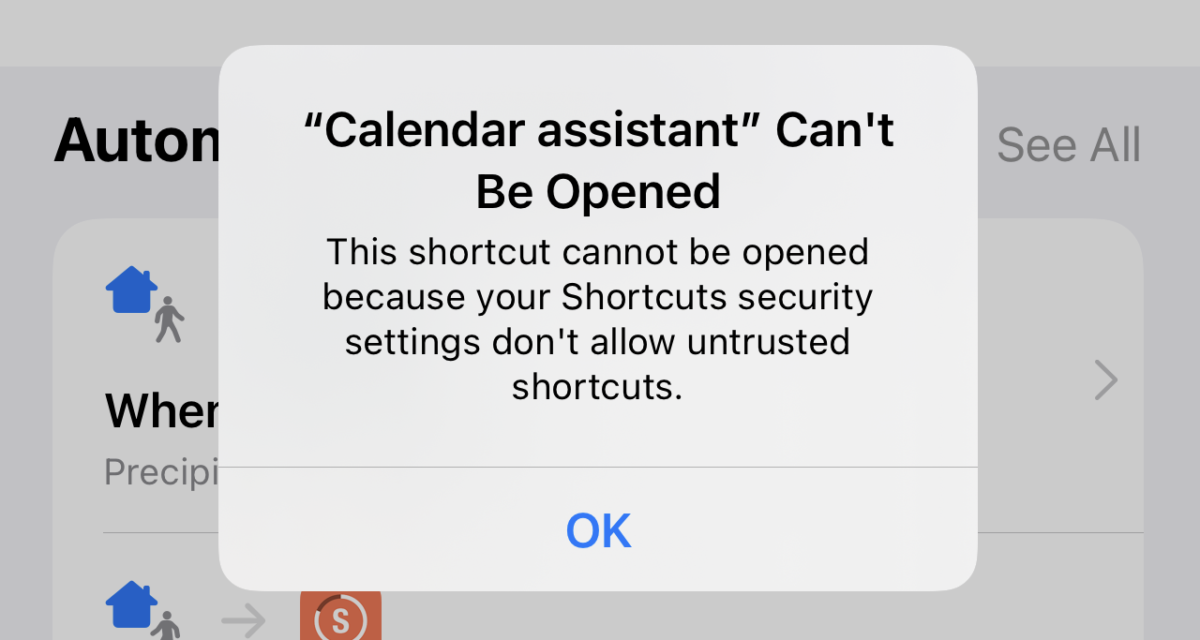
If you’re just figuring out Shortcuts for the first time or checking out my Shortcuts Library, Apple’s error dialog for “Shortcut Can’t Be Added” can be a little confusing. When you go to add a shared shortcut for the first time, Shortcuts will say you’re “not allowed” to add them and that you’ll have to change your security settings, but then it doesn’t take you there to fix everything up.
To help anyone dealing with this problem out, I wrote up a guide for iMore that explains how to change the setting properly – and I have some advice for being safe with shortcuts you’re adding:
Every person who finds a shortcut online and goes to add it should look through the actions included and try to understand what’s happening before they add it to their collection – and certainly before they run it.
Last Friday, the episode of Automators that I recorded with Rosemary Orchard and David Sparks dropped — and it’s a great hour-and-a-half conversation about the current state of Shortcuts.
Rose, David, & I haven’t talked since the release of iOS 14, so this is a dive into how I’ve been applying those features, my latest breakthrough with my shortcuts, and my updated Shortcuts Library.
Rose & David are my kind of people, so this conversation was naturally a blast — listen to the full episode:
Hello Shortcuts friends!
If you’d like to be part of a community of people talking about and sharing Siri Shortcuts, you’re welcome to join my new Shortcuts User Group on Slack.
I’ve been running this small community for about a year now, consisting of a cohort of people who are interested in Shortcuts and want to learn from other people directly about how to integrate Siri Shortcuts into their lives.
If you join, you’ll get a chance to see how other individuals are using Shortcuts in creative ways, get ideas or inspiration on your own automations, and be able to check in with a group of like-minded folks.
We have channels for things like:
The community is open for anyone to join, although I do ask new members to be intentional and try to invite friends who’d want to actively participate over trying to grow the community as large as possible – these tend to work best when we all get a chance to know each other a bit. ?
Subscribers to my website membership will also be added to a private members-only channel so I can share the exclusive content there and chat with members directly.
Thanks for checking the Shortcuts User Group out – I look forward to meeting you in there!
This is the week! Once iOS 14.3 drops, millions of people will update their smartphones and suddenly be able to create their “app ideas” by adding them as shortcuts to their Home Screen.
The main change? The limitation where “custom icons always open into Shortcuts first” is now gone!
Shortcuts added to the Home Screen actually behave like you’d expect, opening into apps immediately – plus they run all the scripting actions perfectly, just like the Shortcuts widget.
I’ve tried to capture my excitement in a video – look for it soon on YouTube. But until then, here’s what’s new in Shortcuts this week:
Jump straight to the Catalog or sign up for a membership.
It’s finally here!
Apple has released iOS 14, iPadOS 14, and watchOS 7 to users around the world – and that means everyone who updates will have the newest version of Siri Shortcuts installed.
Alongside today’s updates, I’m releasing the following:
Let me explain it a bit before you dive into everything.
Thanks to everything new in version 4 of the Shortcuts app, everyone can expect another leap in the automation potential of their Apple products:
My goal as an independent creator has always been to share all the knowledge I’ve learned about Shortcuts and make it free.
That’s because the Shortcuts app is free on Apple’s devices – I’ve always wanted to make sure anyone who doesn’t yet understand it could go online and learn more right away.
That desire is what got me to start my own YouTube channel, plus release my own Shortcuts Library and Action Directory on my website last fall.
But, as I got deeper into iOS 13, I realized I was sharing tons of ideas in my database, but didn’t make them very accessible on the web.
To help people to truly integrate Siri Shortcuts into their lives, I needed something more…
Last week, I had the pleasure of being a guest on episode 4 of Sigmund Judge’s podcast Magic Rays of Light, a new show dedicated to all things Apple TV.
That episode is out now and available to download in your podcast app of choice.
Talking with Sigmund was a treat and we had a great conversation about:
This free newsletter is designed for anyone interested in learning more about Siri Shortcuts, covering:
* feature updates as they’re discovered,
* interesting ways to use Shortcuts related to topical stories, and
* creative new shortcuts or apps with Shortcuts actions.
In addition, What’s New in Shortcuts acts as a way to subscribe to learn about future updates to my Shortcuts Library, Action Directory, and upcoming additions to the Shortcuts Catalog.
The venerable Rene Ritchie was kind enough to invite me back onto his YouTube channel to talk Siri Shortcuts in iOS 14 and everything that’s new:
I always appreciate the opportunity to share about Shortcuts on other people’s channels, and Rene always manages to make me look good.
As I said in the video, make sure to stay tuned for some fun new updates here on my website, as well as for my own upcoming iOS 14 video.
I had the pleasure of being a guest on episode 353 of the Clockwise podcast from Relay FM, joining Brianna Wu, Jason Snell, and Dan Moren for a 30-minute round table discussion of the week’s news.
We talked about Apple silicon and what it means for gaming as well as whether we’ll be buying the first round of Macs, our beta-installation strategies, and how to use Shortcuts for public good.

Shortcuts creator and designer Brad Siefert has created a dedicated website for people looking to discover various links and creators related to Siri Shortcuts – check out the new Shortcuts Directory.
For the month of May, my main public focus was publishing livestreams related to Shortcuts and my interests as a content creator.
I’ve long had a streaming setup and even covered most of iOS 13’s updates for Shortcuts in an hour-long stream last fall, but I’ve always wanted to stream more and never really did.
In these last 9 months since that stream, I’ve also seen a ton of new Shortcuts-related apps drop and for some reason I didn’t fully adopt them – I thought every one my shortcuts needed to be easily shareable, plus I was worried about depending on paid third-party apps that people would have to buy just to use my shortcuts.
But eventually, I realized I’d shot myself in the foot – these apps were necessary because of some shortcoming of Shortcuts in its current state, and by missing out on those apps I was handicapping myself in the process.
Once I started adopting the Shortcuts-related apps, my productivity skyrocketed and I realized I needed to learn these even more – enter livestreams with the developers themselves. Plus, I took the opportunity to stream with one novice user and another expert, both of which were great experiences.
Here’s the full list of videos:
On episode 30 of Smart Tech Today, I spent about 10 minutes describing a series of shortcuts I put together that take advantage of the accessibility actions found in the Shortcuts app ahead of today, May 21, which is Global Accessibility Awareness Day (GAAD).
Accessibility features are incredibly important for modern technology to provide, making it possible for everyone to utilize their hardware & software regardless of their personal situation – you either have direct accessibility needs that require specific use of your technology, you’ll one day need them yourself, or you benefit from those features anyway (think Dark mode).
The Shortcuts app has always been an Accessibility priority for Apple, with them declaring as much in their confirmation story when they acquisition of the Workflow app before it became Shortcuts1:
“The Workflow app was selected for an Apple Design Award in 2015 because of its outstanding use of iOS accessibility features, in particular an outstanding implementation for VoiceOver with clearly labeled items, thoughtful hints, and drag/drop announcements, making the app usable and quickly accessible to those who are blind or low-vision.”
In iOS 13, Apple went further and added a set of actions to Shortcuts for controlling Accessibility features, available to use inside the shortcut editor in Apps > Settings.
New shortcut: I’m washing my hands:
Sets a timer for 20 seconds so that you can wash your hands thoroughly without thinking about how long it takes.
Use this to help internalize how long it takes to wash your hands, especially amongst the Coronavirus concerns.
Matt Haughey, writing for his site A Whole Lotta Nothing:
As you might have guessed from a previous post, I’m not a fan of carrying keys and or even having to use them. When I moved to a new place, I knew I’d use the front door as my main point of entry (instead of a garage attached to a house), so I wanted to get it as automated as possible, where the front door unlocks as I approach it, and locks when I leave.
Matt started with an August Smart Lock and ended up getting NFC tags so that everyone in his family could tap in and out of the house. Be sure to check out the full article for all his photos of the setup too.
This bit is excellent – I’m definitely thinking about NFC “skins” instead of having white dots all over the place:
To make them blend in a bit more, I went to my local Lowe’s and bought a $5 roll of adhesive-backed shelf paper in a maple pattern that mostly matched my wood posts. I used a NFC tag as a template, traced it onto the paper, and cut out two holes, then pulled off the backing and stuck them over the tags. From a distance, you can barely tell they’re there since I put the NFC stickers over wood knots and they look like wood repair patches now.
I’ve joked before that Matt is my smart home spirit animal – he continues to fill that role well ?.
If you didn’t already know, my podcast Smart Tech Today comes with a video feed now – you can download a full video feed in Podcasts, or subscribe to the YouTube channel to get the episodes every week, or watch live on Twitch every Monday at 4pm PST.

While the show is designed as an audio podcast, our network This Week in Tech produces the video so anyone can watch too – I have lots of fun being on camera with Mikah.
Being a podcast that’s also “video capable,” I’ve always thought it’s a shame that it’s not easier to listen when you want to, or watch when you want to, with a way to switch between both on the fly.
If you’re on Overcast user, you’re in luck – I’ve solved the problem in one direction, taking Overcast’s “Share URL with timestamp” Siri Shortcut and combining it with YouTube’s timestamps feature to let you jump into the video feed at a moment’s notice.1
Today’s new shortcut is How far did I walk today? is designed for CES attendees but is also good for anyone really:
Looks at the Health app for total steps and distance for today, then formats the information to display in an alert or be spoken back from Siri.
Uses only the Apple Watch as the main source of data so no information is duplicated from the phone.
New shortcut “Which CES shuttle should I take?“ for CES attendees:
Pulls from a dictionary of CES hotel names and their associated shuttle #s, lets you choose from the names, then tells you which shuttle to take.
Also opens your final destination in Maps so you can follow along.
This afternoon, @kcjokes asked for a shortcut that can play a podcast based on the time of day: