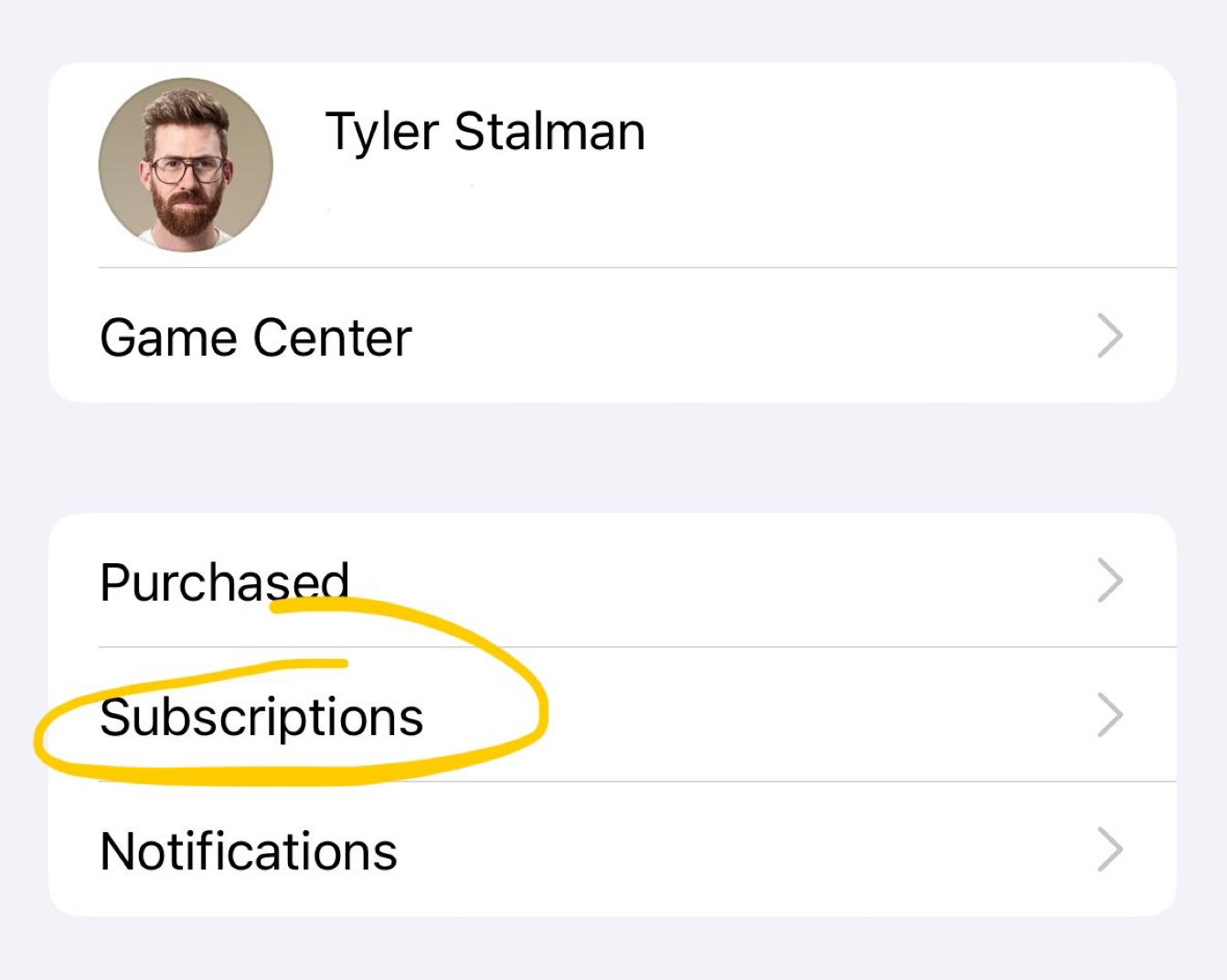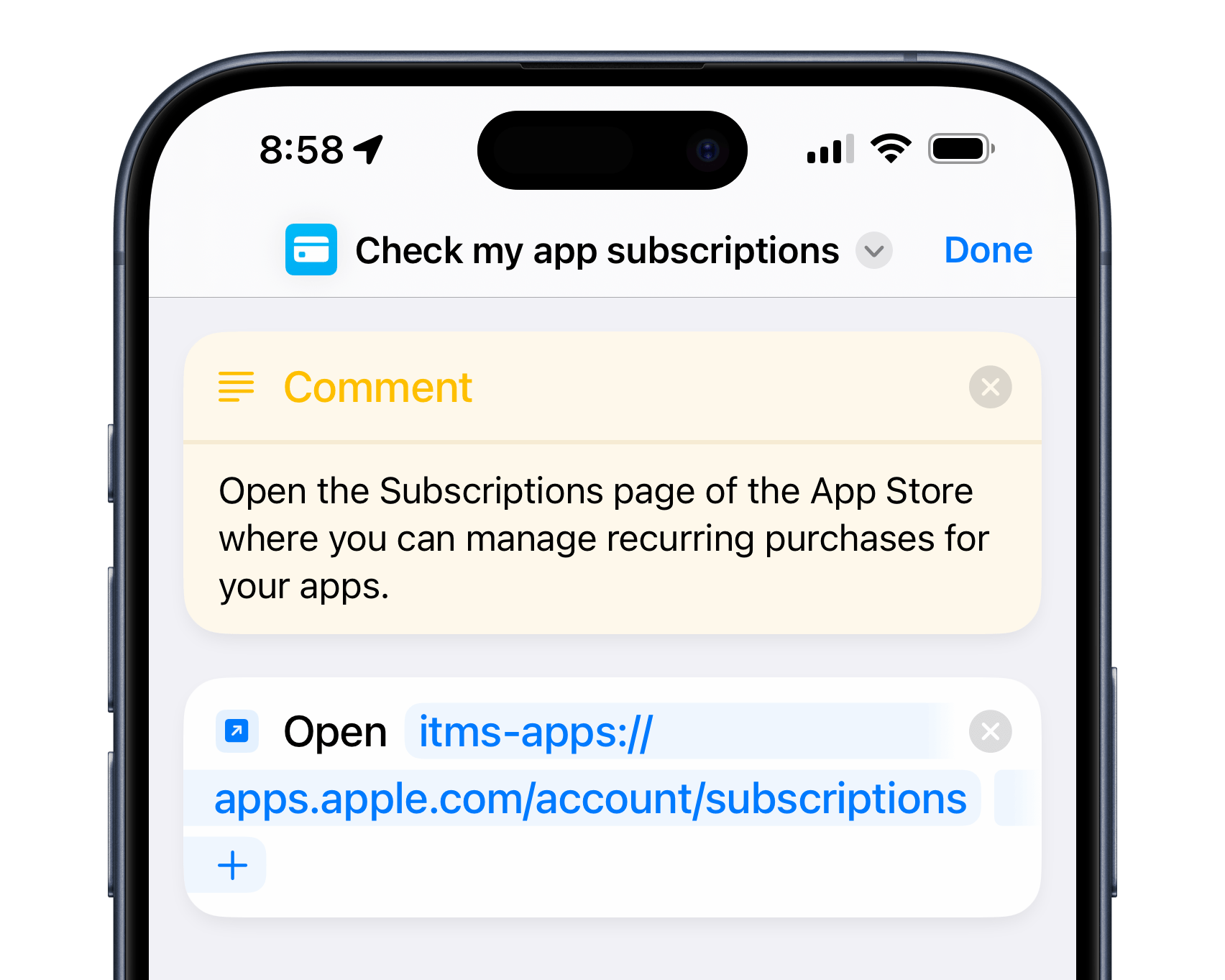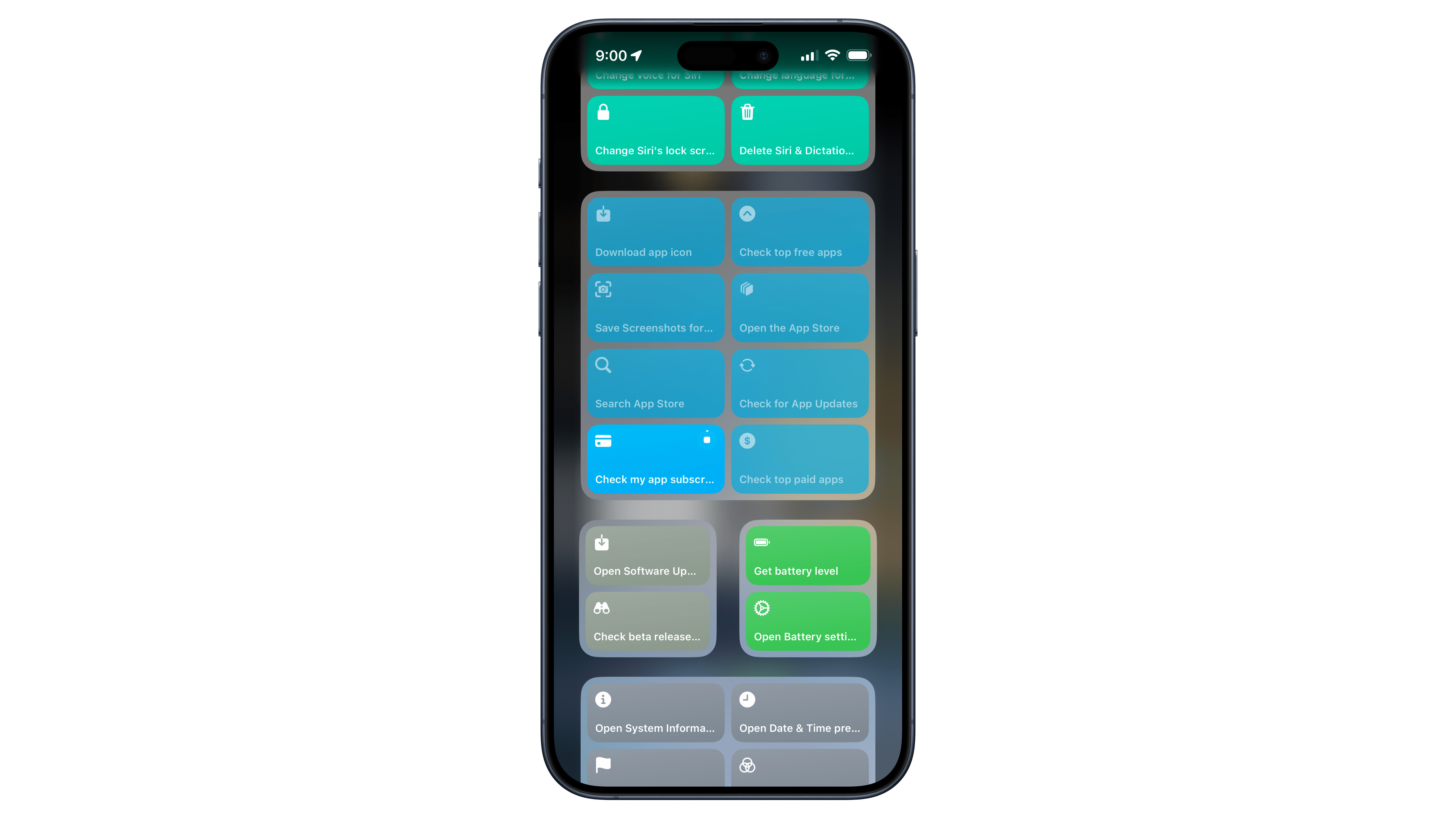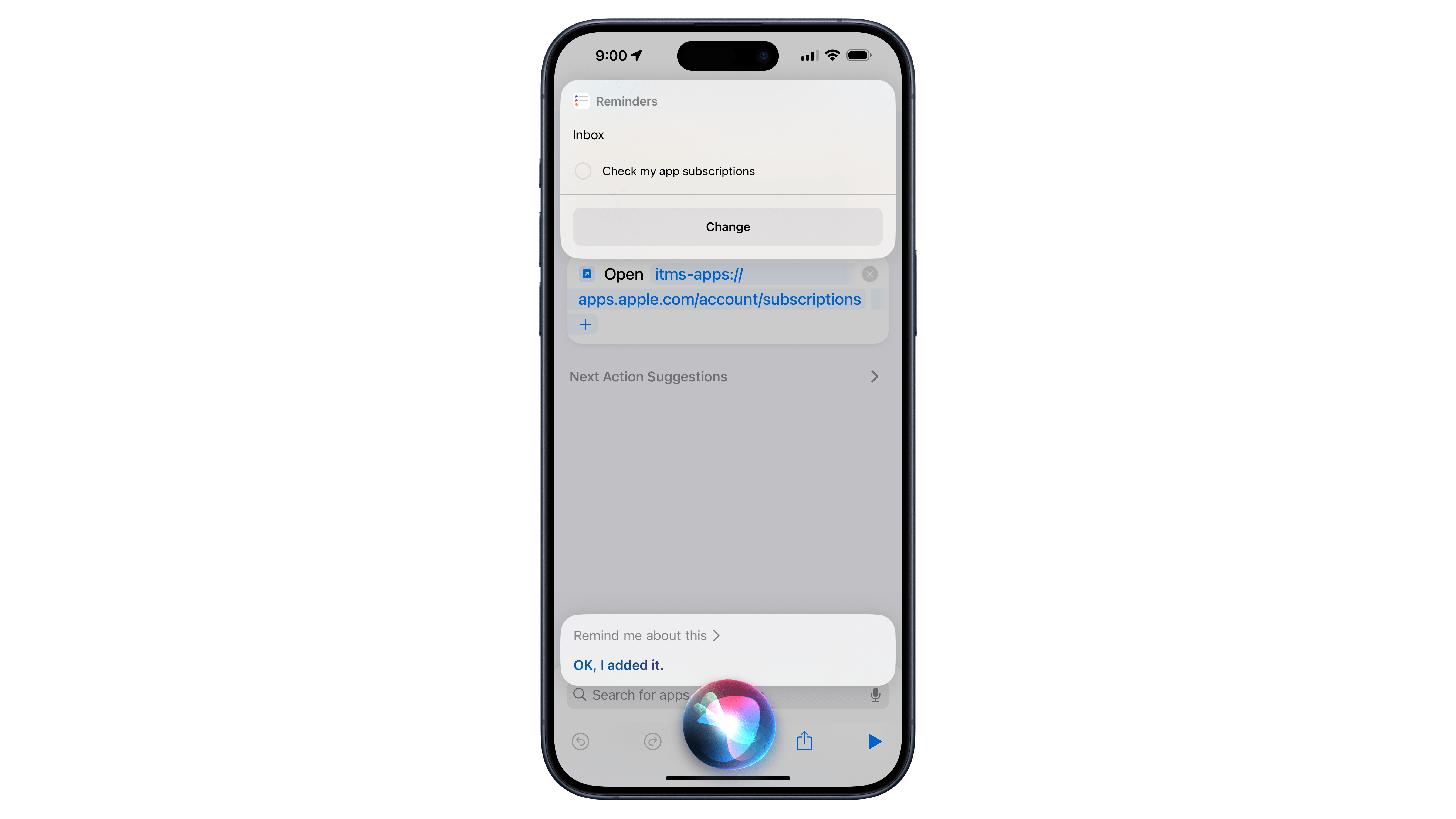
This shortcut uses a deep link into the App Store’s infrastructure, taking the URL itms-apps://apps.apple.com/account/subscriptions and opening the link using Open URLs. When run, Shortcuts opens the URL into the App Store page, showing your list of current subscriptions – including those trials you may have cancelled by default using Tyler’s method.
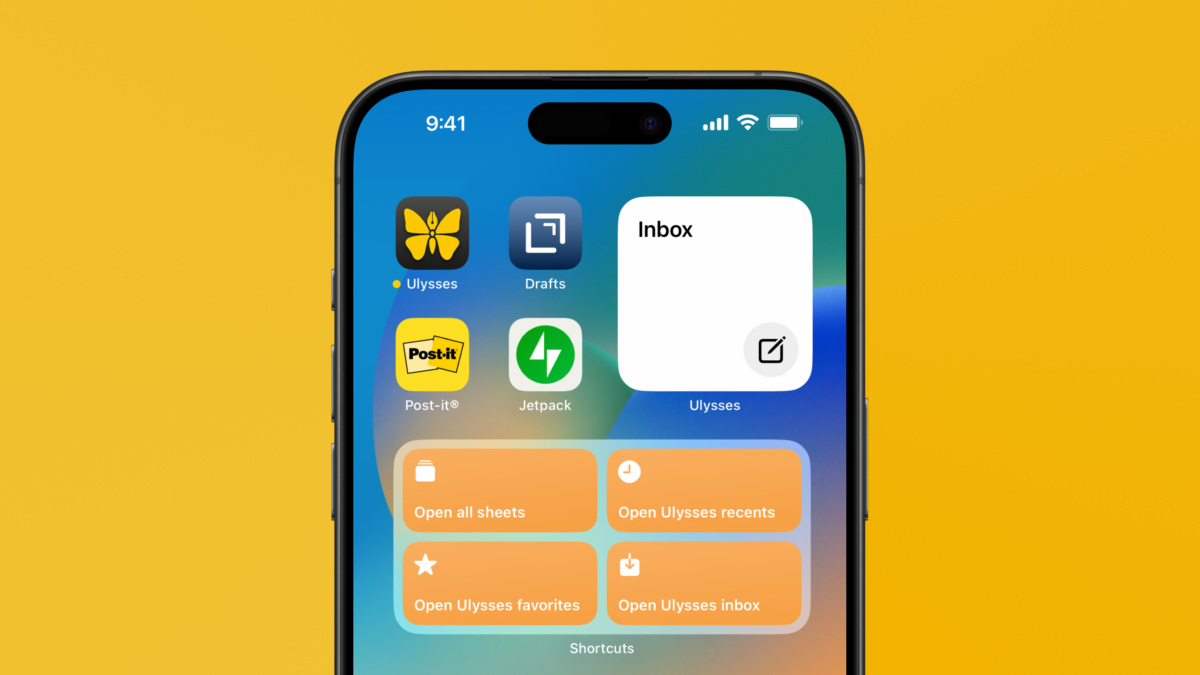
Once you have the shortcut in your collection, you can ask Siri using the name of the shortcut (which you can customize to your own preferred trigger phrase) and open right to this page at any moment. Or, you can keep it in an instance of the Shortcuts widget – I have mine in a small widget to the left of my Home Screen in a widget stack that I can rotate to when needed.
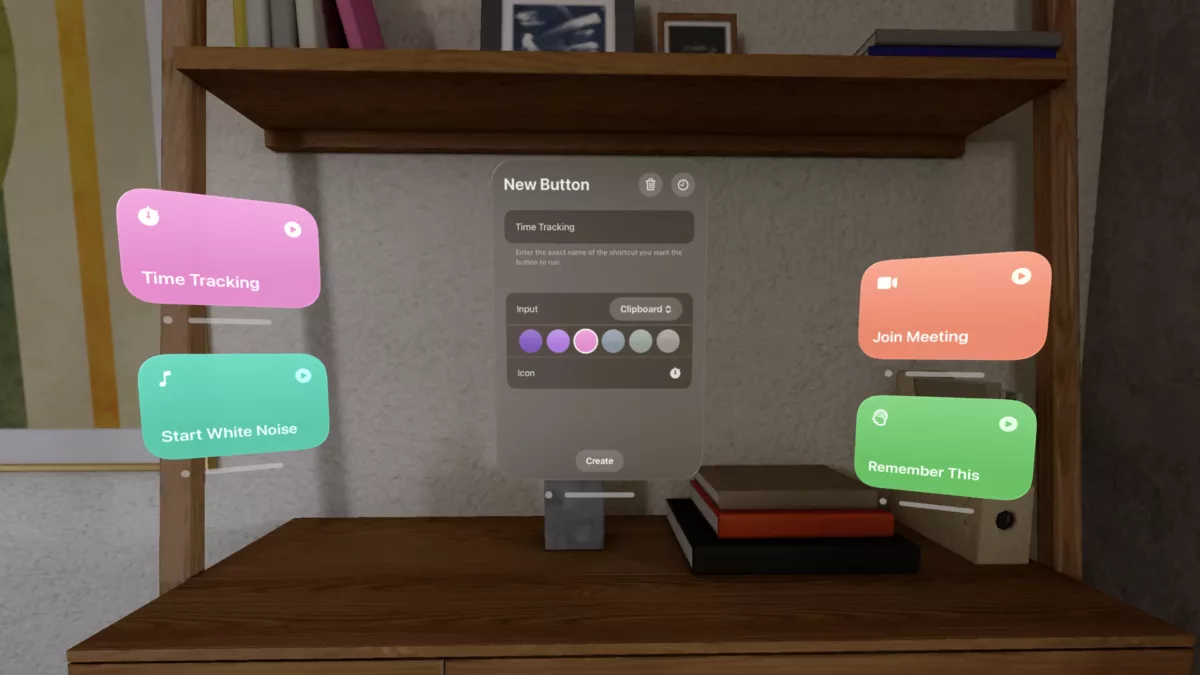
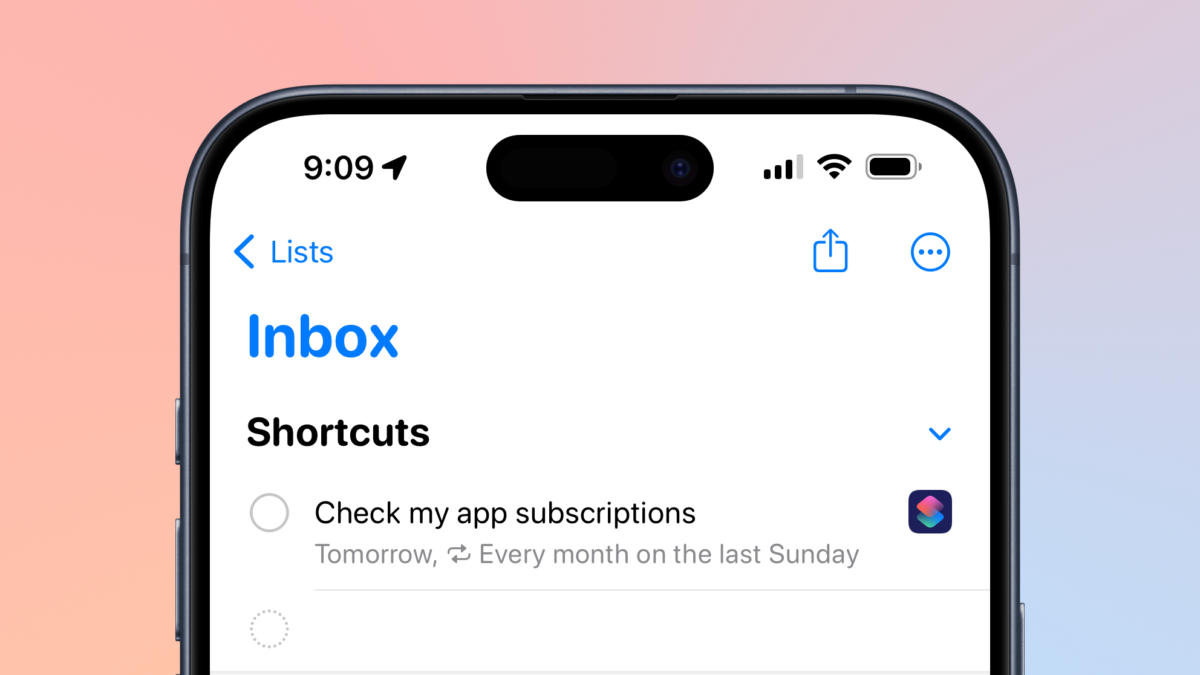
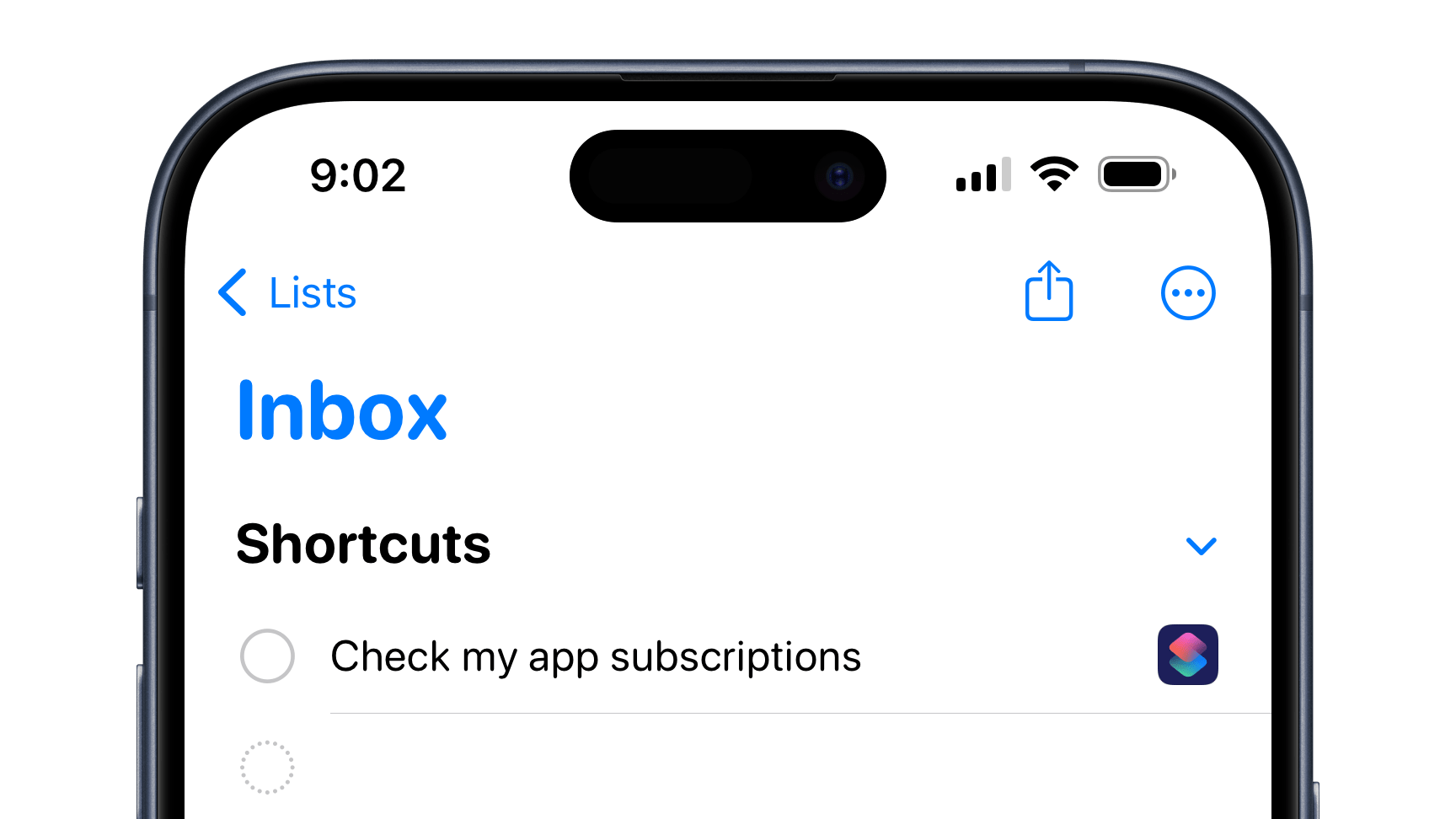
If you really want to stay on top of your subscriptions, however, I recommend using a little-known technique involving Shortcuts, Reminders, and Siri’s capability to “Remind me about this” – which you can use with Shortcuts to create a special button in your new reminder that, when tapped, opens Shortcuts and runs the shortcut.
With my “Check My App Subscriptions” shortcut open, you can ask Siri to “Remind me about this” (and even “Remind me about this once a month”) to create the special reminder.
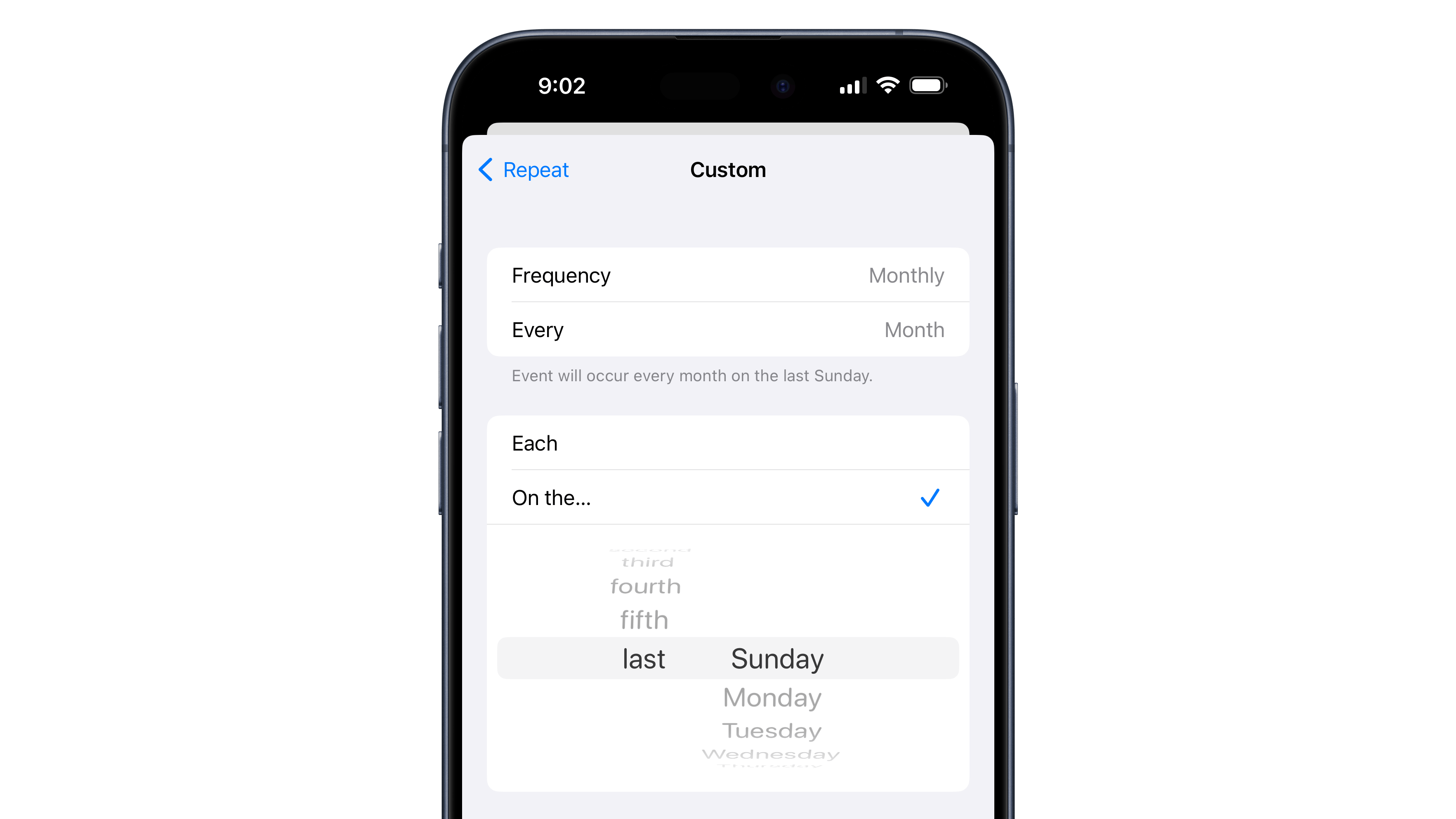
Then, you can customize the details like putting it in a different Reminders list or making the reminder repeat on a schedule – once on the weekends, or monthly on the 15th or the last Sunday are good starting points.
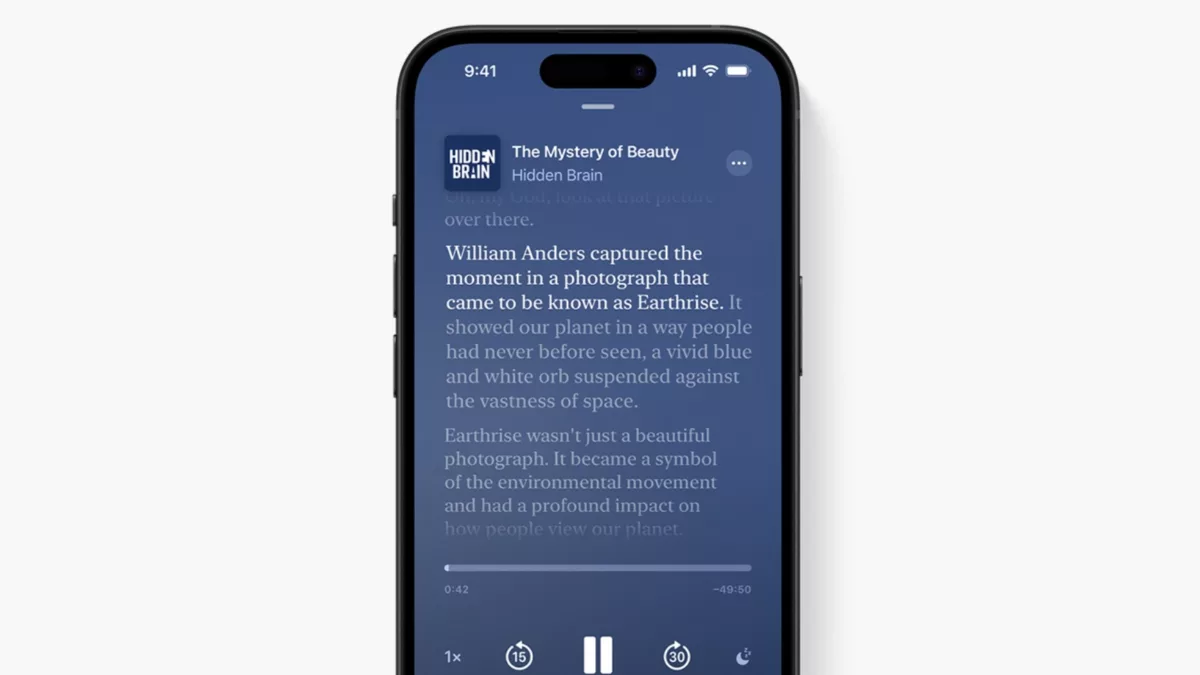
This change is a huge win for accessibility, will surely improve searching in the Podcasts app, and makes quoting your favorite podcast an easy task by letting you copy and paste the text out – something I’ll definitely have to turn into a shortcut soon.
All these benefits are great in their own way and will make podcasts more shareable as a whole, allowing us to unlock so many people’s great ideas that are currently stored within hours of audio files and obscured behind URLs that point only to the show or episode as a whole.
However, I think Apple needs to go one step further in their next step and add timestamps to Apple Podcasts, a long-overdue feature that’d enable users to share links to individual moments within a podcast, directly to a specific point in the transcript.
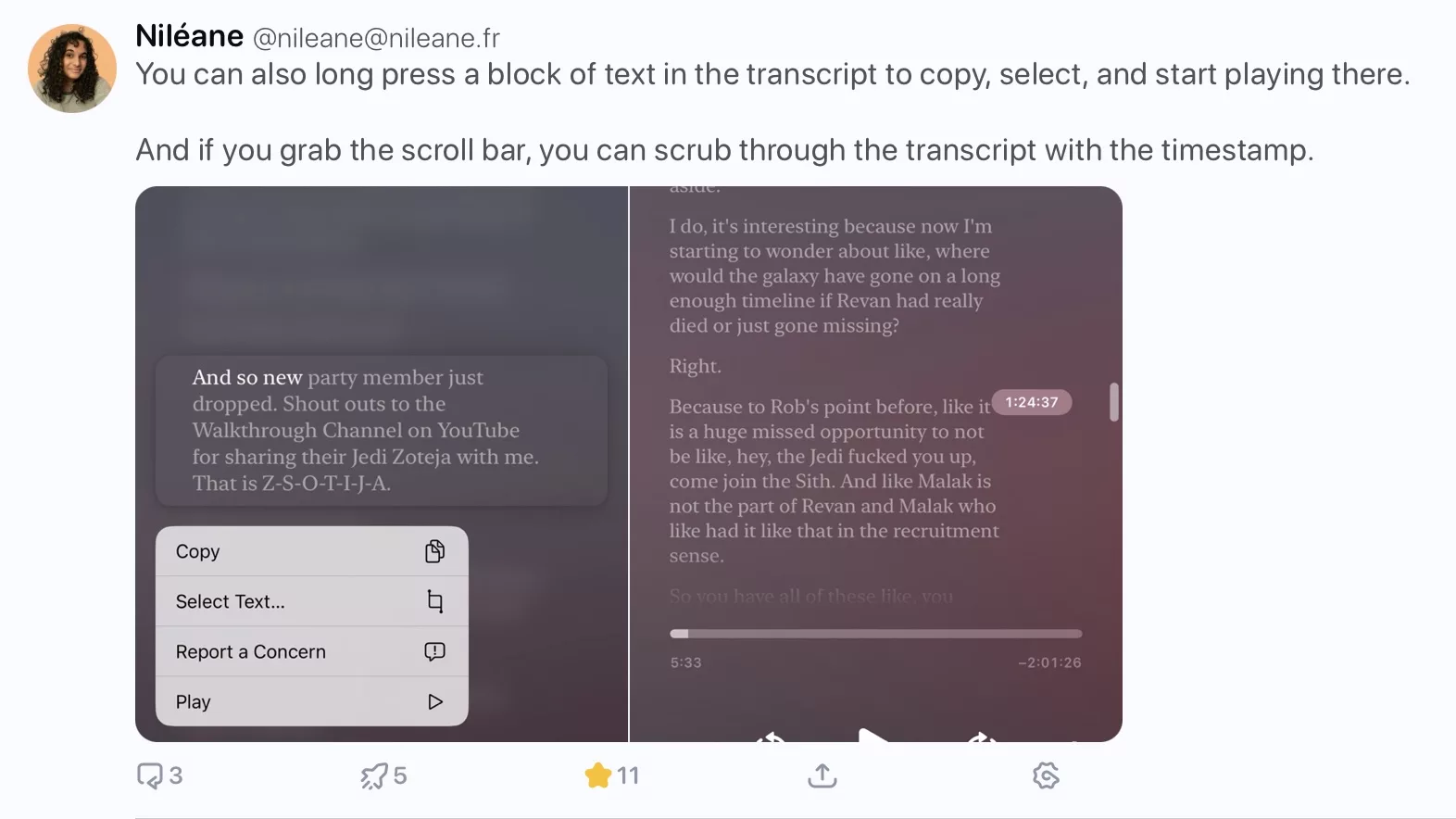
Similar to what’s already now available for Transcripts, listeners could tap on a paragraph, seek to the beginning of a sentence, and the use the Share sheet to not only “Copy” the text, but “Copy link at timestamp” – something I’m surprised didn’t come along with this feature.
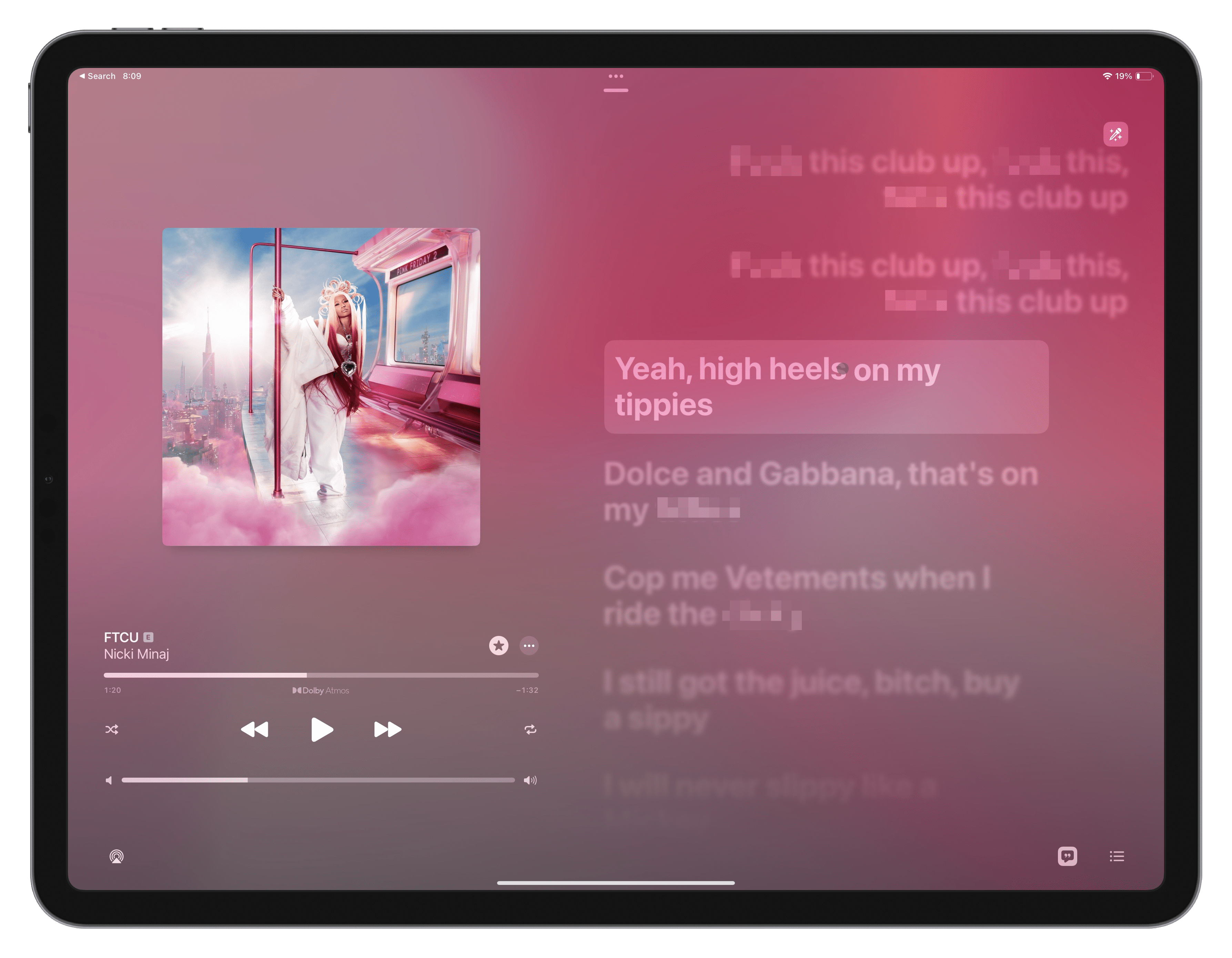
Apple Music has a similar implementation on the Lyrics page, which lets you select one or more lines – and the Copy Link at Timestamp feature is already available in the Apple Developer app as well.
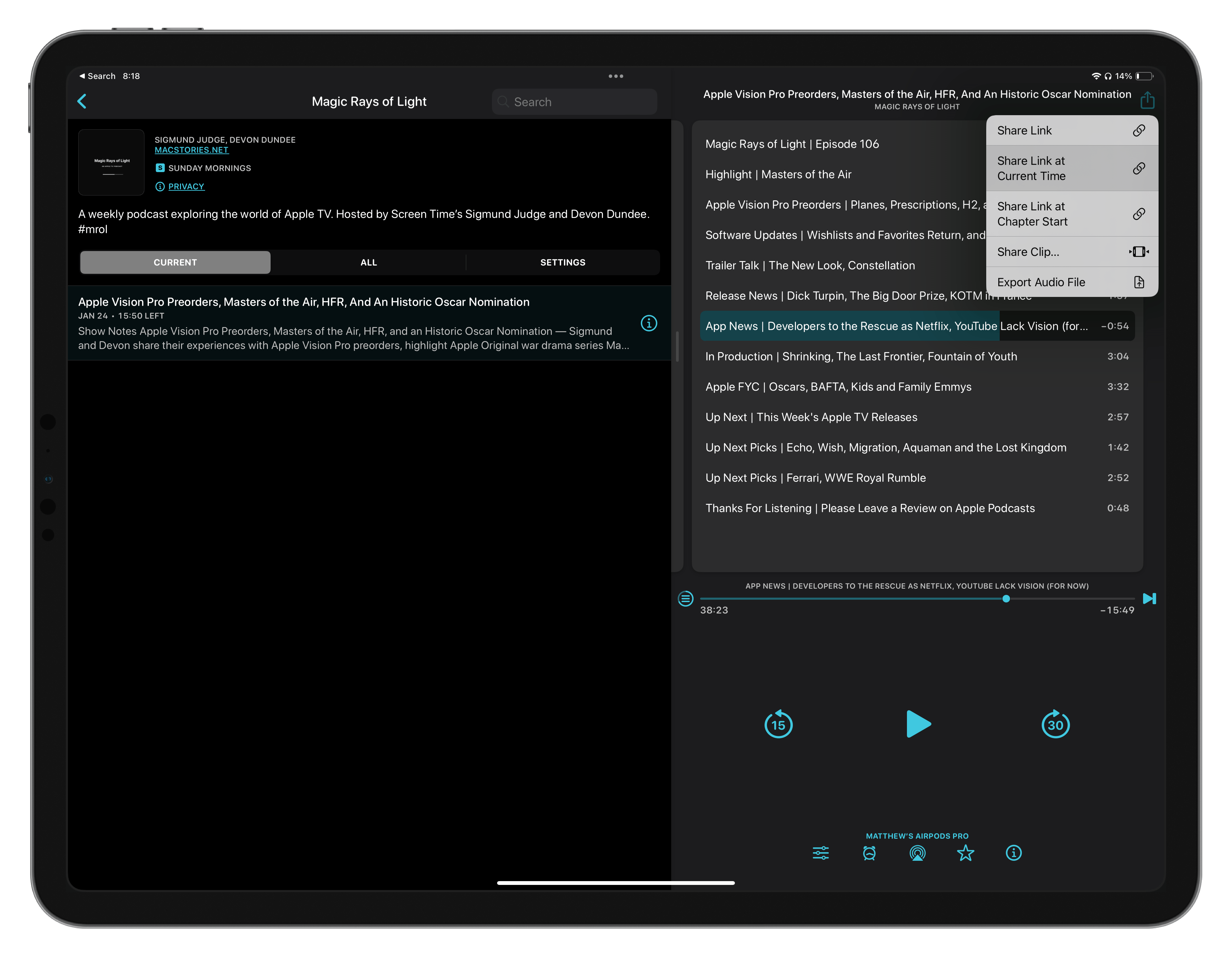
Other podcasts apps like Overcast have already created their own implementation, letting you open an Overcast link into a podcast at a specific moment – developer Marco Arment uses a timestamp function appended to the URLs to create the deeplink to a specific moment that reads like this: https://overcast.fm/+4dUt3SDKg/38:23.
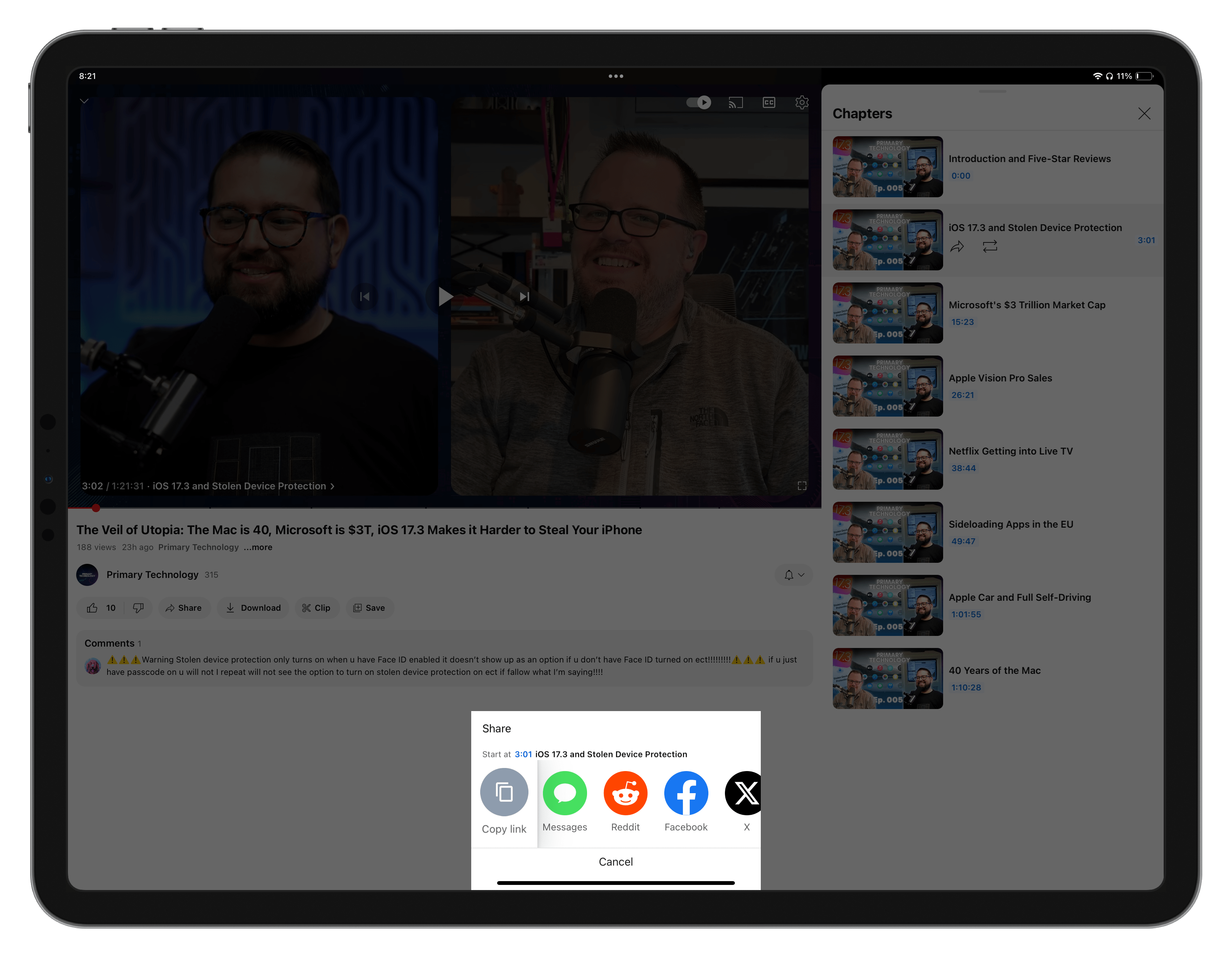
Apps like YouTube instead use the total seconds progressed in a video, a perhaps more-functional version for implementation (but less user-friendly to type out manually, if need be) – their URLs end in ?t=181 to represent 3 minutes and 1 second, like this: https://youtu.be/O2BOOdUCe90?t=181.
Whichever method they decide on, I propose Apple adopt a timestamp protocol for Apple Podcasts, append the information the URL, and make a new system that lets anyone link to a specific moment in a podcast, share that with others, and let that new listener enjoy the same moment in their Podcasts app.
I’ve filed this to Apple in their Feedback app as FB13561512 (Add timestamps to Apple Podcasts to allow linking to specific moments) – if you think this is a good idea, send a duplicate of my feedback and mention my # in your report to Apple; or, share this online if you agree.
Built for the Callsheet app from indie developer Casey Liss, these shortcuts are designed to help you find more information about TV shows or movies you are watching.
Use these to pull up the Callsheet search field, query right away, or even search TMDB directly using Toolbox Pro and open the redirect into Callsheet:
Activate Callsheet: Opens Callsheet with the input field open and the keyboard active
Search Callsheet: Asks you to enter a query, then encodes the text and opens the deep link into Callsheet.
Find movie and open in Callsheet: Searches The Movie Database for a movie using Toolbox Pro, extracts the ID, and opens the deep link into Callsheet.
Find show and open in Callsheet: Searches The Movie Database for TV shows using Toolbox Pro, extracts the ID, and opens the deep link into Callsheet.
Open Callsheet instead of IMDB: Simple shortcut for an App Automation for the IMDB app to instead open Callsheet – this name will appear as the title of your automation.
Open in Callsheet: Redirects a link from The Movie Database to Callsheet by replacing the URL with the deep link.
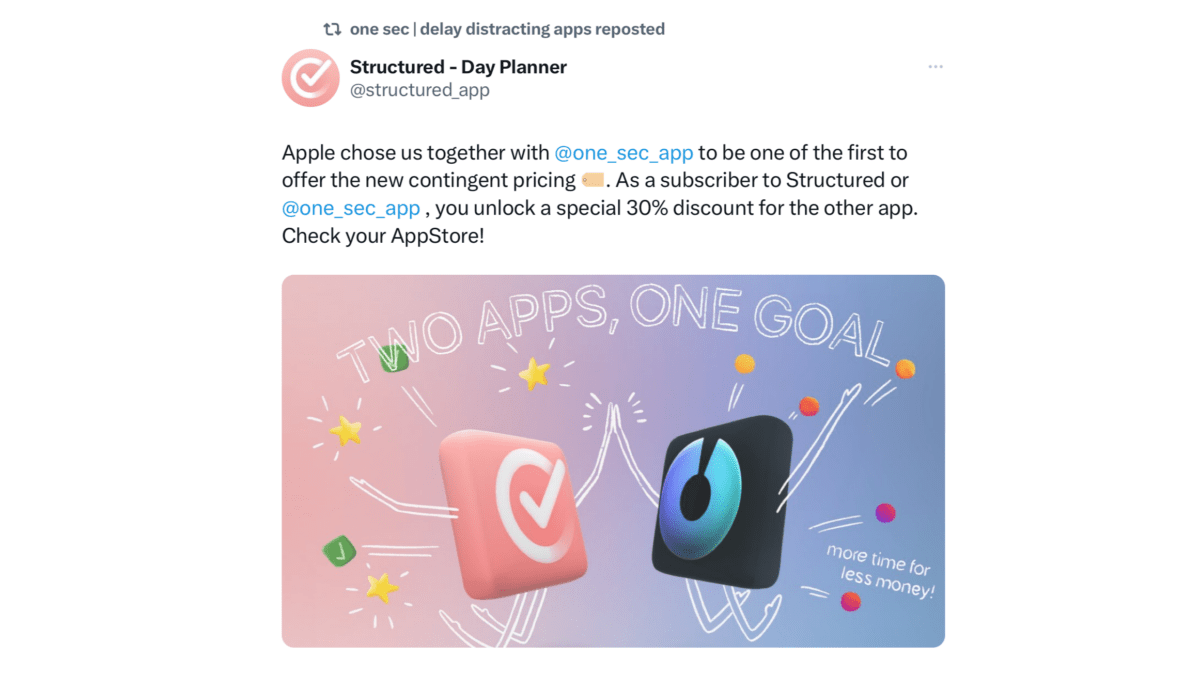
Today on X, the team from Structured announced that Apple had allowed them to partner with the team from One Sec on the new contingent pricing in the App Store, a feature announced in December that allows subscribers from one app to unlock discounts in another:
Apple chose us together with @onesecapp to be one of the first to offer the new contingent pricing ?️. As a subscriber to Structured or @onesecapp , you unlock a special 30% discount for the other app. Check your AppStore!
The offer applies only to the yearly plan and while you are an active subscriber.
This partnership makes a lot of sense – Structured is a daily planner designed to help you focus on what’s important in your day, and One Sec is designed to help you take breaks when you open apps like social media apps from muscle memory; both are made by indie developers who want to help you be mindful about your time.
The apps actually already have a native integration making it easy to set up One Sec automations from within Structured – now the partnership extends financially both to the customer’s benefit, as well both the developers.
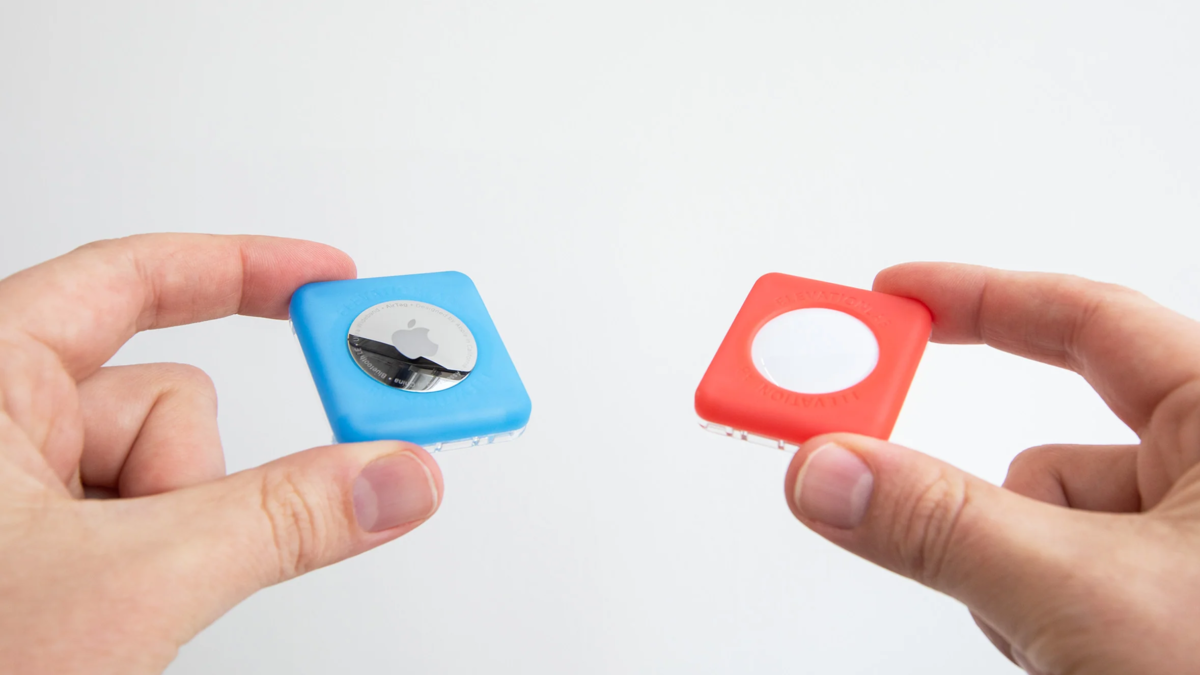
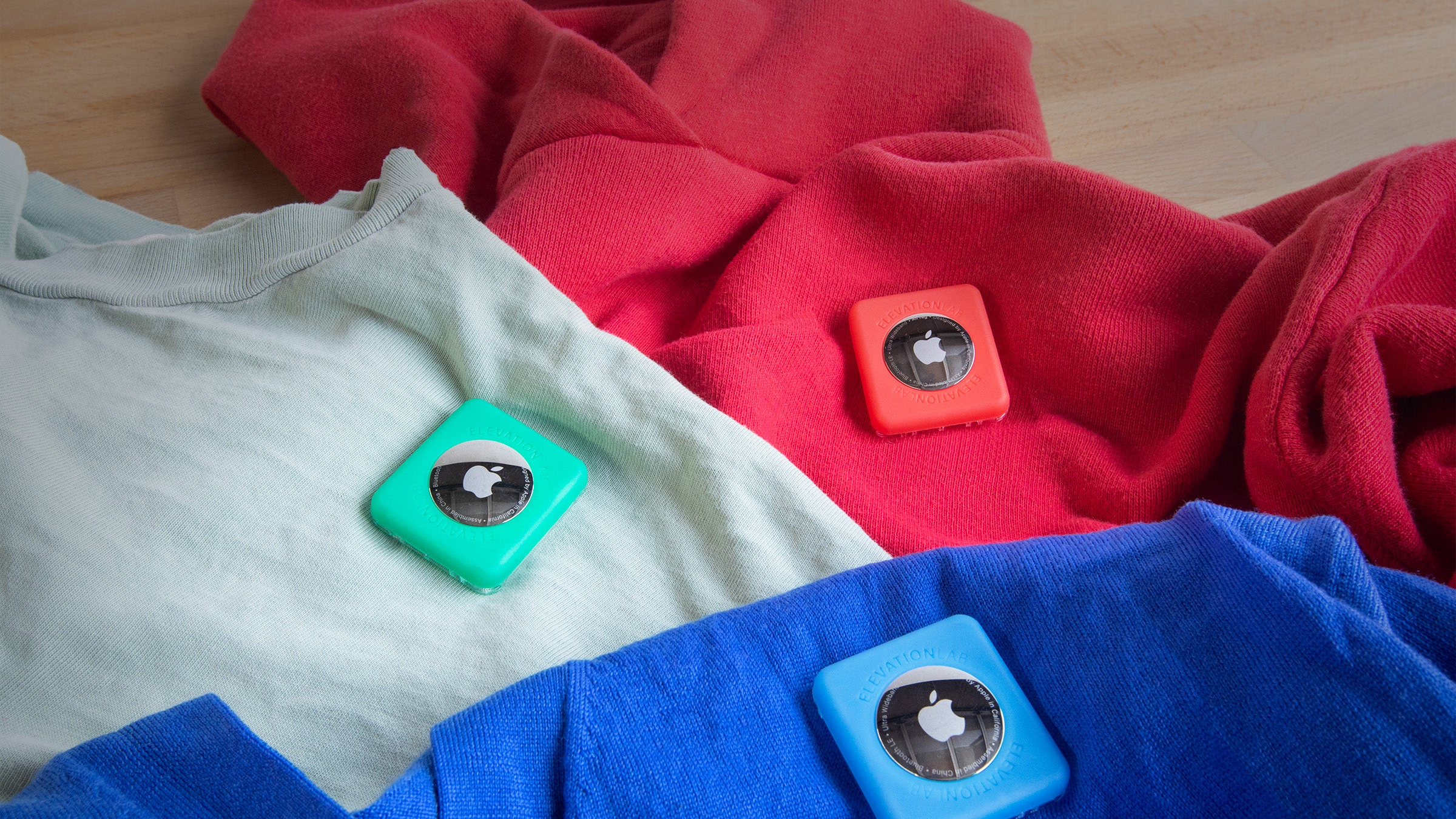
The folks at ElevationLab have launched an interesting new product for AirTags called the TagVault: Pin designed to pin to a backpack or a shirt, specifically marketed as “the best AirTag mount for kids.”
The TagVault: Pin works with two safety pins and a brightly-colored (or black) faceplate that sits low-profile on your shirt and won’t dangle around – making it perfect for your kids’ shirt as they run around and play. In addition, the safety pins make it easy to attach and remove as needed – I might just have to get one for my nephew.
They come in a single pack at $12.95, a 2-pack for $19.95, or 4-pack for $29.95, plus there’s a launch sale of up to 52% savings on the 4-pack.
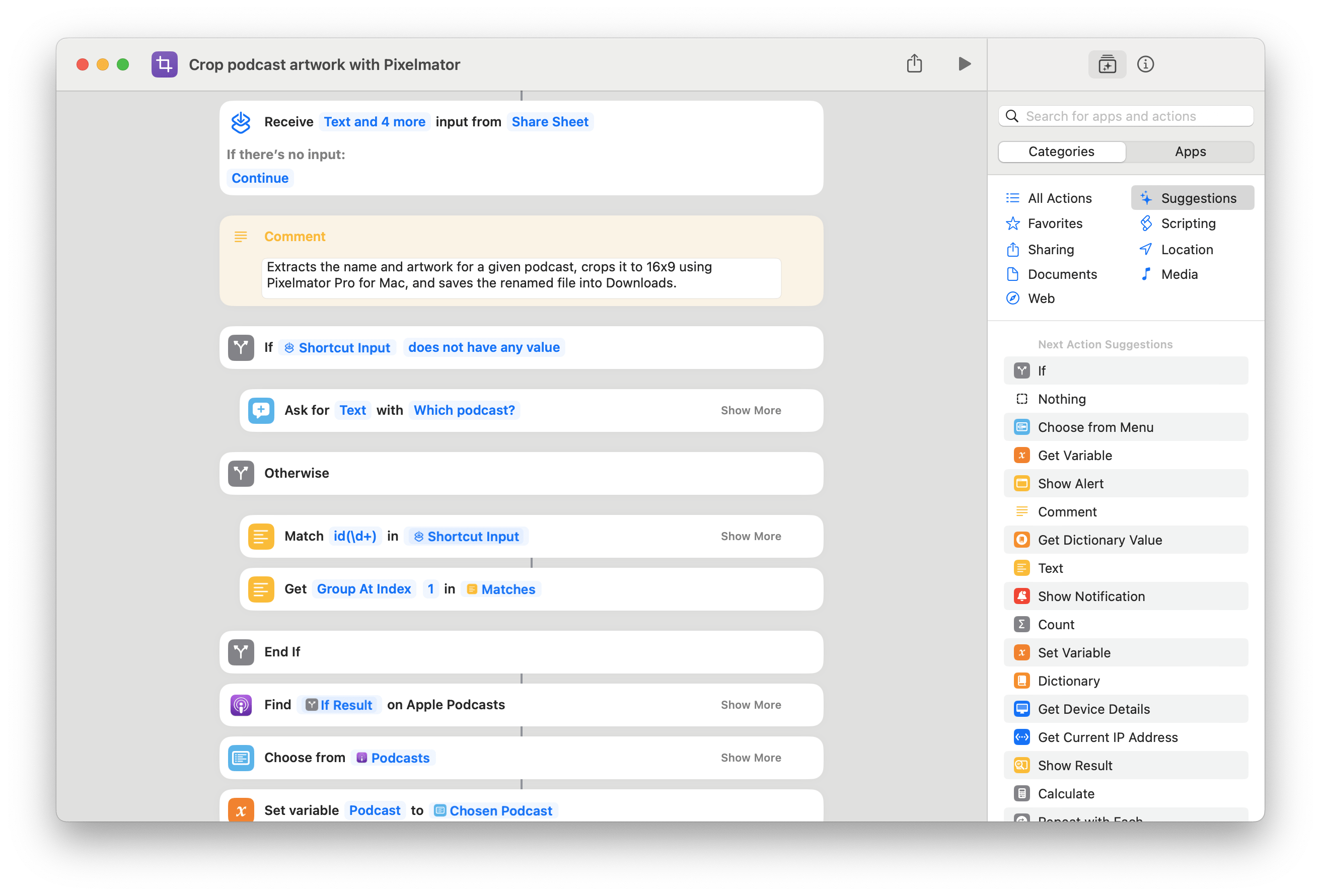
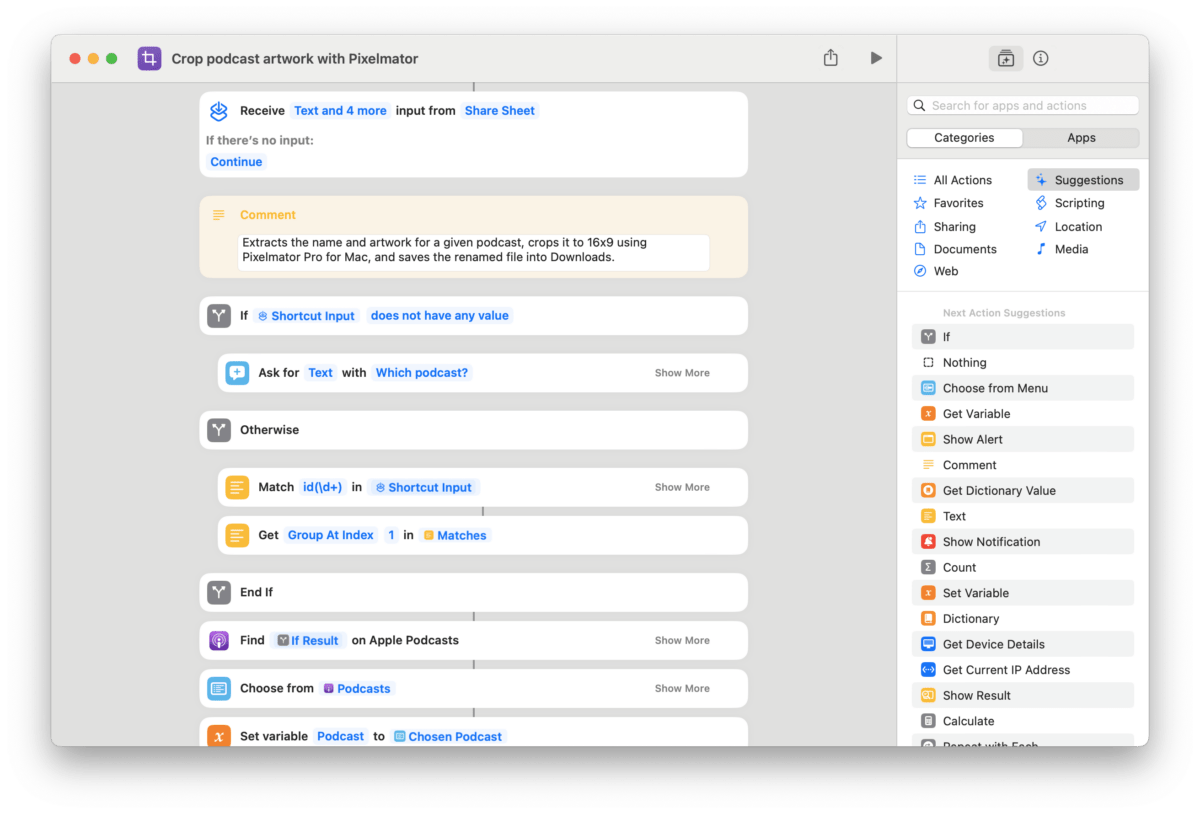
Crop podcast artwork with Pixelmator: Extracts the name and artwork for a given podcast, crops it to 16×9 using Pixelmator Pro for Mac, and saves the renamed file into Downloads.
I built this to help with any future “podcast mentions” on my site, like today’s from the show Magic Rays of Light – all my blog posts require a 16×9 image, so this shortcut scrapes the Artwork from Apple Podcasts and uses Pixelmator’s Machine Learning crop to find the best position.
Sigmund and Devon share their experiences with Apple Vision Pro preorders, highlight Apple Original war drama series Masters of the Air ahead of its debut this weekend, and break down all of the Apple FYC news in the wake of BAFTA and Oscar Awards nominations.
Introducing Shared Journals—a new way to bring your stories and memories together with those you cherish most, with the same privacy and security you expect for your journals.
What an excellent, deep feature from Day One – I’m glad to see this level of development continue with the company in the hands of Automattic, the developers behind WordPress.
As it turns out, it’s possible to tell if a developer has opted out by using App Store API endpoints. So, with a little help, we built a shortcut to check some of the most popular apps on the App Store.
They haven’t shared the full shortcut, but that just means I’ll have to poke around myself to see if I can find my way… ?
In this first issue of the new year, I’ve recapped everything from December and early January – from multiple sets of shortcuts I’ve released, to news about former Shortcuts team members, to the upcoming Apple Vision Pro launch.
Plus, I’ve redesigned the front page of my site – check it out: matthewcassinelli.com.
Add a new shortcut in a folder: Asks you which folder to open, then prompts for a name and creates a new shortcut with that title in that folder.
Search in Shortcuts: Use this shortcut to quickly find a shortcut in your library to run or open and edit. Works well if you have a large shortcuts collection.
Open a folder: Prompts you to type in a folder name, then opens that folder in Shortcuts. Assigned to Shift + Control + O as a keyboard shortcut on macOS, and placed in the iPad dock.
Run a shortcut: Asks you to enter the name of a shortcut, then finds and runs that shortcut. Also uses scripting to check if more than one exists with that name and asks which to run.
Open a shortcut: Asks you to type in the name of a shortcut, then opens it so you can edit the actions.
Open a shortcut by folder: Asks you to pick from all your Shortcuts folders, then a shortcut from that folder, then opens the shortcut.
Open into a Shortcuts folder: Opens a Shortcuts folder of your choosing; accepts the name of a folder as input as well.
Get a list of my shortcut names: Using a text field populated from “List Folder names,” lets you select multiple folders, grabs the shortcut names from all of the folders, and lets you copy out the titles.
Copy my Shortcuts folder names: Gets a list of all the titles for your Shortcuts folders. On macOS, uses the Shortcuts Command Line Interface (CLI) to make the request; on iOS, uses a Regular Expression to find the results. Also saves a .txt file of the output.
The second half of the folder is designed for accessing different pre-built folders in the Shortcuts app – I use these in the iPad widget, searching on macOS, and the Stream Deck:
Show all of my shortcuts: Use this to open the main view of Shortcuts and see everything in your collection. If you have a lot of App Shortcuts, this is the best view to see them all.
Open the Gallery: Use this shortcut to quickly access the Gallery and see what kinds of shortcuts Apple recommends based on your usage, as well as curated categories put together by the Shortcuts team.
Open my Automations: Use this shortcut to see your Personal and Home automations set up on iPhone and iPad. Works well from the Shortcuts widget or using Siri when you want to set up a new Automation.
Show my Menu Bar shortcuts: Use this shortcut to sort the list of shortcuts that appear in the Menu Bar on macOS.
Show my Apple Watch shortcuts: Use this shortcut to sort your shortcuts set to show up on the Apple Watch. Use this view to rename them, change the colors, sort the order, or drag & drop shortcuts out to remove them.
Show my Share Sheet shortcuts: Use this shortcut once you have a few Share Sheet shortcuts and want to organize them accordingly. You can also drag shortcuts into and out of this folder to add/remove them from the set, which works well with multi-select and drag & d
Show my Quick Action shortcuts: Use this shortcut to quickly access, organize, and edit your Quick Actions shortcuts set as Services on macOS. This shortcut uses the Open Folder action, which includes the auto-generated folders Shortcuts creates for features like Quick Action.
Open my Services folder: Opens the macOS folder System > Library > Services so you can see shortcuts you’ve added as Services.
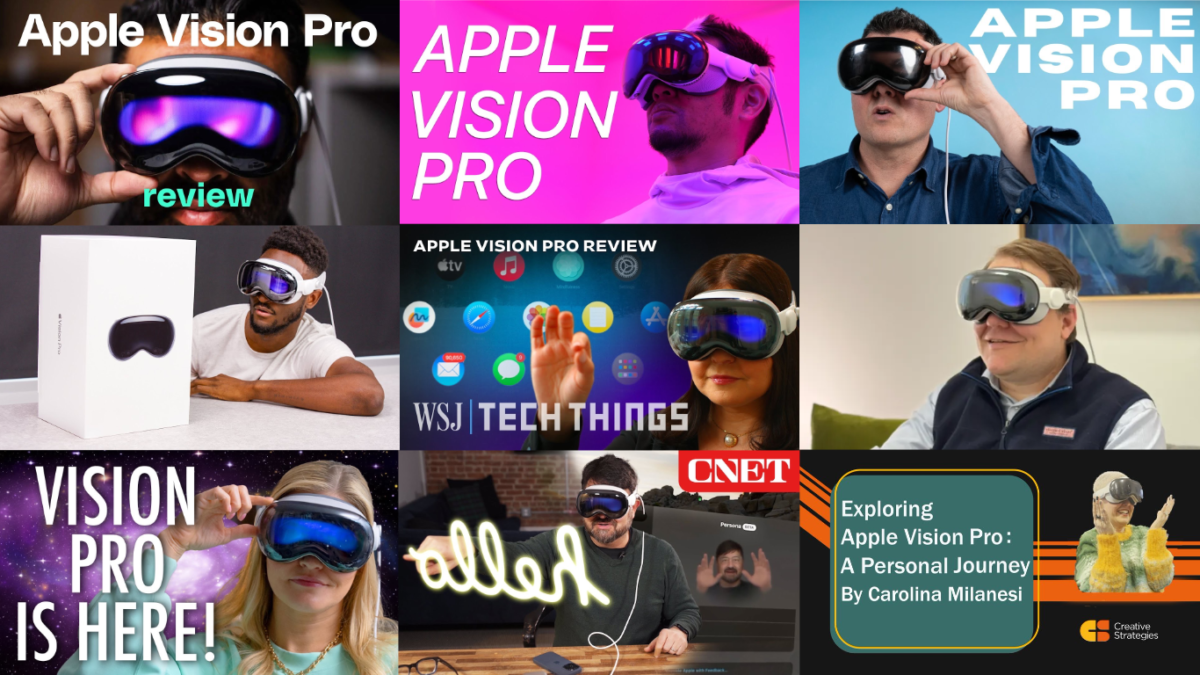
Apple has announced the Vision Pro will be coming with over 150 movies in 3D to start, out of over 400 available on the Apple TV Store. Apple of course demonstrated Avatar: The Way of Water as coming to the device, but 3D has been around for a long time – there’s a lot of movies worth revisiting on this new headset experience.
To get you started, I collected a list of 21 movies listed in the Apple TV app that were released in 3D – just search for “3D” in the app to get these:
(Note: While all of these were released in 3D, as well as listed in the TV app as results for the term “3D”, there’s still a chance some might not be available on Vision Pro – if you’re unsure, you can bookmark this page and come back when the device launches February 2).
News about 3D movies coming to Apple TV was first broken by FlatPanelsHD.com – however, official 3D labels have been removed from the TV app since then.
Today, January 8th, Apple announced that the Vision Pro will be available in the U.S. on February 2nd, with pre-orders beginning next Friday, January 19 at 5 a.m. PST.
In their press release, Tim Cook says “The era of spatial computing has arrived,” marking the beginning of new ways to interact with our devices seamlessly in a way only Apple could.
Their headline features mention “an infinite canvas for productivity,” “the ultimate entertainment experience,” and “new gaming experiences” – the three key areas I plan to use the device myself, particularly when paired with macOS as a monitor. Apple also mentioned the Band on the device for the first time, which will likely be necessary to comfortably use the device for all three of these tasks for more than a short period.
Viewing Memories and interacting with other Vision Pro users’ Personas also sound like fascinating experiences, but I have a feeling those will be more valuable over time and a bit less so immediately at launch.
Not shown in their photos is the connected battery pack, which has up to 2.5 hours of 2D playback (and likely less for a fully-immersive 3D movie) – this will be great for detachability, but I have a feeling I’ll be using this first version near a charger most of the time anyway and will be plugged in for full battery.
Overall, I’m most fascinated by the interface and what it means for my personal productivity – the combination of spatial computing, interacting with my existing devices, and my heavy use of Apple’s Shortcuts app are going to provide a truly unique experience.
In many ways, I’ve spent the last 10 years working on Workflow and now Shortcuts to build out robust voice interactions for almost every part of my computing experience – now, there’s a truly hands-free device on the way that’s deeply integrated with Shortcuts by default.
Open Fireplace TV: Opens the Winter Fireplace app for Apple TV on a selected TV.
Open Twitch TV: Opens Twitch on the TV of your choice, showing the Remote after so you can select a channel.
Open YouTube TV: Opens the YouTube app on a selected Apple TV, then shows the Remote so you can select a video.
Open Play TV: Opens the app Play for YouTube on an Apple TV of your choice so you can select videos you’ve saved for later to open in the YouTube app.
Open Plex TV: Opens the Plex app for Apple TV on a device of your choosing.
Open Letterboxd TV: Opens the Letterboxd app on the selected Apple TV, then shows the Remote so you can navigate
Open MasterClass TV: Opens the MasterClass app for Apple TV so you can browse or continue watching a lesson.
Open Developer TV: Opens the Apple Developer app for Apple TV so you can view bookmarks, browse presentations, and search for topics.
Open Lumy TV: Opens the app Lumy for Apple TV, which lets you see relevant times for sunrise and sunset so you can know when to take the best photos.
Open Unsplash TV: Opens the Unsplash app for Apple TV, then shows the Remote so you can select a set of photos to display.
Open Lightroom TV: Opens the Adobe Lightroom app for Apple TV, then shows the remote so you can select an album to view.
Open VSCO TV: Opens the VSCO app for Apple TV where you can select photosets to display in an abstract gallery.
Open the TV Clock: Opens the tvClock app for Apple TV that shows the time in a large flip-style format.
Open Wordy Clock: Opens the app Wordy for Apple TV that displays the time in an abstract text style, like “Quarter to twelve” rather than actual numbers.
Open Fin TV: Opens the app Fin for Apple TV, which lets you select timers and display them in a huge format.
Open RadarScope TV: Opens the RadarScope app for Apple TV that lets you see large weather maps and see conditions in your area.
Open SpeedTest TV: Opens the SpeedTest app for Apple TV which lets you check your internet’s upload and download speeds.
Open PCalc TV: Opens the PCalc app for Apple TV and shows the remote so you can perform calculations on the big screen.
Open Criterion TV: Opens the Criterion Collection app for Apple TV that lets you view films from the catalog.
Open App Store TV: Opens the App Store app on the Apple TV so you can browse new apps.
Turn the TV on: Turns on the specified Apple TV, including any connected TV sets.
Turn the TV off: Sleeps a specified Apple TV, also turning off any HDMI-CEC connected devices like a TV set.
Pause the TV: Pauses the specified Apple TV playback.
Resume on the TV: For the specified Apple TV, resumes playing the currently-active program.
Show the remote: Shows the Apple TV remote and lets you control the device from your iPhone or iPad.
Switch to my profile: Turns on the TV and sets the Apple TV to your personal profile, appearance preference, and Reduce Loud Sounds setting, then shows the remote.
Turn on the screensaver: Wakes up the specified Apple TV, then activates the built-in Screen Saver feature to display ambient scenes instead of the Home Screen.
Open Apple TV settings: Opens the Settings app on Apple TV where you can tweak your preferences.
Open Music TV: Opens the Apple Music app for Apple TV on the selected device, then shows the Remote so you can play something.
Open Podcasts TV: Opens the Podcasts app for Apple TV on the selected device, then shows the remote so you can pick something to listen to.
Open Fitness TV: Opens the Apple Fitness app on the selected device, then shows the Remote so you can pair your Apple Watch and begin a workout.
Open Photos TV: Opens the Apple Photos app for Apple TV, then shows the Remote so you can select an album or a memory to play.
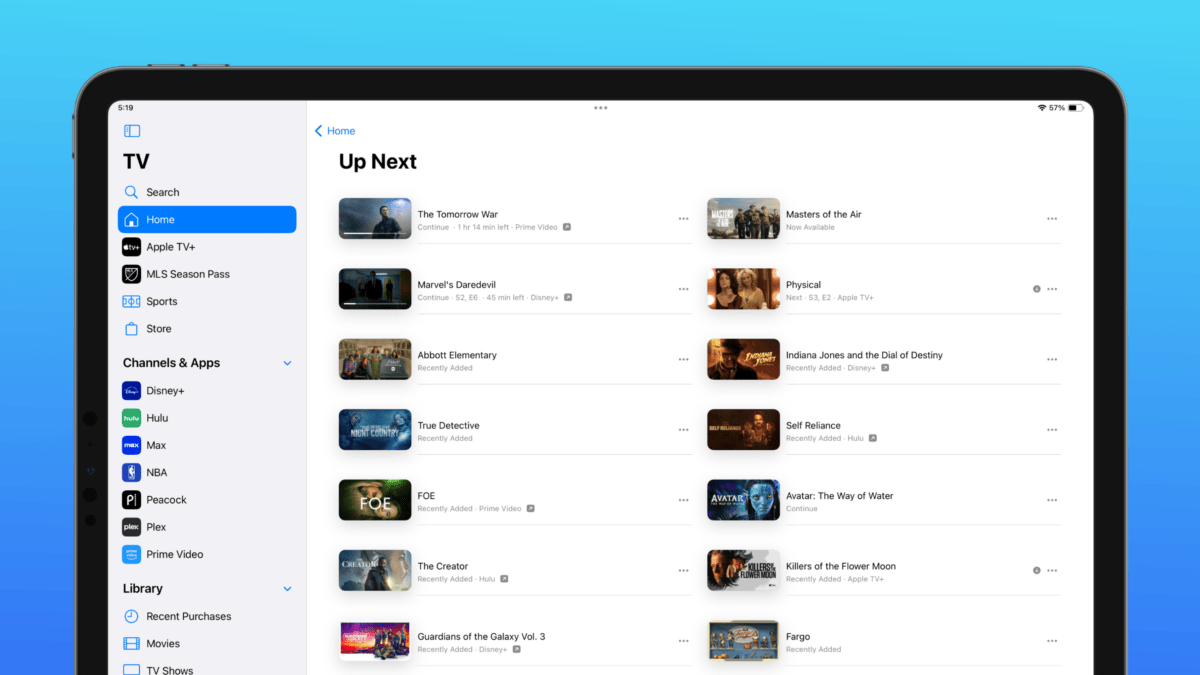
Open the TV app: Opens the Apple TV app on the selected TV, then shows the Remote so you can pick something from your Up Next or a connected service.
Open Netflix TV: Opens Netflix on the selected Apple TV, or opens the website from Mac.
Open HBO TV: Opens the MAX app on Apple TV and on the web if run from Mac.
Open Hulu TV: Opens the Hulu app on Apple TV and on the web if run from Mac.
Open Disney TV: Opens the Disney app on Apple TV or website if run from Mac.
Open Prime TV: Opens Amazon Prime Video on Apple TV or on the web if run from Mac.
Open the Kindle app: Opens the Kindle app on iOS and Mac to the default library view, letting you browse your collection and select a book or PDF to read.
Read my Kindle book: Opens the Kindle app to the most recent book you were reading.
Send to Kindle: Takes the file from input and emails it to your Send To Kindle email address.
Create new Thread: Opens the deep link to Threads’ Create menu so you can post a new thread. On Mac, opens the Threads website.
Post to Threads: Asks you to enter the text of your post, then URL encodes the result and passes it to Threads’ URL scheme for creating posts. On Mac, copies the result and opens Threads.net.
Post link to Threads: Presents the link excerpt, then asks you to share your commentary along with the URL in a new post on Threads.
Post media to Threads: Asks you to select media to store on your clipboard, then asks you to enter a post to pass to Threads where you can paste your media. On Mac, gets file from Finder/Services and opens Threads.net.
Cross-post to Twitter and Threads: Prompts you to enter in a message, then copies the text, opens to Twitter for you to post, waits for you to return, then opens Threads with the message filled out. On Mac, opens the Threads website.
Cross-post to Ivory and Threads: Prompts you to enter in a message, then copies the text, posts it to Mastodon via Ivory, then opens Threads with the message filled out. On Mac, opens the Threads website.
Cross-post everywhere: Prompts you to enter in a message, then copies the text, posts it to Mastodon via Ivory, then opens Threads with the message filled out. On Mac, opens the Threads website.
Also, I’ve moved the Threads scraping shortcuts into their own folder, plus updated the rest of the Threads folder to work cross-platform with macOS:
Open Threads app: Opens the Threads app from Instagram/Meta. On iPhone, works well with custom icons. On iPad, uses Stage Manager to make proper window. On Mac, opens web app created using Add to Dock.
Open Threads search: Opens the link to Search in Threads so you can find posts about specific topics.
Open username in Threads: Prompts for a username (or accepts one as input) and opens the redirect into the Threads app.
Show my Profile in Threads: Switches the Threads app to your own profile. Userful for checking your follower count.
Share my Threads profile: Takes your pre-inputted Threads URL and asks whether to copy it, share, or display it as a QR code.
Thriendly tip ✨ To upload images and videos here at the highest quality possible, head to Settings, then tap on “Account” > “Media quality” > “Upload highest quality.”
Use my shortcut Open Threads Settings to quickly access this page as needed, plus your Notification options and your Likes, plus Privacy controls.
Open the Phone app: Opens the deep link to the Phone app (mobilephone://).
Activate noise control: Opens the deep link to the phone app, then sets playback to AirPods and turns on Noise Cancellation.
Open Favorites: Opens the deep link to the Favorites tab in the Phone app (mobilephone-favorites://).
Open recent calls: Opens the deep link into the Recents section of the Phone app to see your incoming and outgoing calls, plus any missed calls (mobilephone-recents://).
Open my voicemail: Opens the deep link into the Voicemail section of the Phone app (vmshow://).
Get my number: Gets the first phone number from your preselected contact card, copies it to the clipboard, and shows it to you in a dialog. Use to quickly show to or share with someone else.
Dial a number: Prompts you to enter a phone number, then asks you to confirm before calling.
Call a contact: Presents your list of contacts, then calls the person you select. If they have multiple numbers, asks you which one to dial.
Phone a friend: Looks for contacts added to a “Friends” group and asks you to pick one before calling them.
Call a coworker: Looks for contacts from a given company name (added on input), then asks you to choose which contact and calls them.
First, there are schemes for the new Journal app and Journal’s settings:
open | moments://
open | prefs:root=JOURNAL
And two for the new Contact Key Verification for iMessage setting:
highlight | prefs:root=APPLE_ACCOUNT#TRANSPARENCY
open | prefs:root=APPLE_ACCOUNT&path=TRANSPARENCY
The article also covers new URL schemes for Accessibility and other settings added in iOS 17.2 – make sure to check out the full list and make a shortcut if you utilize these features.
One of the best music discoveries over the last few years is the fact that I love dance music and never really realized it before – that has led to many, many Singles being saved to my singles library from top playlists so I can keep track of all the songs and artists.
However, that’s led to an Albums view that’s hard for me to parse – often each album cover represents only one or two songs, and the sheer volume/variety compared to other genres means the list is now much busier and harder for me to parse when trying to find actual full-length albums that I’ve added.
With the update to iOS 17.2 to change Likes to Favorites, however, I discovered a new filter in the Albums view that lets you see only your Favorites.
With this, I’ve gone through and added a bunch of full-length albums as favorites—leaving out all the singles—and now I can filter the list down to my “real” library.
Further, I can still favorite the individual track within a Single to add the track itself to my Favorites list like any other song, while still being able to effectively hide the artwork when I want to filter for full albums.
Overall, I think Favorites makes sense over Likes and enables some helpful quality-of-life features to the Apple Music experience – this Favorites filter for Albums is a nice touch.