Categories
Custom Shortcuts Shortcuts

Updated in the Shortcuts Library: Apple Music Replay shortcuts

I’ve just updated a folder in the Shortcuts Library — my set of Apple Music Replay shortcuts, adding the Replay 2025 playlist and the Replay All Time playlist added in June 2025:

  • Play my Replay All Time playlist: Plays the preselected Replay All Time playlist on Shuffle, which curates your top tracks across the years into a single playlist.
  • Play my Replay 2025: Plays the preselected Replay 2025 playlist on Shuffle. This time? Even more dance, plus more hip-hop.

Check out the folder of Apple Music Replay shortcuts on the Shortcuts Library.
Categories
Custom Shortcuts

New in the Shortcuts Library: WordPress shortcuts

I’ve just added a new folder to the Shortcuts Library — my set of WordPress shortcuts. Use these to log in to your dashboard, manage your pages, update plugins, and quickly access your homepage:

Check out the folder of WordPress shortcuts on the Shortcuts Library.

Categories
Custom Shortcuts

New in the Shortcuts Library: X shortcuts

I’ve just added a new folder to the Shortcuts Library — my set of shortcuts for X, “the everything app” – formerly Twitter.

Use these shortcuts to access all the sections of the app, make the most of Lists, perform advanced searches, and access elements of your profile:

  • Show my Timeline on X: Quickly access to your preferred Twitter timeline with one command.
  • Search on X: Asks you to enter a query, then opens the Search in X (formerly Twitter).
  • Explore on X: Opens the URL to the Explore tab of X where you can search for posts, plus see curated stories, hashtags, profiles, & topics in For You, Trending, News, Sports, & Entertainment sections.
  • Check my Mentions on X: Opens the URL to the Notifications tab of X where you can see your replies, likes, reposts, quotes, and follows. On the Mac, opens to mentions-only so you can reply back directly to people.
  • Chat on X: Opens into the Chat experience for X where you can send a new message, see recent messages, perform a search, or filter conversations by All, Unread, Groups, or Requests.
  • Open into a List from X: Presents a menu of your Lists on X, then opens the URL into into the corresponding list. Requires entering list IDs manually.
  • Open my Lists on X: Opens the URL to the Lists page for your given username. On import, asks you to enter your handle.
  • Create a List on X: Opens the URL to the Create button for Lists on X where you can add an Image, Name, Description, and whether the list should be Private before adding the list.
  • Open my Bookmarks on X: Opens the URL to the Bookmarks page on X where you can see posts you’ve saved and organize them into folders.
  • Create a Bookmark Folder on X: Opens the URL to the Create Folder endpoint for Bookmarks on X, where you can enter a title and description before adding the new folder.
  • Open my Likes on X: Opens the URL to the Likes section of your profile on X where you can see posts you’ve interacted with. On input, asks you to enter your handle.
  • Open my Profile on X: Opens the URL to your username on X – also copies the link in case you want to share it with someone else. On import, asks you to enter your handle.
  • Search posts from people I follow on X: Asks for a search query, then filters by People You Follow, then opens the URL to X to show you results.
  • Search my own posts on X: Using a X username inputted on import and a keyword entered when the shortcut is run, this shortcut takes the info, URL-encodes it into a X link, and opens into the app to show the results.
  • Find Quotes and Replies for this post on X: Gets a post link from input and reforms the URL with advanced search filters before opening it with X.
  • Open Settings on X: Opens the URL to the Account settings section on X where you can change your account information or password, download an archive of your data, or deactivate your account. Other sections in Settings include Monetization, Premium, Creator Subscriptions, Security and account access, Privacy and safety, Notifications, Accessibility, display, and languages, Additional resources, & Help Center.
  • Manage X premium: Opens the URL to the Premium section of X where you can manage your subscription, quick access features like Grok, Monetization, Analytics, X Pro, Media Studio, Hiring, Bookmarks Folders, and Top Articles, customize your profile with an expanded bio or theme, and verify your ID.

Check out the folder of X shortcuts on the Shortcuts Library.
Categories
Custom Shortcuts

New in the Shortcuts Library: Meta AI shortcuts

I’ve just added a new folder to the Shortcuts Library — my set of Meta AI shortcuts for interacting with Meta AI, the assistant from the makers of Facebook and Instagram.

Use these for Meta AI on the web – quickly start a new chat, browse Vibes creations, generate an AI image or video, and access features of AI Studio where you can create your own AI chatbot.

  • Open Meta AI: Opens the URL for Meta AI so you can ask anything, choose from one of their suggestions, or scroll down to browse Vibes.
  • Talk with Meta AI: Opens the URL for the Talk feature in Meta AI, activating voice mode on your device right away so you can begin speaking your prompt.
  • New chat with Meta AI: Opens the URL to a new chat with Meta AI, focusing on the keyboard so you can start typing your prompt right away.
  • Open Vibes from Meta AI: Opens the URL to the Vibes page of Meta AI where you can browse and watch creations from others.
  • Create media with Meta AI: Opens the URL to the Create tab of Meta AI, where you can view your own creations and create something new by describing your image. “You can create images and videos to inspire others.”
  • Open the AI Image Generator from Meta AI: Opens the URL for the AI Image Generator from Meta AI where you change options like aspect ratio or aesthetics along with your prompt. Capabilities listed include “Create images,” “Create an image of yourself,” “Edit images,” “Restyle images,” “Animate images,” and “Analyze images.”
  • Open the AI Video Generator from Meta AI: Opens the URL for the AI Video Generator in Meta AI, where you can create, remix, and share AI videos. Capabilities listed include “Create custom animations,” “Edit images,” “Extend videos,” “Get more done,” “View your creations,” and “Restyle and edit.”
  • Show my notifications from Meta AI: Opens the URL for the Notifications page for Meta AI where you can see interactions on your creations.
  • Show my profile on Meta AI: Opens the URL for your profile on Meta AI. On import, asks you to enter your username.
  • Show demos from Meta AI: Opens the URL for AI Demos from Meta, where you can “[e]xplore the latest AI experiments from Meta, where bold ideas meet the edge of research, creativity, and technology.”
  • Show Meta AI Studio: Opens the URL to the AI Studio from Meta (hosted on Instagram.com) where you can create your own AI or “find and interact with AIs created by others.”
  • Create an AI with Meta AI Studio: Opens the URL to the Create an AI page in Meta AI Studio, where you can “make an AI for deep conversations, help with specific topics or just for fun,” “craft a specific voice for your AI and give it capabilities like search and image generation,” and “chat privately or make an AI public for others to discover.”
  • Show my AIs in Meta AI Studio: Opens the URL for “Your AIs” in Meta AI Studio, where you can manage AIs that you’ve created.

Check out the folder of Meta AI shortcuts on the Shortcuts Library.

Categories
Custom Shortcuts

New in the Shortcuts Library: Gemini shortcuts

I’ve just added a new folder to the Shortcuts Library — my set of Gemini shortcutsfor Google’s AI. Use these to start and find chats, open into custom gems, and open into various settings for the assistant.

Use the first set of six shortcuts to interact with the Gemini app on your phone – the rest currently open on the web:

Gemini app

  • Talk Live with Gemini: Opens the Gemini app to the Talk Live chat mode where you can speak conversationally with the AI.
  • Type Gemini prompt: Opens Gemini to the Ask Gemini chat menu with the keyboard activated, ready for you to type your prompt right away.
  • Open Gemini mic: Opens the Gemini app and activates the microphone so you can speak out a single prompt and confirm the query before asking.
  • Open Gemini camera: Opens the Gemini app and activates the device camera so you can scan your surroundings and take a photo for the AI to analyze.
  • Share image with Gemini: Opens the Gemini app and activates the photo picker so that you can choose an image from your gallery to add to your prompt.
  • Share file with Gemini: Opens the Gemini app to the File picker so you can attach any documents like PDFs to your prompt for analysis.

Gemini for Web

  • Open Google Gemini: “Gemini 3 Pro is here. It’s our smartest model yet—more powerful and helpful for whatever you need: Expert coding & math help; Next-level research intelligence; Deeper understanding across text, images, files, and videos.”
  • Search for chats with Gemini: Opens the link to Gemini search, which puts the keyboard into focus immediately so you can just start typing your query. Also shows recents chats.
  • Brainstorm with Gemini: “Find inspiration easily. Fresh ideas for parties, gifts, businesses and more.”
  • Code with Gemini: “Level up your coding skills. Get the help you need to build your projects and learn as you go.”
  • Learn with Gemini: “Here to help you learn and practice new concepts. Tell me what you’d like to learn, and I’ll help you get started.”
  • Write with Gemini: “Elevate your writing. Get clear, constructive feedback, from grammar to structure.”
  • Show my activity in Gemini: “Keeping your activity lets you pick up chats where you left off anytime and helps improve Google services, including AI models. When this setting is off, Google still saves chats for 72 hours to respond to you and help keep Gemini safe.”
  • Show apps connected to Gemini: “Bring it all together with Gemini and your favorite apps. Go from tons of tabs to one conversation. Gemini can now access info from new sources, starting with Maps, YouTube, Flights, and Hotels so you can bring your ideas to life easier and faster.”
  • Show my instructions for Gemini: “Share info about your life and preferences to get more helpful responses. Add new info here or ask Gemini to remember something during a chat.”
  • Show my public links from Gemini: “You can share chats or an individual prompt & response. Once you do, you can manage public links that you’ve created and see their details here.”
  • Show my subscription for Gemini: “The best of Google AI in one membership. Google AI Pro: Get more access to new and powerful features to boost your productivity and creativity. Google AI Ultra: Unlock the highest levels of access to the best of Google AI and exclusive features.”
  • Create a gem for Gemini: “Example: You are a horticulturist with a background in natural lawns and native plants, and you help people plan low water gardens. Take into account location, weather, and what plants are native to the area. You are knowledgeable, casual, and friendly.”
  • Open a gem in Gemini: Presents a menu of pre-filled gems, including Brainstormer, Coding Partner, Learning Coach, and Writing Editor. On import, asks you to fill in the title and identifier for a custom gem.
  • Explore gems in Gemini: “Gems are custom versions of Gemini that give you tailored responses. You can customize a premade Gem or you can create a new gem from scratch using instructions you set. You’ll find all your Gems here where you can edit them any time or you can start chatting right now with a premade Gem.”
  • Learn about Gemini 3 Pro: “Gemini 3 Pro is our most advanced reasoning Gemini model, capable of solving complex problems. Gemini 3 Pro can comprehend vast datasets and challenging problems from different information sources, including text, audio, images, video, PDFs, and even entire code repositories with its 1M token context window.”
  • Try Gemini in Google AI Studio: “Google AI Studio and Gemini API empower developers to build with Gemini, our next generation family of generative AI models.”
  • Try Gemini in Vertex AI: “Train high-quality custom machine learning models with minimal machine learning expertise and effort.”
  • View Gemini in the Model Garden: “Gemini 3 Pro is designed to tackle the most challenging agentic problems with strong coding and state-of-the-art reasoning capabilities. It is the best model for complex multimodal understanding. Compared to Gemini 2.5 Pro, it improves significantly on complex instruction following and delivers outcomes with better output efficiency.”

Check out the folder of Gemini shortcuts on the Shortcuts Library.

Categories
Custom Shortcuts Shortcuts

New in the Shortcuts Library: Notion shortcuts

I’ve just added a set of new folders to the Shortcuts Library, all for Notion — a set for the main Notion app, menus of special Pages, and then Notion Mail & Notion Calendar:

Notion

My main set of Notion shortcuts are designed for the main app experiences – New Page would be great for the Action button:

  • Open my Notion home page: Opens the URL to the Home page in your Notion workspace, which shows recently visited pages, upcoming events, database views, and featured templates.
  • Create new page in Notion: Opens the URL to a blank new page in Notion.
  • Open Meetings in Notion: Opens the URL to the top-level Meetings page in Notion where you can see upcoming meetings, start transcribing, and browse past AI meeting notes.
  • Open Notion AI: Opens the URL for Notion AI so you can “Ask, search, or make anything…” – plus add context from with a Page from Notion. You can also attach files, choose a model, use Research mode, or start a Web search – as well as get started with a few shortcuts.
  • Open Notion Mail: Opens Notion Mail by checking if the app is present; if not, opens the URL.
  • Open Notion Calendar: Opens Notion Calendar by checking if the app is present; if not, opens the URL.
  • Open the Marketplace in Notion: Opens the URL for the template Marketplace, where you can find and purchase predesigned setups for Notion.
  • Get Help with Notion: Opens the URL to the Help and Documentation resources from Notion where you can search for anything and learn from Notion Academy.

Check out the folder of Notion shortcuts.

Notion Pages

For my set of Notion Pages shortcuts, you can copy different IDs and Views from various pages, then use the others to open into those pages – whether within one team, a whole teamspace, or your entire workspace:

  • Open page in Side Peek: Proof of concept of the URL pattern in Notion for taking a Page URL and opening it in Side Peek as a Subpage of a particular View.
  • Copy View from Notion link: Gets a URL from input, matches the URL structure for a page ID and the associated View ID, and copies the View identifier to the clipboard. Can also be set to extract both IDs in an array.
  • Copy ID from Notion link: Gets a URL from input, matches a 32-character string from the text (and gets the first item in case there’s also a View ID), and copies that identifier to the clipboard.
  • Open a single page in Notion: Opens a preset Page from Notion, using the corresponding ID to open the URL.
  • Open from a team Pages in Notion: Presents a preset list of Pages from particular workspace, then takes the corresponding ID and opens the URL in Notion.
  • Open a Teamspace in Notion: Use my shortcut “Copy ID from Notion link” to easily extract the ID for any Teamspace add it to the Text action below.
  • Open from my Teamspaces in Notion: Presents a menu of your Teamspaces to choose from, then takes the corresponding ID and opens the URL in Notion.
  • Open from my Workspace pages in Notion: Presents a menu of Teamspace titles to choose from, then a preset list of Pages from that workspace, then takes the corresponding ID and opens the URL in Notion.

Check out the folder of Notion Pages shortcuts.

Notion Mail

If you’re a Notion Mail user, you can use my set of Notion Mail shortcuts to open into the various pages on the Mac – I’m still trying to figure out the iOS URL scheme and unfortunately it’s not available on iPad:

  • Open Settings in Notion Mail: Opens the URL to the default Settings page for Notion Mail, which shows Inbox settings. Other options include Notion AI, Gmail filters, Snippets, Signature, and Account, plus links to Members and Plans for the Workspace.
  • Open Snippets in Notion Mail: Opens the URL to the Snippets section of Settings in Notion Mail where you can create new snippets, and edit existing snippets, plus change their icon or shortcut.
  • Open the Trash in Notion Mail: Opens the Trash can in Notion Mail where you can see recently-deleted emails and recover any before they expire.
  • Open Spam in Notion Mail: Opens the URL to the Spam section of Notion Mail so you can see if anything important slipped through and delete the rest.
  • Open Drafts in Notion Mail: Opens the URL to your unsent Drafts in Notion Mail where you can continue where you left off.
  • Open Sent in Notion Mail: Opens the URL to your Sent messages in Notion Mail, where you can see past emails of yours grouped by date.
  • Open All Mail in Notion Mail: Opens the link to the All Mail section of Notion Mail which shows unread, read, and archived emails.
  • Open Search in Notion Mail: Opens the link to the Search field in Notion Mail so you can start typing your query in the search box.
  • Search for emails in Notion Mail: Asks you to search for emails, then opens the URL into Notion Mail with your query.
  • Open the Inbox in Notion Mail: Opens the URL into the Inbox page of Notion mail to show your recent emails.

Check out the folder of Notion Mail shortcuts.

Notion Calendar

If you’re a fan of Notion calendar, you can use my set of Notion Calendar shortcuts to quickly jump into various sections of the website:

Check out the folder of Notion Calendar shortcuts.

Check out the all the new folders in the Shortcuts Library:
Categories
Custom Shortcuts

Updated in the Shortcuts Library: Remote Login shortcuts

I’ve just updated my folder to the Shortcuts Library — my set of Remote Login shortcuts for using the Run Script over SSH action to perform remote login actions for your Mac devices.

Use these to set up a dictionary of the IP addresses for your Mac devices, then run the shortcuts or use Siri to wake or sleep the devices. Includes individual options for my Mac mini and MacBook Air:

  • Wake my Mac: Sends a remote command via the IP address of your Mac to wake up, then simulates keystrokes to keep it awake. Asks to pick between your Mac devices using my shortcut “Get the IP Addresses for my Macs.”
  • Sleep my Mac: Sends a remote command via the IP address of your Mac to wake up, then simulates keystrokes to keep it awake. Asks to pick between your Mac devices using my shortcut “Get the IP Addresses for my Macs.”
  • Wake my MacBook Air: Sends a remote command via the IP address of your MacBook Air to wake up, then simulates keystrokes to keep it awake.
  • Sleep my MacBook Air: Sends a remote command to a Mac to go to sleep immediately.
  • Wake my Mac mini: Sends a remote command via the IP address of your Mac mini to wake up, then simulates keystrokes to keep it awake.
  • Sleep my Mac mini: Runs a shell script or sends a remote command via the IP address of your Mac to go to sleep immediately. Works well with Stream Deck.
  • Run Script over SSH demo: Example shortcut that demonstrates the capabilities of Run Script over SSH to control your Mac remotely (and Run AppleScript when not triggered remotely).
  • Get the IP Addresses for my Macs: Outputs a predefined dictionary of the title and IP address for each of your Mac devices. On import, asks you to enter the IP addresses.

Check out the folder of Remote Login shortcuts on the Shortcuts Library.

Categories
Custom Shortcuts

Tune In to TBPN for Today’s Technology and Business News (With These Shortcuts)

If you haven’t heard of TBPN, the “Technology Brothers Podcast Network” is an increasingly popular show by hosts Jordi Hayes and John Coogan that covers the major news of the day in the technology and business world – almost like a CNN for Silicon Valley. Streaming live from 11 AM – 2 PM PST every weekday, TBPN is known for high-profile guest interviews, clippable moments shared on social media, and a somewhat-irreverent tone paired with a deep knowledge & passion for the space.
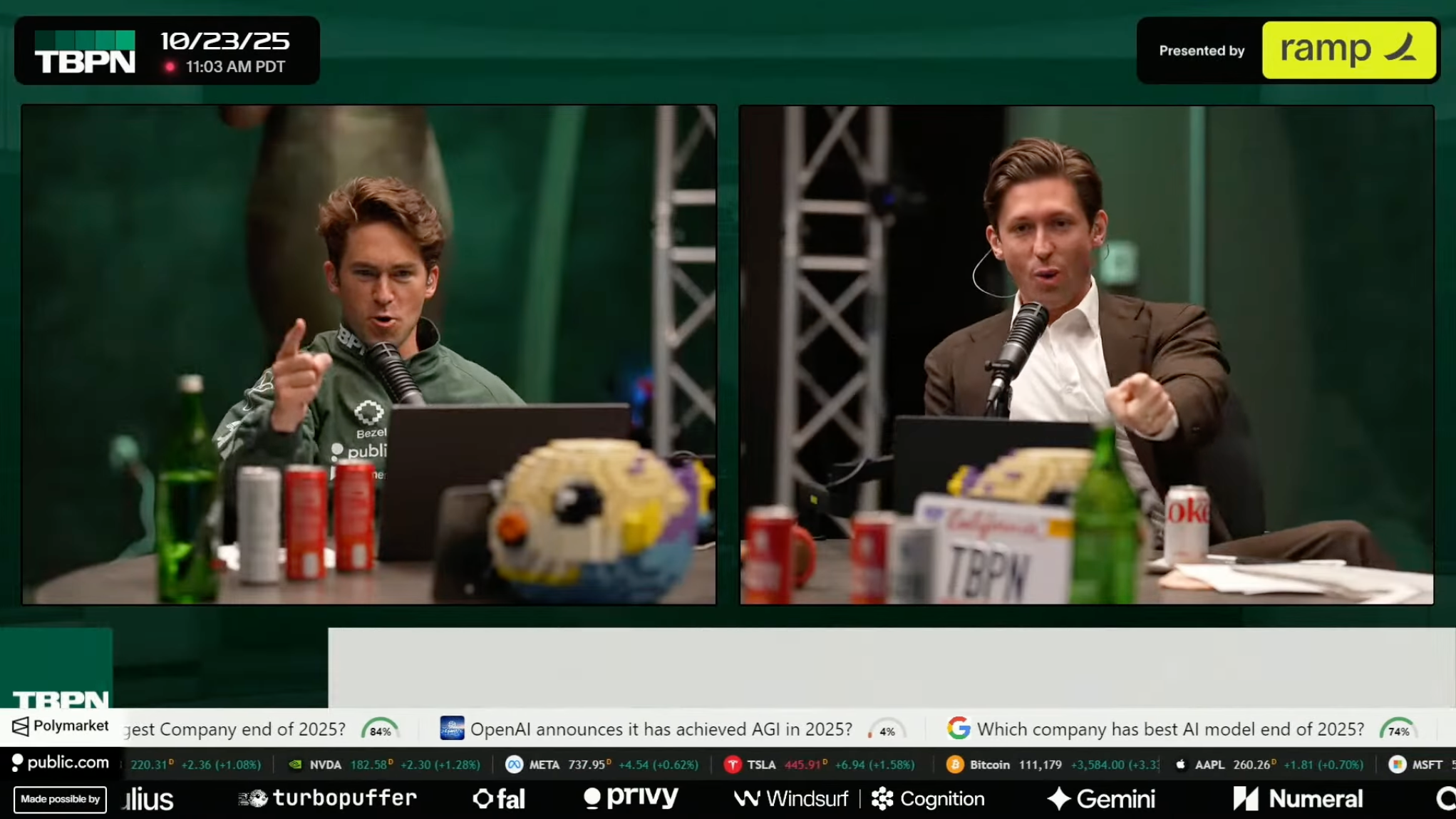
I’m a fan of the way TBPN has given a breath of fresh air to technology coverage, simultaneously innovating on top of cable TV news, video & audio podcasts, and livestream formats in a new media organization for the current era. When things like AI are changing within a single week, the show provides a spotlight for understanding what’s going on as things move so quickly – and they demonstrate a better grasp of how to spread their content than any organization I’ve seen lately. The show has even evolved into a de-facto part of the technology media circuit, where having your startup’s news broken on TBPN is an indicator of success (much like getting coverage on TechCrunch).

With the show’s 3-hour runtime and multiple formats, it’s reasonable that an average listener won’t always engage with the entirety of each show, so it sure would helpful if there was some sort of way to access everything as needed… like a shortcut perhaps.
Me being me, I built a folder of shortcuts for TBPN for Apple’s Shortcuts app. These shortcuts let you listen to the show on Apple Podcasts and Spotify, watch the livestream or put the feed up on your TV, plus follow the team on X. Plus, as you’ll soon learn, the show is heavily sponsored by Ramp, so I created a cheeky shortcut for anyone to learn more from their website.

I also wrote a blog post about the technique for opening the TBPN livestream, which involves adding /live to any YouTube channel URL.

Check out the shortcuts in the TBPN folder of my Shortcuts Library, and view the blog post on YouTube livestreams. Plus, follow TBPN directly on YouTube, Apple Podcasts, Spotify, and X.
Categories
Custom Shortcuts

New in the Shortcuts Library: TBPN shortcuts

I’ve just added a new folder to the Shortcuts Library — my set of shortcuts for TBPN, the tech & business news podcast.

Use these shortcuts to watch the video podcast, tune into episodes on the go, and find the show on X – plus check out Ramp, of course:

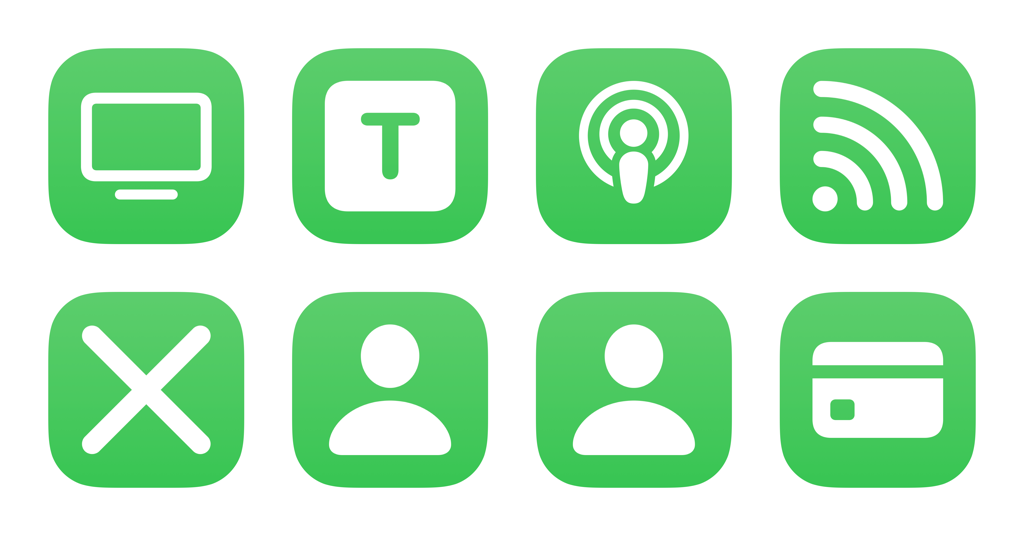
  • Watch TBPN TV: Takes the RSS feed for TBPuTube channel and opens the most recent item. Includes option to AirPlay to the Apple TV, or opens in full-screen on Mac.
  • Watch TBPN Live: Opens the /live URL of TBPN’s YouTube channel, which redirects to either the current livestream or the page of recent streams.
  • Play TBPN on Apple Podcasts: Finds and plays the latest episode of TBPN in the Apple Podcasts app. Also follows the show if you’re not already.
  • Open TBPN on Spotify: Opens the deep link into Spotify for the TBPN podcast.
  • Open TBPN on X: Opens the link into @TBPN’s profile on X, either on the web or into the mobile app.
  • Open Jordi Hays on X: Opens the X profile for cohost Jordi Hays.
  • Open John Coogan on X: Opens the X profile for cohost John Coogan.
  • Save time and money at Ramp dot com: Opens to the website for Ramp, the main sponsors of TBPN.

Check out the folder of TBPN shortcuts in the Shortcuts Library.

Categories
Custom Shortcuts

New in the Shortcuts Library: Apple Intelligence shortcuts

I’ve just added a new folder to the Shortcuts Library — my simple set of Apple Intelligence shortcuts for the new Apple Intelligence features added to Shortcuts in iOS 26.

Use these to ask Apple’s on-device or Private Cloud Compute models, talk to ChatGPT, utilize Writing Tools, generate images with Image Playground, and create Memories in Photos.

  • Use Model: Allows you to enter a request, asks which model to prompt, then lets you ask Follow Up questions, and shows you the final response.
  • Pass through Writing Tools: For a given input, asks you to describe your change – then, creates a summary, key points, list, and table, plus proofreads, rewrites, and adjusts the tone. Produces Markdown-ready text, complete with auto-generated title.
  • Create with Image Playground: Asks you to describe an image or takes an image from input, then to choose an art style, then creates an image and shows it to you (plus saves it to Image Playground).
  • Create Memory in Photos: Asks you to describe a memory to create, then uses Apple Intelligence and the Photos app to generate a Memory for you.

Check out the folder of Apple Intelligence shortcuts on the Shortcuts Library.
Categories
Custom Shortcuts

Updated in the Shortcuts Library: TV app shortcuts

Hey members! I’ve just updated new folder in the Shortcuts Library — my set of TV app shortcuts.

These are redesigned for my new approach to building shortcuts, which is less targeted at separate actions and includes a more-bundled approach – each shortcut provides more functionality in a targeted area.

My favorite is the new Watchlist shortcut – I’ve been working on a version of this for the year or so! Enjoy:

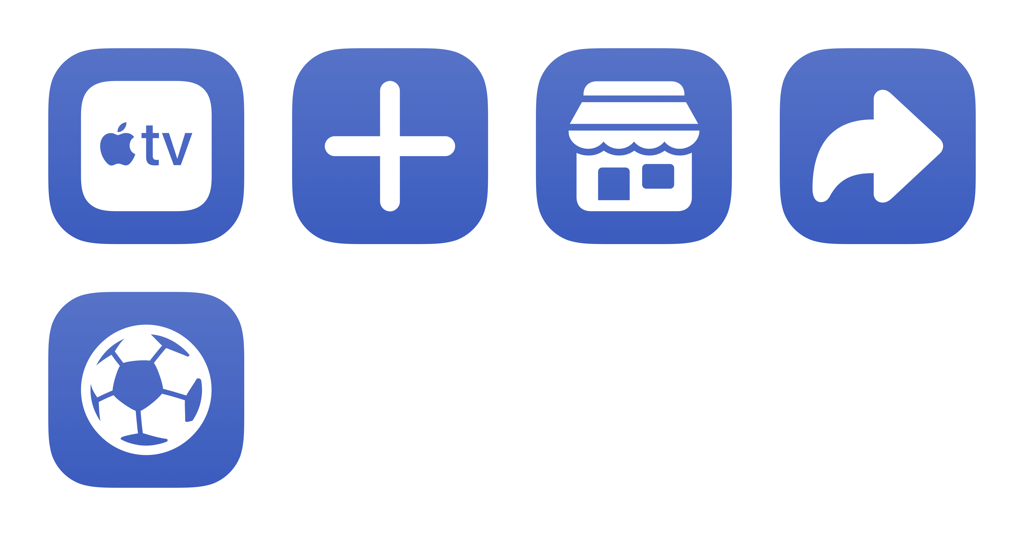
  • Open into the TV app: Presents a menu of sections in the TV app and opens the deep link into the app on iPhone, iPad, and Mac – options include Home, Search, Store, Sports, Apple TV+, and Library. When run from Apple Watch, opens the Apple TV app.
  • Add to my TV watchlist: Accepts a list of TV shows or movies, scrapes the results from Apple’s Marketing Toolbox, and lets you pick where to send the media – with options to open into the TV app, add to your Watchlist, send to Reminders, or copy the links.
  • Open sports in the TV app: Presents a menu of Sports sections available in the TV app, include overall Sports, plus MLS Season Pass and Major League Baseball, as well a dedicated section for your favorite home team.
  • Browse the TV Store: Presents a menu for opening into the TV app to the Store section, either directly using a deep link, using the iTunes actions in Shortcuts, or Apple’s RSS feeds for top movie and TV content – plus categories for dedicated “rooms” in the TV app for special content.
  • Open from Apple TV Plus: Presents menu options for opening into the Home, Shows, Movies, and Upcoming sections of Apple TV+ in the TV app, plus categories for genres.

Check out the folder of TV app shortcuts on the Shortcuts Library.

 

Categories
Custom Shortcuts

New in the Shortcuts Library: Emoji Game for Apple News+

I’ve just added a new shortcut to the Shortcuts Library to my set of Apple News shortcuts – a new shortcut for the Emoji Game in Apple News+.

Here’s how Apple describes the game:

“The object of this logic and word puzzle is to complete several phrases with as few moves as possible. Each emoji may be interpreted directly, through association, or in combination with other emoji. When you attempt an answer or expand a clue, it counts as a move.”

You can also do any of the following:

  • Try an answer: Consider the various definitions or associations for the emoji, then drag the most appropriate emoji (or group of emoji) to complete each word or phrase.For example, a “pear” emoji 🍐 could complete “DISAP_ _ _ _,” but interpreted as “fruit” it could complete “_ _ _ _ _ FUL.”Letters relating to emoji may appear nonconsecutively in an answer. For example, dragging an “earth” emoji 🌍 to “L_ _ _N _ _E ROPES” completes the phrase “learn the ropes.”Interpret grouped emoji as a whole. For example, a single 🐠 could mean “fish,” while 🐠🐠🐠 might mean “school.”
  • Expand a clue: Tap [Eye icon]. This counts as a move.
  • Reveal answers: Tap [Three Dots icon], then tap Reveal. The answers you didn’t find are shown. The puzzle doesn’t count in your Scoreboard stats and streaks.

Get the Emoji Game shortcut, check out the folder of Apple News Plus shortcuts, and browse the full Shortcuts Library – or read about Emoji Game from Apple Support.
Categories
Custom Shortcuts News Shortcuts

Apple Releases “Hold That Thought” Shortcut for Global Accessibility Awareness Day

Today is Global Accessibility Awareness Day (GAAD), which Apple highlighted in their press release showcasing accessibility features coming in the next year – plus a new Accessibility shortcut called Hold That Thought:

New features include Accessibility Nutrition Labels on the App Store, Magnifier for Mac, Braille Access, and Accessibility Reader; plus innovative updates to Live Listen, visionOS, Personal Voice, and more.

Near the end of the release, Apple explains their new shortcut, plus the addition of the previous Accessibility Shortcut to Vision Pro:

The Shortcuts app adds Hold That Thought, a shortcut that prompts users to capture and recall information in a note so interruptions don’t derail their flow. The Accessibility Assistant shortcut has been added to Shortcuts on Apple Vision Pro to help recommend accessibility features based on user preferences.

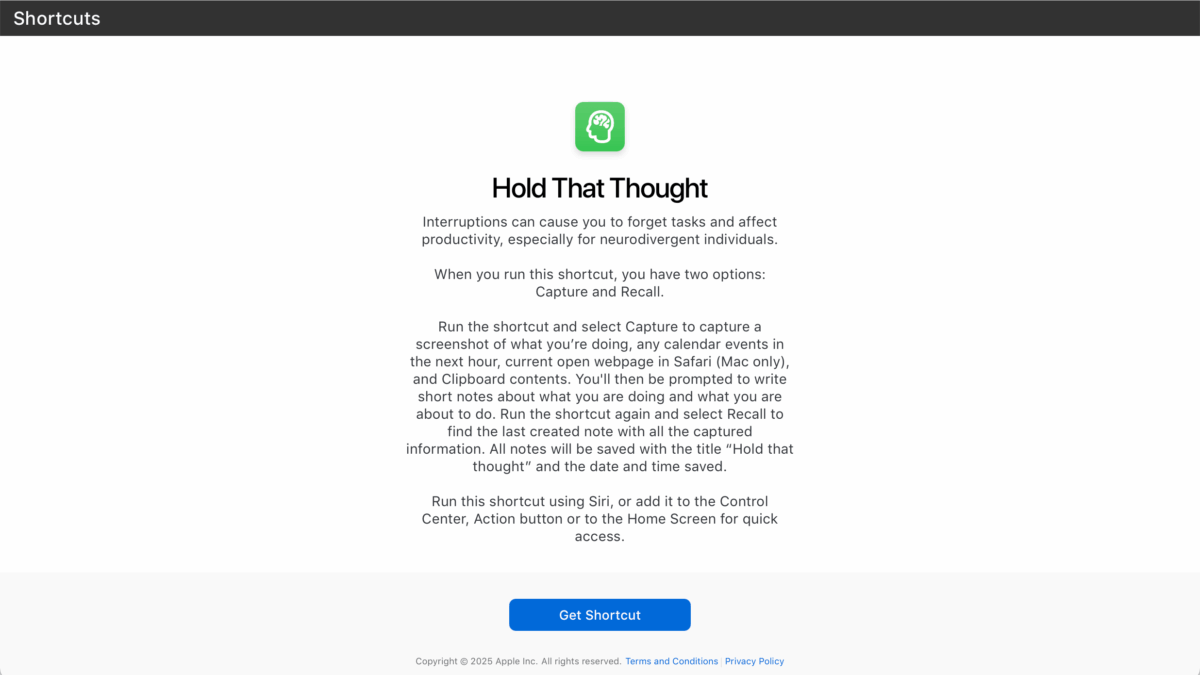
Here’s how Apple describes the shortcut:

Interruptions can cause you to forget tasks and affect productivity, especially for neurodivergent individuals.

When you run this shortcut, you have two options: Capture and Recall.

Run the shortcut and select Capture to capture a screenshot of what you’re doing, any calendar events in the next hour, current open webpage in Safari (Mac only), and Clipboard contents. You’ll then be prompted to write short notes about what you are doing and what you are about to do. Run the shortcut again and select Recall to find the last created note with all the captured information. All notes will be saved with the title “Hold that thought” and the date and time saved.

Run this shortcut using Siri, or add it to the Control Center, Action button or to the Home Screen for quick access.

I love this idea, and the core concept matches the inspiration for my currently-secret app idea that I teased at the end of my Deep Dish Swift talk.

I do have a few suggestions for improvements to the shortcut, however:

  • Remove the errant space in the Choose From Menu prompt between “Capture” and “or” – it says “Capture or recall last stopping point?”
  • For both “? Capture” and “? Recall” options Choose From Menu, Apple should add Synonyms for “Capture” and “Recall” – the emoji can cause issues when dictating to Siri (in general, I avoid emoji in Menus for this reason).
  • Utilize the “Find Tabs” action for iOS instead of simple not adding any functionality for Safari on mobile; Apple’s use of only “Get Current Safari Tab” for Mac reminds me that they still have not added the set of Safari iOS actions added back in 2022 to macOS, and their absence in this shortcut furthers my belief that these highly-sought actions are deprioritized simply because the team doesn’t use iOS as often and this Mac action is “good enough”.
  • The second “Recall” option just opens the note, but I’d rather see that last item I saved – Apple should have gone further to isolate the recent item and display the recalled information, not just open it again. I tried to Recall from my Apple Watch and the shortcut simply failed.
  • The flow of an alert, a 5-second countdown before a screenshot, and two prompts might be too long for most neurodivergent people to capture information effectively while in the process of being interrupted.

To improve the shortcut as it is today, I’d simply remove the Show Alert and Wait actions, and assign this new shortcut to the Action button – that way you can immediately take a screenshot, then answer the prompts, and move on.

Going further, I’d love to see a new version of this next year once Apple Intelligence ships in full, which utilizes “Get On-Screen Content” and accesses all the data available from apps for Personal Context.

Get “Hold That Thought” for Shortcuts, view the announcement from the Apple Newsroom, and check out past updates from GAAD.
Categories
Custom Shortcuts

New in the Shortcuts Library: Perplexity shortcuts

I’ve just added a new folder to the Shortcuts Library — my set of Perplexity shortcuts for asking Perplexity to do research for you.

Use these to open the sections of the website, ask questions in new threads on iPhone and iPad, interact with the Mac app using keyboard shortcuts, go deeper on the Perplexity experience, and interact with the API:

Website

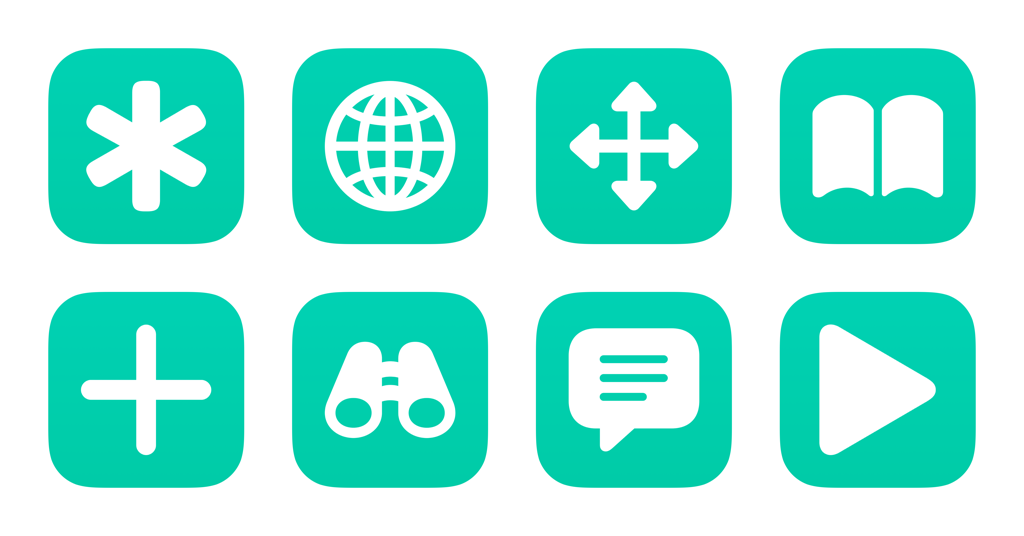
  • Open Perplexity AI: Opens the website for Perplexity AI in your default browser.
  • Open Perplexity Discover: Opens the Discover page from Perplexity, which curates top stories for you and summarizes them.
  • Open my Spaces in Perplexity: Opens the Spaces section of Perplexity, where you can create research and collaboration hubs built on top of Perplexity search.
  • Open Perplexity Library: Opens the Library section of Perplexity, where you can see Threads and Pages around searches you’ve performed.

iOS and iPadOS app

  • New Search in Perplexity: Opens Perplexity to a new, blank search using the Auto mode.
  • New Pro Search in Perplexity: Opens Perplexity to a new, blank search set to Pro mode, which acts as your conversational search guide. “Instead of quick, generic results, Pro Search engages with you, fine-tuning its answers based on your needs.”
  • Ask Perplexity: Prompts you to “Ask anything” before opening into Perplexity to search for your query.
  • Play Perplexity Discover: Immediately starts a Live Activity session for Perplexity Discover, using stories drawn from the Discover feed and spoken by ElevenLab’s voices.
  • Summarize articles with Perplexity: Creates a series of Threads in Perplexity for URLs shared as input, either from the Share Sheet or by detecting what’s on screen. Includes logic for multiple links, opening each URL in the background until the final query.

Mac app

  • Set up Perplexity for Mac: Opens the Mac app for Perplexity AI, resizing the window to 1024×770 and moving it to the center of the current display.
  • New Thread in Perplexity: Simulates the keyboard shortcut for Command + Shift + P, which activates the Perplexity search bar from anywhere.
  • Voice Mode in Perplexity: Simulates the keyboard shortcut for Command + Shift + M, which activates the Perplexity voice mode in a popover window.
  • Upload File in Perplexity: Simulates the keyboard shortcut for Command + Shift + U, which activates the Perplexity upload process and shows a Finder window where you can select the file to upload.
  • Voice Dictation in Perplexity: Simulates the keyboard shortcut for Command + Shift + D, which activates the Perplexity voice dictation in the search bar so you can enter a query hands-free.
  • Screen Capture with Perplexity: Simulates the keyboard shortcut for Command + Shift + 0, which activates the Perplexity screen capture and prompts whether to capture an Area, Window, or Fullscreen.
  •  

Deep Dive

  • Open my Perplexity account settings: Opens the Perplexity website to Settings > Account, where you can change general settings like the Appearance, as well as subscription details or system settings.
  • Edit my Perplexity profile: Opens the Perplexity settings to the Profile section, where you can tell Perplexity information about yourself and your preferences to inform results.
  • Read the Perplexity blog: Opens the Perplexity blog, where you can see stories and announcements from the team on new updates or changes to the service.
  • Open the Perplexity discord: Opens the deep link into Discord for the Perplexity channel using the unique ID and channel ID.
  • Show the Perplexity Supply store: Opens the website for Perplexity Supply, the clothing line for fans of Perplexity.

API

  • Open the Perplexity API docs: Opens the URL for the Perplexity API documentation, so you can quickly reference how to get started or learn about the API.
  • Open the Perplexity API reference: Opens the Perplexity API website to the API reference, starting with Chat Completions, you can test your commands against the API and see what’s working.
  • Get my Perplexity API key: Stores your API key for Perplexity. Store the result as base64-encoded text so it’s not readable as plain text, which is then decoded as this is run.
  • Manage my Perplexity API keys: Opens the Perplexity website to your API settings, where you can manage API keys and payment details.

Check out the folder of Perplexity shortcuts on the Shortcuts Library.
 

Categories
Custom Shortcuts

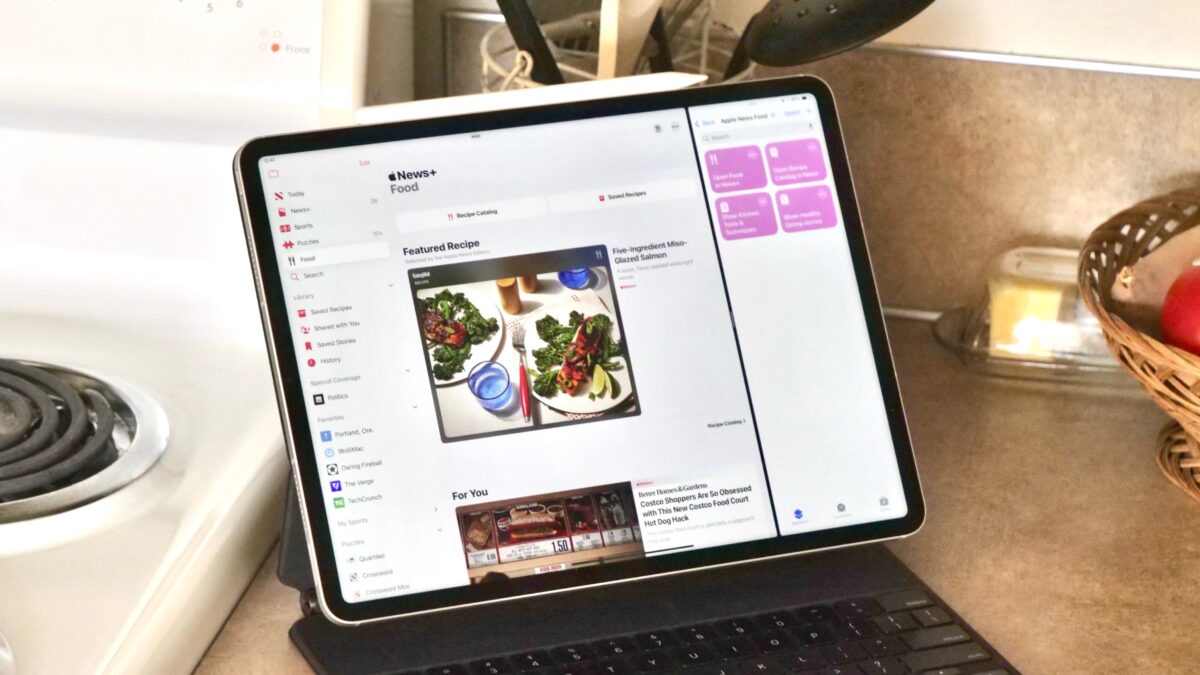
Immediately Browse Apple News’ Food Recipe Catalog With These Shortcuts

New in iOS 18.4, Apple is making a new Food section available to Apple News+ subscribers, creating a curated browsing and recipe experience within the app. Located on iPhone under the Following tab and Food section, or in the Food section of the sidebar on iPad and macOS, this new category curates stories for you based on your chosen interests and browsing history, plus provides an entire Recipe Catalog and cooking experience for recipes with ingredients & instructions.
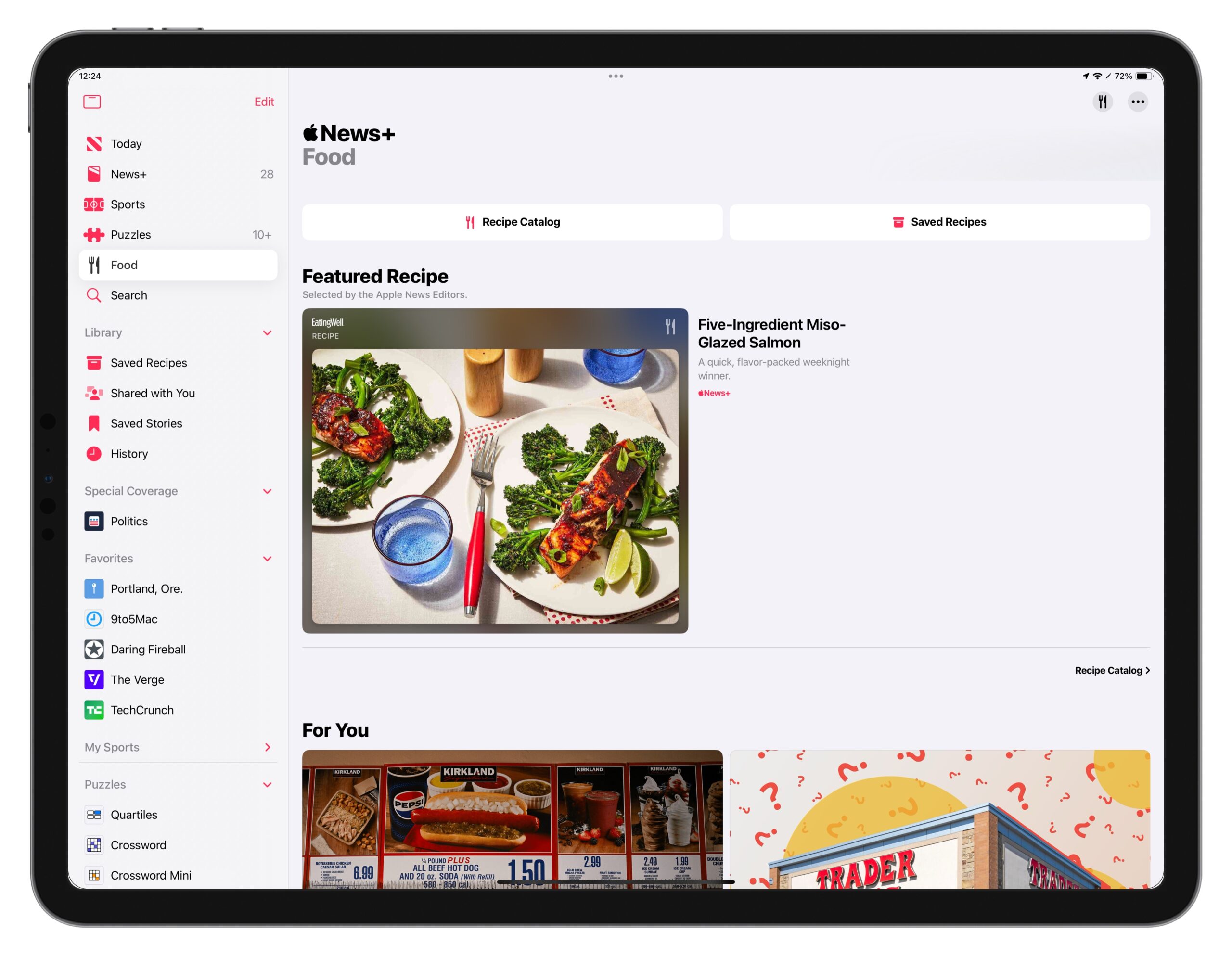
The entire experience for News+ Food is fantastic, albeit somewhat buried inside the News app – that’s why I’ve built a set of shortcuts to quickly access the sections from anywhere. In my folder of Apple News Food shortcuts, you can find shortcuts to access the main Food section, the Recipe Catalog, and two curated sections that are shown within the category for Healthy Eating and Kitchen Tools & Techniques.
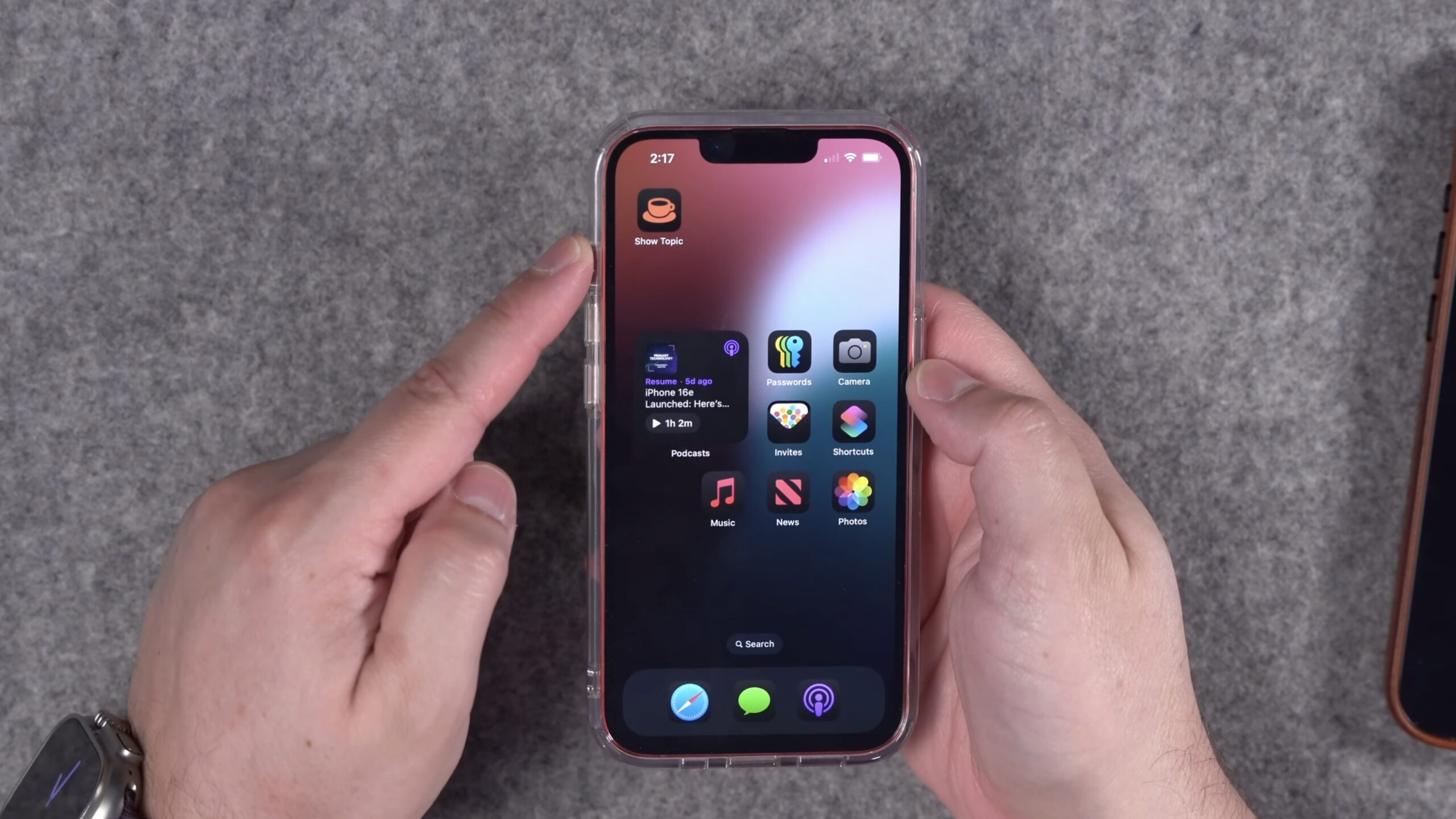
You can use these with Siri, place them in a Medium widget, or even add them as Controls in Control Center or the Lock Screen – the Recipe Catalog would work great using Add to Home Screen as well, as Stephen Robles demonstrated in his video that highlights the Food feature.
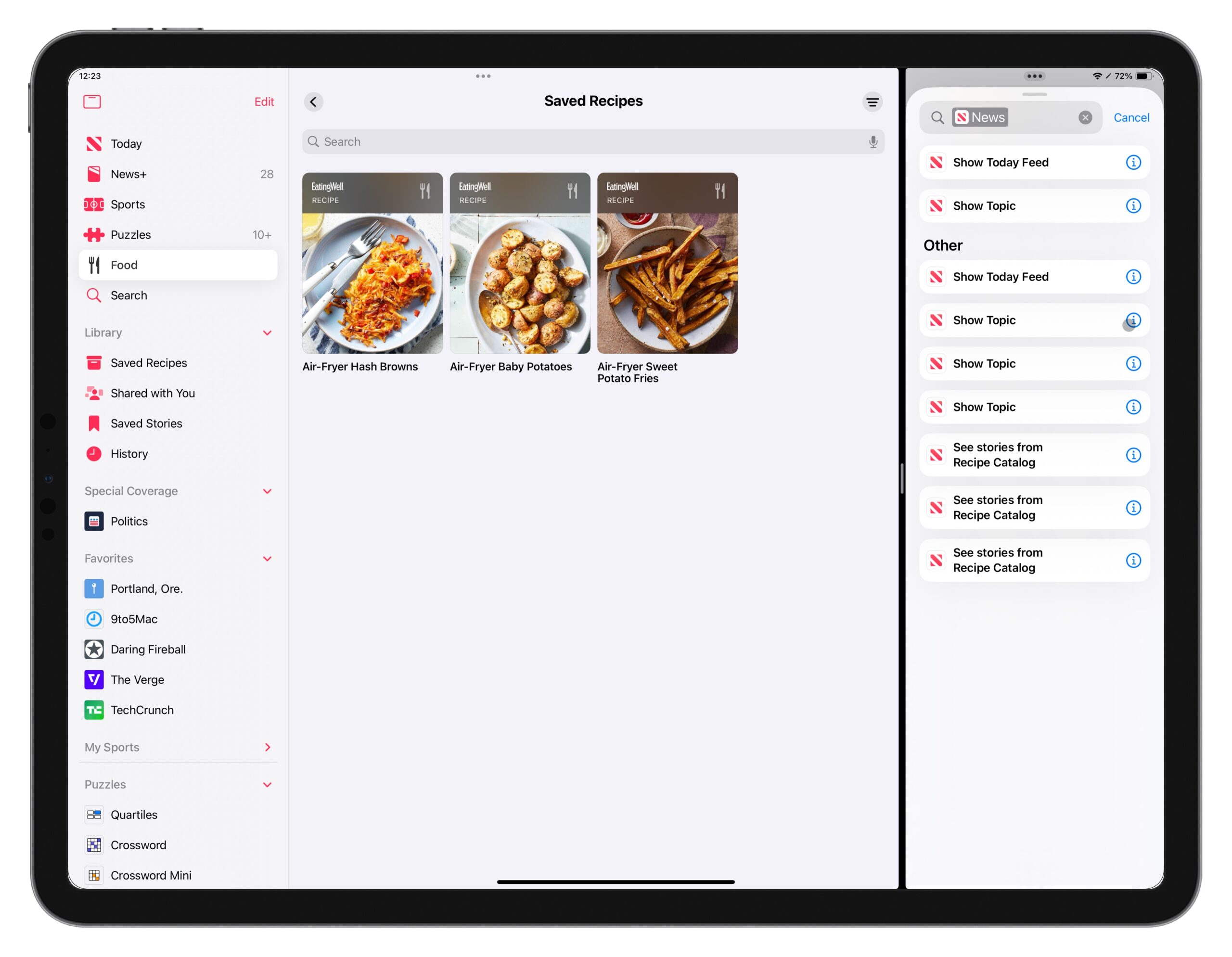
So far, the News team at Apple has only ever created the Show Today Feed and Show Topic actions, and relied on the concept of “donations” (where an action only becomes available after the user interacts with a particular section) for sections like Magazines, Puzzles, and now the Recipe Catalog. Along this route, I’d love to see the Saved Recipes section available as a donated action, as well as being able to open directly to a saved recipe would make a lot of sense. But, going further, I wish the News team would adopt a full suite of actions like Get Recipes, Find Recipe, Save/Unsave Recipe, Cook Recipe, and Read The Story (for a recipe).

Get the folder of Apple News Food shortcuts in my Shortcuts Library (requires iOS 18.4).

Categories
Custom Shortcuts Shortcuts

New in the Shortcuts Library: Apple News+ Food shortcuts

I’ve just added a new folder to the Shortcuts Library — my set of Apple News Food shortcuts for the new Food section in Apple News+, available in iOS 18.4.

Use these shortcuts to browse stories from the Food, Healthy Eating, and Kitchen Tools & Techniques sections, as well as open directly to the Recipe Catalog.:

  • Open Food in News+: Opens to the new “Food” section in Apple News+ that curates stories and recipes for you.
  • Open Recipe Catalog in News: Opens the News app to stories from the Recipe Catalog feature, new in the new Food section in Apple News+.
  • Show Kitchen Tools and Techniques: Opens the section for Kitchen Tools & Techniques in the new Food section for Apple News+ subscribers.
  • Show Healthy Eating stories: Opens the News app to stories about Healthy Eating, located in the new Food section for Apple News+ subscribers.

Check out the folder of Apple News Food shortcuts on the Shortcuts Library.
Categories
Custom Shortcuts

New in the Shortcuts Library: Messages Conversations shortcuts

I’ve just added a new folder to the Shortcuts Library — my set of Conversations shortcuts that take advantage of the Open Conversation action available in iOS 18.4.

Use these to open from any conversation, choose from your pinned chats, or open into any group chat or solo conversation:

  • Open a conversation: Prompts you to choose from all your conversations in Messages, listed in chronological order from recent to oldest, then opens your choice.
  • Open from my pinned conversations: Presents a menu of nine conversations to open in Messages, matching your list of nine pinned conversations from within the app.
  • Show the group chat: Opens the conversation in Messages for your primary group chat, so you can text them all the details.
  • Open chat with Mom: Opens the Conversation in Messages with your mother, so you can ask when’s a good time to call her.
  • Open chat with Dad: Opens the conversation with your father, allowing you to see your past messages.
  • Open chat with Sibling: Opens the Messages conversation with your sibling, so you can stay better-connected.
  • Open the Family thread: Opens the conversation for your Family group chat so you can keep up with everyone.

Check out the folder of Conversations shortcuts on the Shortcuts Library.
Categories
Custom Shortcuts Tips & Tricks

Pro-Tip: Shortcuts Has Its Own Suite of AppleScript Commands

Many people don’t know that the Shortcuts app can be automated on the Mac using its dedicated scripting dictionary.

This requires a bit of meta thinking, but that means both the application itself and all the shortcuts contained within it are available to control remotely via AppleScript and applications like Script Editor – as well as triggered via devices like the Stream Deck, which I use every day at my Mac mini.

In order to make these methodologies more accessible, I wanted to share instructions here on how to access the AppleScript dictionary for Shortcuts, plus share a copy of the commands so everything is freely available on the web.

Here’s how to access Shortcuts’ scripting dictionary:

  1. Open the Script Editor app
  2. In the Menu Bar, select File > Open Dictionary (or press Command + Shift + O)
  3. Browse through the dictionaries until you find Shortcuts’ (or type “Shortcuts” on the keyboard to navigate there directly), then open the Dictionary.
  4. There, you’ll see Standard Suite and Shortcuts Suite; under Shortcuts Suite, you’ll find the “Classes and Commands for working with Shortcuts.”

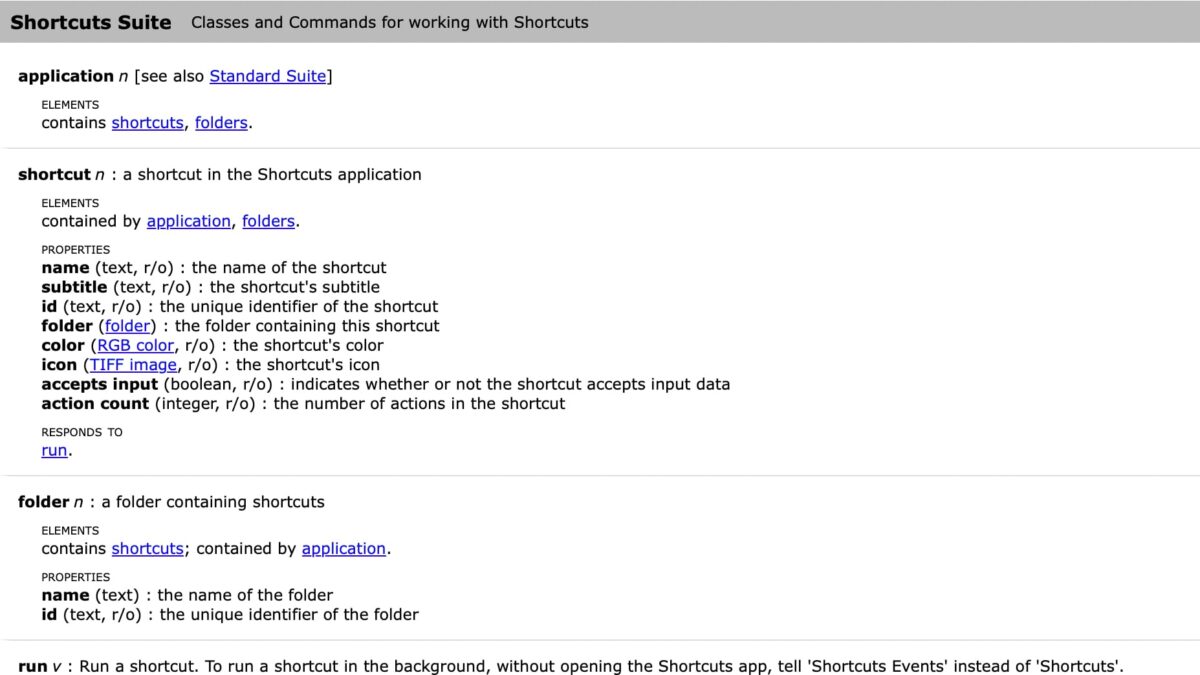
For reference, here’s what is documented in the command set:

Shortcuts Suite

Classes and Commands for working with Shortcuts


application n [see also Standard Suite]

ELEMENTS

contains shortcuts, folders.

—-
shortcutn : a shortcut in the Shortcuts application

ELEMENTS

contained by application, folders.


PROPERTIES

name (text, r/o) : the name of the shortcut

subtitle (text, r/o) : the shortcut’s subtitle

id (text, r/o) : the unique identifier of the shortcut

folder (folder) : the folder containing this shortcut

color (RGB color, r/o) : the shortcut’s color

icon (TIFF image, r/o) : the shortcut’s icon

accepts input (boolean, r/o) : indicates whether or not the shortcut accepts input data

action count (integer, r/o) : the number of actions in the shortcut


RESPONDS TO

run.

—-

foldern : a folder containing shortcuts

ELEMENTS

contains shortcuts; contained by application.

PROPERTIES

name (text) : the name of the folder

id (text, r/o) : the unique identifier of the folder

—-

runv : Run a shortcut. To run a shortcut in the background, without opening the Shortcuts app, tell ‘Shortcuts Events’ instead of ‘Shortcuts’.

run shortcut : the shortcut to run

[with input any] : the input to provide to the shortcut

→ any : the result of the shortcut

—-

To keep this post as reference material, I’ll share methods for utilizing these AppleScript commands here on my blog using my AppleScript tag.

To learn more about scripting, check out Apple’s documentation for Navigating a Script Dictionary – that’s part of the now-archived Mac Automation Scripting Guide which provides more insight into how Script Editor and AppleScript can be used across macOS.

Categories
Custom Shortcuts

New in the Shortcuts Library: MacStories shortcuts

Apropos of something admirable, I’ve just added a new folder to the Shortcuts Library — my set of MacStories shortcuts for interacting with MacStories.net, the premiere independent website for Apple news, app reviews, and Shortcuts coverage.

Use these shortcuts to access different parts of the site, find and listen to MacStories podcasts, show the website’s social media profiles, and dive into Club MacStories content.

MacStories is the website that introduced me to Shortcuts originally, and I learned so much from the Workflow tag back in the day – check it out:

  • Open MacStories.net: Opens the main homepage of MacStories.net, showing the latest stories from Federico Viticci and friends.
  • Show stories from MacStories RSS: Pulls 25 items from the MacStories main RSS feeds and asks you to choose which to open in Safari.
  • Show MacStories podcasts: Opens the Apple Podcasts link for the MacStories channel, where you can discover and follow podcasts from the network.
  • Play a MacStories podcast: Presents a menu of MacStories shows, then plays the next episode from the selected show based on the preselected custom sort order (or default order from the Podcasts app).
  • Open MacStories on Flipboard: Opens the MacStories account on Flipboard so you can read stories from Federico Viticci and friends.
  • Show the Setups on MacStories: Opens the Setups page on the MacStories website where the team shares about their devices and desk setups in-depth.
  • Show Reviews on MacStories: Opens the Reviews category on the MacStories website where the team posts app coverage and reviews.
  • Show the Shortcuts Archive on MacStories: Opens the Shortcuts Archive page on the MacStories website where the team hosts over 300 shortcuts freely available to download.
  • Open Club MacStories+ on Discord: Opens the deep link into the General channel in the private Discord for members of Club MacStories. Join Club MacStories for access: https://club.macstories.net
  • Show the Shortcuts tag on MacStories: Opens the tag page on the MacStories website for stories marked with “Shortcuts.”
  • Show the Workflow tag on MacStories: Opens the tag page on the MacStories website for stories marked with “Workflow,” the original version of the Shortcuts app – these stories introduced me to the app before I joined the team. So, uh, thanks Federico!
  • Open MacStories on Mastodon: Opens the MacStories profile in the Mastodon app or on the web.
  • Open MacStories on Bluesky: Opens the MacStories profile in the Bluesky app or on the web.
  • Open from Club MacStories RSS feed: Given your custom Club MacStories RSS feed, this will retrieve the 25 latest items published for members-only and asks you which links you want to open.
  • Open Club MacStories: Shows the main homepage for Club Macstories, the members-only portion of the MacStories website with weekly newsletters, community events, and private stories with more advanced techniques.
  • Open Club MacStories on Discord: Opens the deep link into the General channel in the private Discord for members of Club MacStories. Join Club MacStories for access: https://club.macstories.net
  • Advertise on MacStories: Opens the “Advertise” page on the MacStories website where brands can learn more about how to sponsor the website and advertise to the passionate group of MacStories readers.

Check out the folder of MacStories shortcuts on the Shortcuts Library.

Categories
Actions Custom Shortcuts

Apple Music Replay: Save Your Listening History From Kids Music With These Shortcuts

Apple has just released their Apple Music Replay feature for 2024, curating stats and visualizations around your listening habits from the last year on the web and in the app for the first time.

It’s always interesting to see your top tracks and artists, but some folks like Halide designer Sebastiaan de With have already run into a common problem – their children’s music is mixed in with their own:

The children’s music is gaining ground on my Apple Music replay. The burden of being a parent

[image or embed]

— Sebastiaan de With (@sdw.bsky.social) December 3, 2024 at 10:00 AM


Thankfully, Apple recently built a feature for the Music that lets you choose whether to Use Listening History, available in the form of a Focus Filter applied to a specific Focus mode.

In Settings, in the Focus section, you can apply a Focus Filter to a specific Focus by choosing which mode from the list and scrolling down to Focus Filters, which Apple says lets you “Customize how your apps and device behave when this Focus is on.”

When you select “Add Filter,” you’ll see a popover of App Filters and System Filters that let you pick which filters to use to customize during this Focus. Apple’s description explains “Selected apps will be notified when this Focus turns on or off,” immediately activating the filter outside the app and updating things like the widget experience or background tasks.

For the Music app, there’s a Focus Filter for “Use Listening History” where you can “Choose if music played will influence recommendations and mixes, appear in Recently Played, or be shown to others on Apple Music.”

Adding the Focus Filter will apply it to the current Focus, whether it’s set off to ignore your habits or enabled to track your listening history whenever the Focus is enabled. For someone like a parent, they could create a “Home” mode separate from their own “Personal” mode and disable listening history while at home but enable it while listening on their own.

In iOS 18, Apple also added a Set Music Focus Filter action to the Shortcuts app that enables automated control over one’s listening history. With a Shortcuts action, users can add or clear the Focus Filter from any focus mode as needed, plus enable it or disable it on the fly without fully designating a Focus mode just for this feature.

In my set of Apple Music Replay shortcuts, I built two shortcuts that take advantage of it: Enable Listening History and Disable Listening History, which you can run to pick a Focus mode and toggle the setting as needed.

Adding this functionality in Shortcuts essentially makes the “Use Listening History” feature available separately from a Focus Filter, letting you toggle it on for any period of time and turn it off manually again when you’re done.

Plus, if you want to go even further, Automations in Shortcuts can give you control over whether to Use Listening History in almost any context, from triggers like location-based automations to whether you pressed the Action button while holding your iPhone horizontally while driving.

I also built shortcuts to Toggle Listening History for any Focus mode that works really well as a Control in Control Center, as well as a shortcut to Clear the Focus Filter from any Focus mode should you be done with the feature entirely.

Plus, since I enjoy listening to my Apple Music Replay playlists, I built a set of shortcuts for each year to shuffle the songs and let me quickly jump back into all my favorite songs ever since I first got an Apple Music subscription – as well as a new shortcut to show Apple Music Replay on the web.

Check out the folder of Apple Music Replay shortcuts in my Shortcuts Library and check out Sebastiaan’s post on Bluesky.