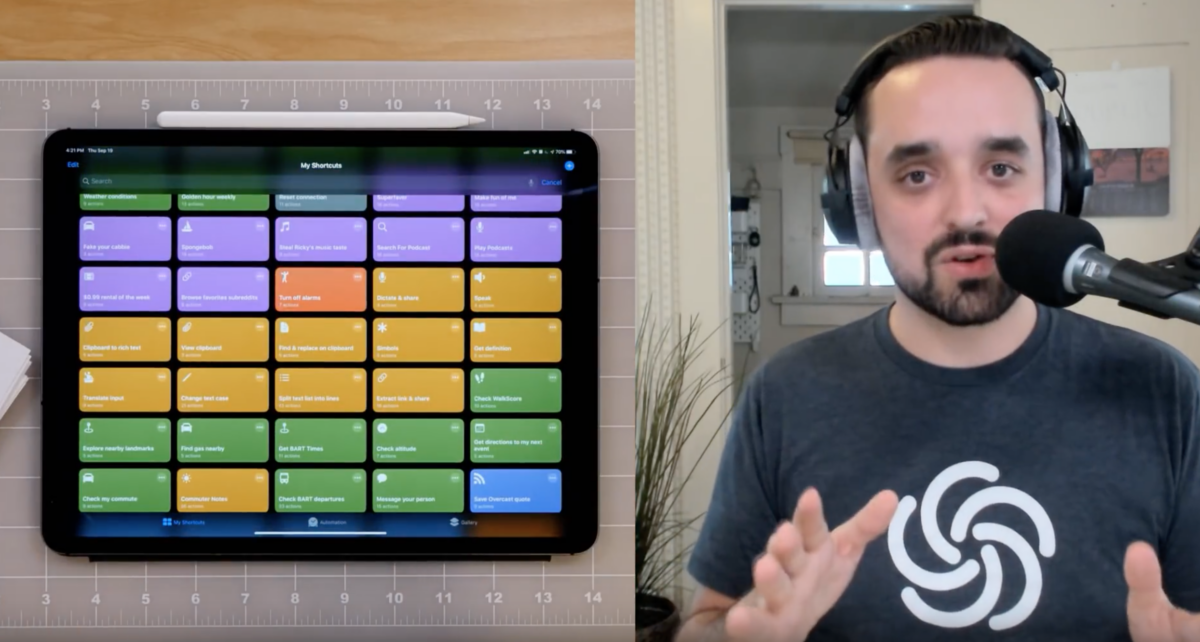
On episode 11 of Smart Tech Today, Mikah and I covered a K-Pop rapper’s AirPods problem, Samuel L. Jackson on your Echo, and Sling TV on your Google Nest Hub:
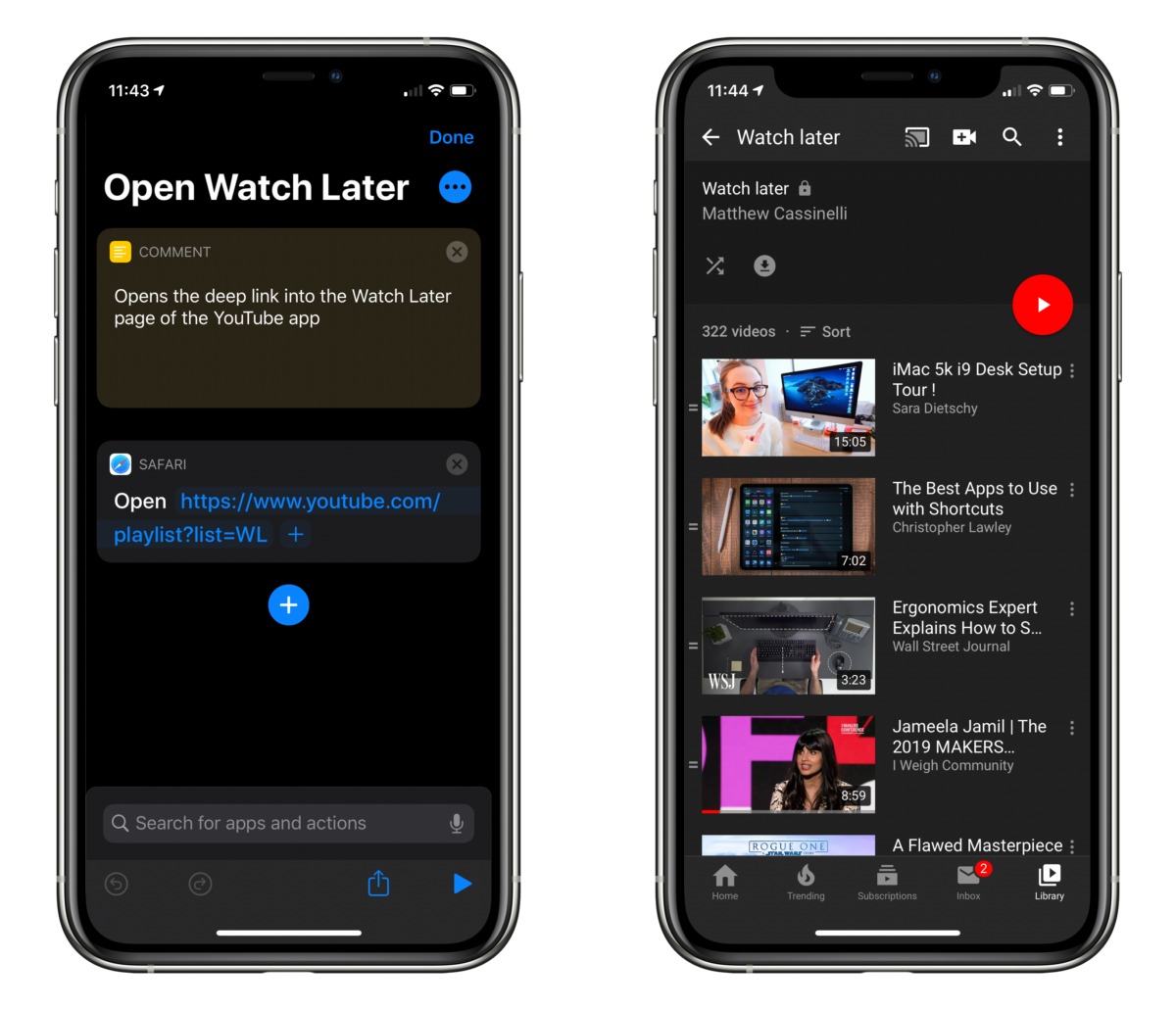
After adding a few videos from YouTube to my Watch Later playlist this afternoon, I looked in the Apps section of the Shortcuts app for some Siri Shortcuts from the YouTube app.
I’ve found actions that open the Search and Subscriptions section of the app before, but I wanted to quickly jump into the Watch Later bit which is buried in the Library tab – alas, there was no shortcut.
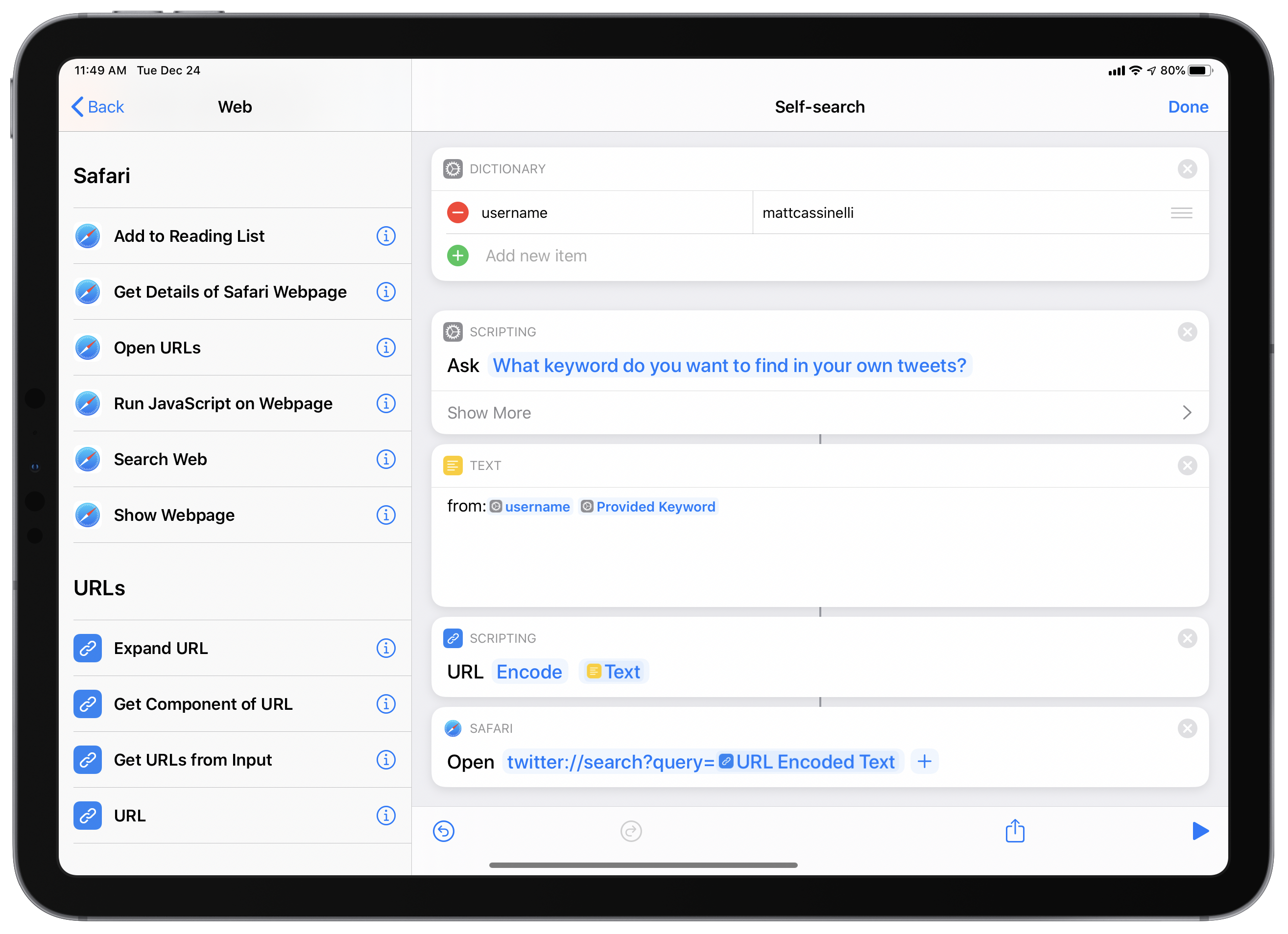
However, I then realized that YouTube.com links often redirect into the app, and I might be able to use that deep link instead.
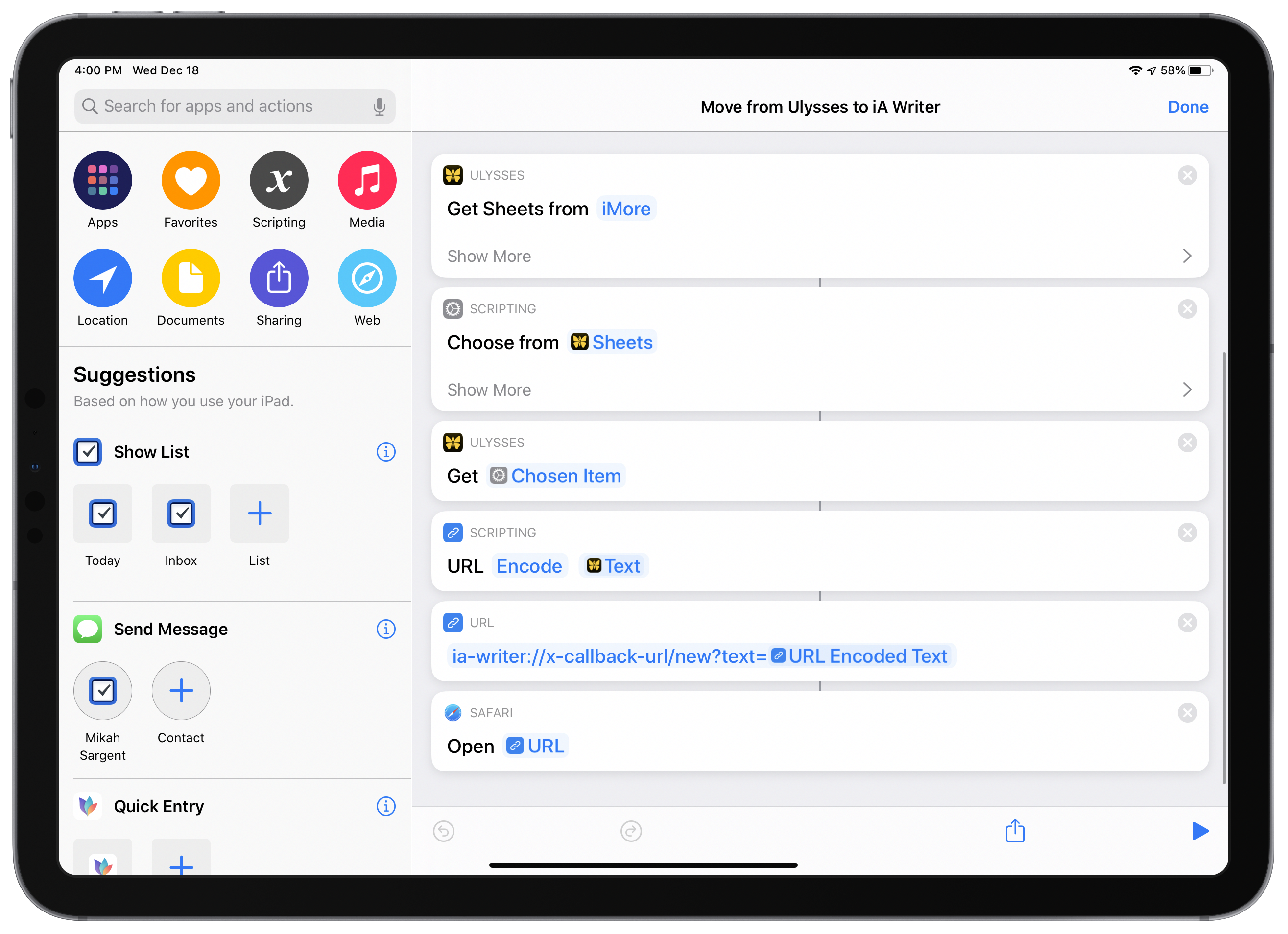
The day after iOS 13 launched, I was a guest on the iMore show to talk all about the updates to Siri Shortcuts (and a bit about the new iPhone):
Shortcuts expert Matthew Cassinelli is here with a wealth of information for making life better with iOS 13! He guides Lory Gil and Georgia Dow through the basics of shortcut creation and shares some of his own creations from matthewcassinelli.com.
I had a really great time talking to Lory Gil and Georgia Dow – Lory is the editor at iMore and corrects the mistakes in my freelance articles, and Georgia does a wonderful job as Senior Editor there too.
We also recorded this as a livestream, so here’s the video if you want to follow along – I even turned on my main camera with a top-down shot for part of it:
In iOS 13.1, the Shortcuts app added Automations, a feature that lets you use contextual triggers to show notifications for shortcuts you want to run or, for a subset of the option, run a shortcut entirely in the background. I’ll be covering those updates in the future, but I wanted to share links to NFC tags that I’ve bought and tested.
See, one of the Automation triggers lets you use “Near-Field Communication” tags that look like little wires printed onto stickers or stashed in cards like your credit cards, transit cards, or even in the Apple Watch or payment terminals for things like Apple Pay.
Thankfully, the new NFC tag automation trigger is one of the Automations that lets shortcut run “without asking” – they can fire off immediately when the trigger is detected, performing its operations in the background instead of requiring you to confirm via a notification first.
In iOS 13.1, this lets you run almost any shortcut just by tapping your iPhone to a small tag you’ve set up with Shortcuts, bringing the power of your apps and smartphone into the physical world with simple, cheap NFC tags.
So naturally, I bought a bunch, stuck them all over my house, and started testing them:
On Thursday, a few hours after the release of my Shortcuts Library, I covered the entire iOS 13 update for Siri Shortcuts in a YouTube livestream.
After a bug in the macOS Catalina beta last week prevented Final Cut Pro from staying open at all, the work on my in-progress video was frozen1. I couldn’t re-do it in time while I was also publishing over 150 shortcuts for people to use.
So I did it live:

Looking for the updated collection? Check out my Shortcuts Catalog, the announcement post, and my new membership.
Now that Apple has officially released iOS 13 to the public, I am excited to share my personal library of 150+ custom Siri Shortcuts for everyone to add and use.
I’ve worked countless hours this summer building up a database of my shortcuts, giving each shortcut a description and explanation of how I use it. These are saved inside each shortcut in Comment actions as well, so you can still reference the intended use after adding it to your Shortcuts app.
You can find my Shortcuts Library at the bottom of this post and here on my website at matthewcassinelli.com/siri-shortcuts. But first, I wanted to contextualize my collection.
David Sparks has completely redone his Siri Shortcuts Field Guide1 for iOS 13:
The new Shortcuts Field guide was shot entirely new with the new Shortcuts for iOS 13. Apple changed a lot and it is all covered in this field guide:
- Over 6 hours of downloadable video tutorials
- New materials for both beginners and advanced users
- New Downloadable Shortcuts
- So much Automation
Jason Snell, giving an overview of Shortcuts in iOS 13 for Six Colors:
Shortcuts just got a lot more useful if you use Siri, too. You can now create interactive Shortcuts that can ask questions and accept text input, especially useful if you’re not able to look at a screen because you’re using AirPods or CarPlay. And the redesigned Share Sheet in iOS 13 means that you can prominently place specific individual Shortcuts in the Share sheet, making it easy to access them with a single tap.
Jason and Dan are covering iOS 13 feature-by-feature – this piece is a nice summary of what you can expect from Siri Shortcuts in iOS 13.
Check out the full article on Six Colors (they’re celebrating their 5-year anniversary today!).
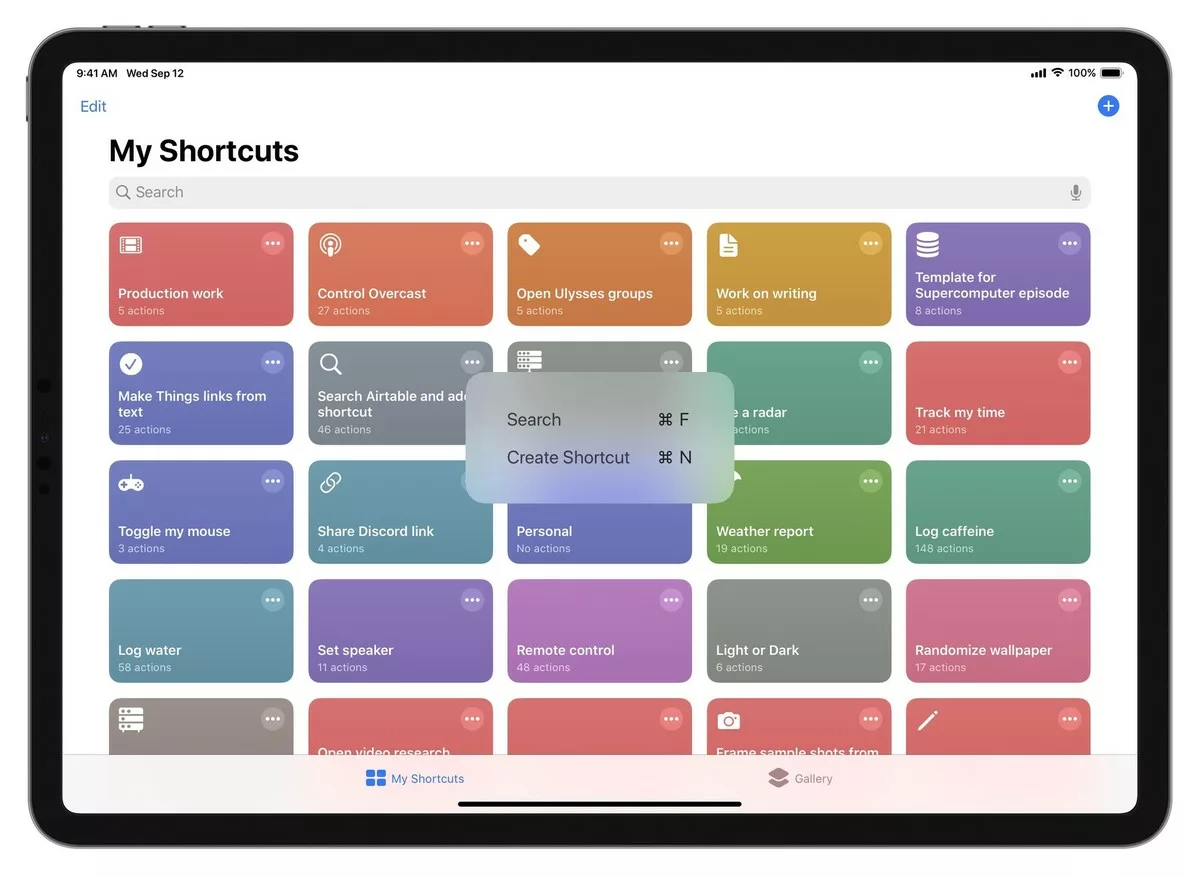
From my piece iPad keyboard shortcuts for the Shortcuts app on iMore:
While the Shortcuts app is primarily a touch-based system—where are you drag and drop actions around to create your scripts—there are a few keyboard shortcuts for iPad users that can speed up the experience of creating and managing their Siri Shortcuts.
Whether you’re opening the Gallery to view suggested shortcuts, searching for a shortcut in your list, or quickly controlling parts of the shortcuts editor, these simple keyboard shortcuts are worth learning.
Last fall, I made a simple video for YouTube but never posted it here on my website – it’s a quick tutorial on making GIFs using Shortcuts, where I start from scratch and finish with a usable shortcut:
New shortcut File a radar for iOS 13 beta users:
Guides you through the process of filing Feedback to Apple (previously called Radar).
This explains the process in a pop-up, has you type up the problem through a series of prompts before even starting a new ticket, then guides you again on how to easily fill out the form, before finally opening into Feedback.
New shortcut Copy Checklist from Taskpaper for iOS 13 beta users:
Takes any TaskPaper-formatted text coming from the share sheet or clipboard and strips out the extra details, getting just the names of the checklist items in a rich text unordered list.
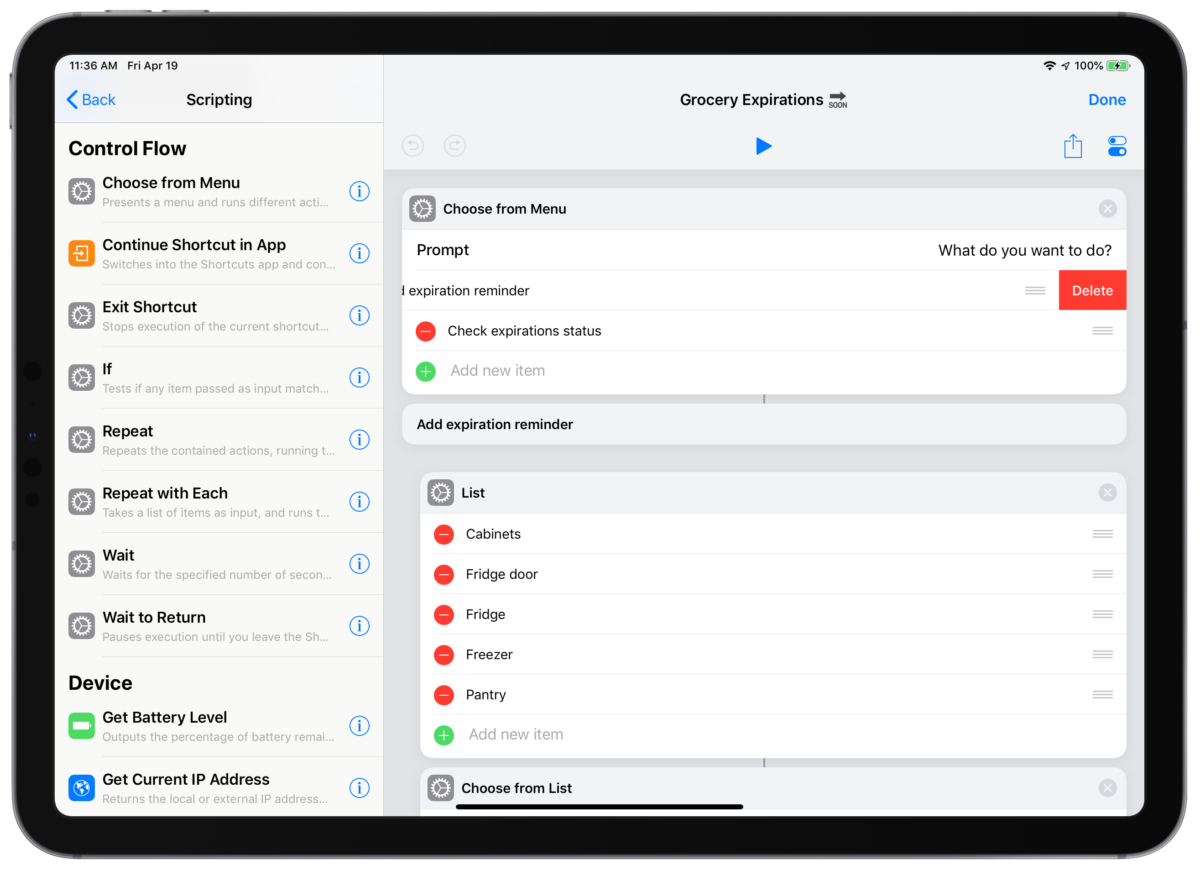
Apple released a beta version of the Shortcuts app to developers today, coming in at version 2.2.1 beta 1. This includes fixes for Get Travel Time’s transit options, a fix for Tweetbot’s native action, a bug that prevented users from deleting items in a Choose From Menu action, and a few other minor fixes not detailed by Apple.
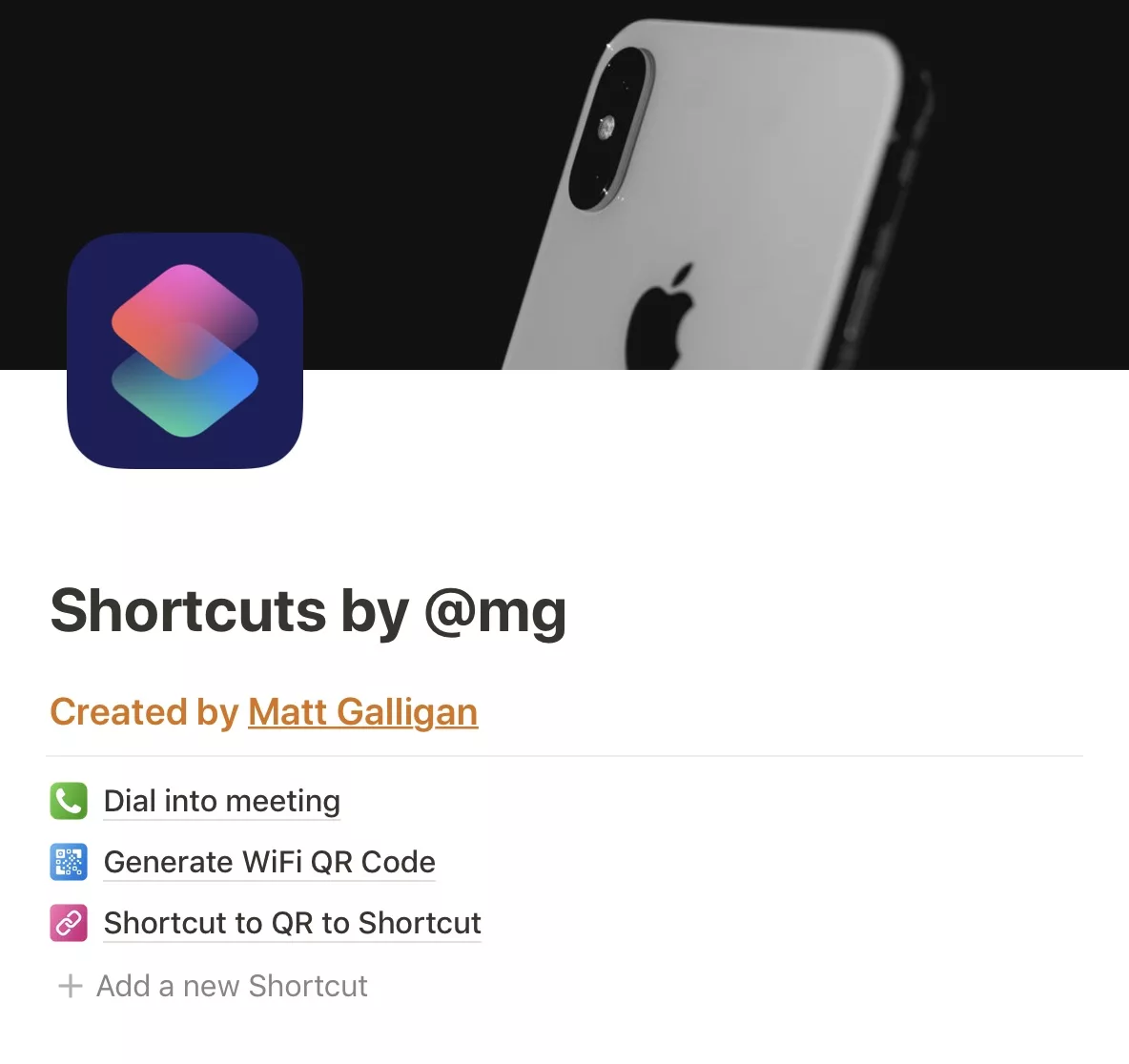
Last week, I came across a useful shortcut for calling into meetings, tweeted out by Matt Galligan, former founder of Circa and now CEO of Interchange1:
I hate always having to open my calendar app to find the phone number of the next meeting I need to call into. So a while back I built a shortcut to streamline the whole process, and it’s saved a bunch of time.
Here it is in case you find it useful too:https://t.co/SUjxFnEPs8
— Matt Galligan (@mg) April 12, 2019
The shortcut grabs your next calendar event, extracts the phone number, and dials it for you – with a trigger phrase set up, you can just say “Dial In” to Siri and it’ll just work.
Matt also has a neat way for sharing this and his other shortcuts: using Notion.
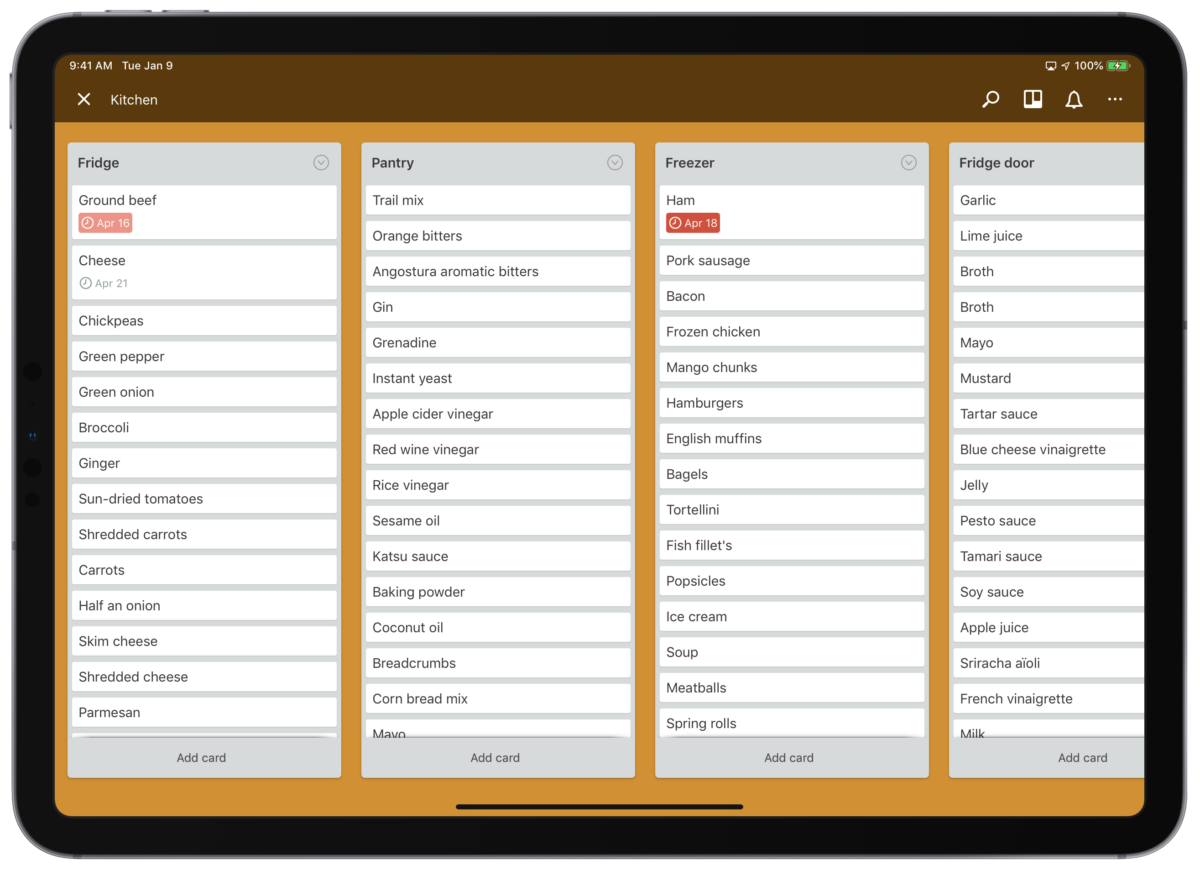
I have a bad habit of wasting food. I will buy groceries, eat most of it, but usually end up letting one or two things go bad just because I don’t think about it.
It’s probably because I don’t cook enough, but it’s still a problem I want to avoid with longer-term items who expiration dates I rarely think about when I buy them.
This is one of those things I genuinely try to work on, but every time I think about it I can’t remember when I bought or defrosted something.
So when earlier this week, the ground beef I had taken out of the freezer was no longer good, I got fed up with myself for doing it again and decided to change something.

So, I made two Siri Shortcuts for logging and checking expirations to make the process easier on myself, more reliable, and most of all: automated (because that part’s just fun for me too).
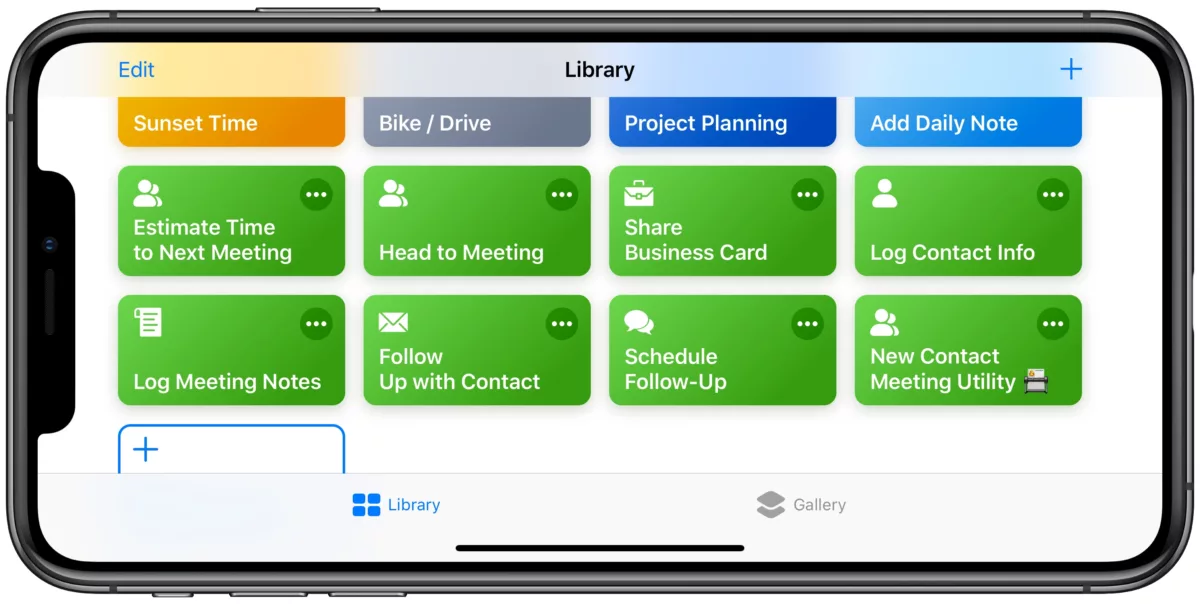
After a meeting with someone new yesterday, I realized there was a few places where I could have used the Shortcuts app to speed up the processes around our encounter.
Before the meeting, I was headed somewhere new and needed to figure out how to get there on time.
During the meeting, I was fumbling with my phone a bit, handing it to them to type in their contact information, and didn’t have an easy way to share mine either. Plus, I dealt with everything after the meeting too – writing down notes, sharing my info, and following up later.
From all this, I noticed a few repeating patterns, that could be automated using mostly default apps – the data I need already exists or can be entered on the fly.
So, I came up with a few jobs to be done:
Julia M. on her blog Rampant Procrastination:
1. Open the information tab in Overcast of a podcast you wish to log to Airtable.
2.Select the text of the information tab from the podcast title down, grabbing as much of the episode description as you would like to be included in the notes field in Airtable. Press copy to put this text on the clipboard.
3. This shortcut is used as a sharesheet extension, so press the share button and select Shortcuts, then run the shortcut to log the podcast.”
This post is a great write-up from Julia explaining a way she’s saving podcast episodes to Airtable, plus pulling from that database to play one again at random.
She has little technique for grabbing information from Overcast on the clipboard before sharing the episode, and wrote up how she’s extracting the information from once it’s in the shortcut before sending it through Airtable’s API.
Definitely subscribe to her new blog and give her a follow.
If you have a blog post about Shortcuts, always feel free to tweet me the link. I post some of them here and in my newsletter too.
Dan Moren, writing for Six Colors:
What I really wanted was for iOS to be a bit more intelligent. For example, it could realize that when I turn off my bedside light (which is a HomeKit-compatible Philips Hue bulb) I’m going to bed. And then, when I pick up my phone in the morning it could log that I’m awake, and store the resulting information in the Health app.
Alas, that functionality doesn’t exist. So I made it myself using a pair of Shortcuts.
While I was away at Disneyland, this great set of shortcuts snuck by me.
This is the exact approach I have so often – I think “why can’t my pocket computer do this?” and then Shortcuts lets me roll my own solution.
If you’re looking to access one of your files by clicking on a URL instead of navigating through your Files app, you can copy a link to that file using the Share sheet on iOS.